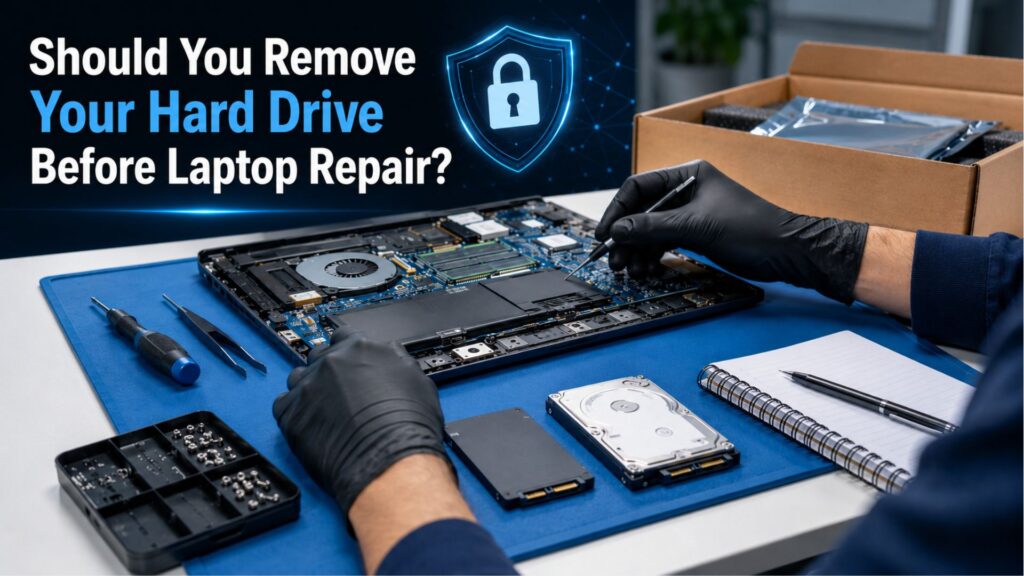
If your laptop needs repair, your first worry may not be the broken screen, weak battery, or charging issue. It may be your personal data.
Family photos, tax documents, saved passwords, work files, and private accounts often live on the same device you are about to send for repair. That makes data privacy during laptop repair a real concern.
So, should you remove your hard drive or SSD before laptop repair? In most cases, no. But the right answer depends on the type of repair. A cracked screen, swollen battery, and loose hinge are very different from a laptop that will not boot, crashes repeatedly, or needs software diagnostics.
This guide explains when removing your storage drive makes sense, when it can slow down the repair, and how to protect your data before mail-in laptop repair service.
Not sure whether your repair needs the drive installed?
Nationwide Laptop Repair can help you confirm before you ship your device. Start with a free diagnostic request and describe the issue so our technicians can guide you on the safest next step.
When You Should Not Remove It
This is where removing storage can actually backfire. Several repairs require your hard drive or SSD to be installed and functioning, because the technician needs to see how your system behaves:
- Operating system issues: diagnosing crashes or corrupted files
- Software diagnostics: confirming a problem is software, not hardware
- Boot failures: the drive has to be present to test whether it powers on and loads correctly; this can also point to a deeper motherboard repair issue rather than a drive problem
- Blue screen troubleshooting: often tied directly to drive health or drivers
- BIOS and firmware updates: some require a working OS environment
- Performance testing after repair: confirming your laptop runs normally once work is done
If your drive is missing during any of these repairs, a technician can’t accurately verify whether the issue has been resolved. Removing your storage before a diagnostic repair often delays the repair process.
Requires Storage Installed | Does Not Require Storage |
Boot failures / no-boot issues | Screen replacement |
Blue screen troubleshooting | Hinge repair |
OS or software diagnostics | Keyboard replacement |
BIOS/firmware updates | Battery replacement |
Post-repair performance testing | Charging port repair |
Data recovery | Cleaning/dust removal |
How to Protect Your Data Before Repair
Whether or not you remove your drive, there’s a lot you can do to protect your data before laptop repair, and most of it takes less than 20 minutes.
Backblaze’s 2024 Backup Awareness Survey found that 74% of American computer owners had accidentally deleted important data. Older Backblaze survey coverage has also warned that roughly one in five computer owners do not back up all their data. A repair is exactly the moment that risk becomes real, so backing up first, even just the essentials, is the single most protective step you can take.
Data Protection Checklist:
- Back up important files to an external drive or cloud storage
- Sign out of email, banking, and cloud accounts
- Remove or archive sensitive personal documents
- Encrypt any confidential files you’re leaving on the device
- Disable saved passwords and auto-login
- Create a temporary user account if a technician will need access
- Record any passwords you do share somewhere secure, not on a sticky note in the box
- Remove external storage devices (USB drives, SD cards)
Should You Wipe Your Laptop Before Repair?
Short answer: usually not, and here’s why. Wiping your drive erases the exact information a technician needs to diagnose software-related problems, so if your issue involves boot failures, crashes, or performance, a wipe can make the repair harder, not safer.
Wiping only makes sense in a few situations: if you’re only having a hardware part replaced (screen, battery, keyboard) and you’d rather your storage be empty during shipping, or if you’re retiring the laptop afterward anyway. For anything diagnostic, backing up and creating a temporary account gets you the same privacy protection without erasing the evidence a technician needs.
Wipe Before Repair | Backup + Temporary Account | |
Best for | Hardware-only repairs, device retirement | Diagnostic or software-related repairs |
Risk | Can erase clues needed for diagnosis | None, original data stays intact but hidden |
Data privacy | Maximum | High, with account-level protection |
Recommended for most repairs | No | Yes |
Do Technicians Need Your Password?
Sometimes, but only when the repair genuinely requires logging in, like confirming an OS issue is resolved or testing that software runs post-repair correctly. For purely physical repairs, a technician never needs your password.
If login access is required, the better move is to create a temporary Windows or macOS account rather than handing over your main credentials. This gives a technician enough access to test the repair without ever touching your personal files, saved passwords, or browser history. Reputable repair shops only access what’s necessary to complete and verify the approved repair, nothing more.
Data Safety During Mail-In Laptop Repair
Mail-in laptop repair data safety comes down to process as much as technical precautions. At Nationwide Laptop Repair, every device that arrives at our Henderson, Nevada facility is logged in on arrival, assessed by a technician, and never worked on beyond what you have approved. We diagnose within 24 hours, send you a clear quote, and do not move forward until you say go.
We also do not accept government-owned laptops. If you are shipping a company-issued device, we recommend confirming with your employer’s IT policy before sending it in. Some organizations require the drive to be removed regardless of the repair type.
Once repairs are complete, devices go through quality testing before being packed for secure return shipping with tracking. You can review the full mail-in laptop repair process anytime before you ship.
FAQs
- Is my data safe during laptop repair?
Yes, when handled by a reputable shop. Technicians only access what’s needed to complete your approved repair.
- Should I remove my SSD before repair?
Only for purely physical repairs like screens or batteries, most repairs don’t require it.
- Should I wipe my laptop before repair?
Usually not, since wiping can erase the information needed to diagnose software or boot issues.
- Does a technician need my password?
Only for diagnostic repairs requiring login, a temporary account is a safer alternative.
- Can a laptop be repaired without the hard drive?
Yes, for physical repairs like screens, hinges, keyboards, and batteries.
- Will technicians look at my personal files?
No, technicians access only what’s required to diagnose and verify the approved repair.
- Should I remove personal files before repair?
It’s optional, but backing up and signing out of accounts offers the same protection.
💡 Get Peace of Mind With Every Repair
If you’re still not sure what your specific repair needs are, that’s exactly what a free diagnostic is for. Our experienced technicians have serviced laptops from every major brand, and every job comes with a complete guarantee and warranty. Parts come with a one-year warranty, and you approve the quote before any work begins. Start a Repair Request or call us before shipping your device, and our team will guide you on the safest way to prepare your laptop.