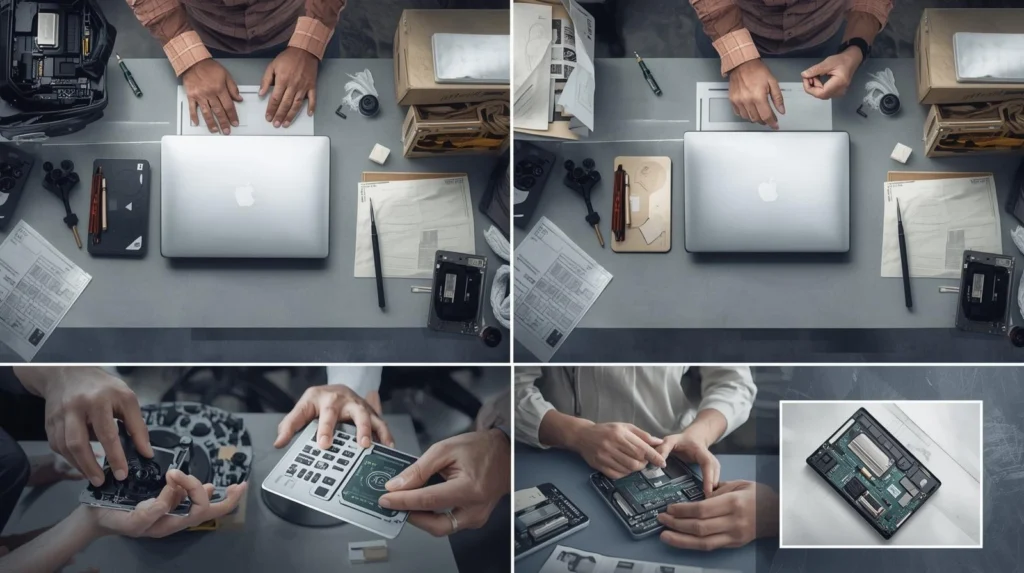

Pressing the power button and getting nothing no fan, no light, no chime is unsettling. Your mind jumps to worst-case scenarios: lost files, an expensive paperweight.
Take a breath. A laptop won’t turn on for many reasons, and most aren’t catastrophic. Common causes include a drained battery that may need a laptop battery replacement, a failing charger, a damaged charging port, or a loose RAM stick, all relatively affordable to diagnose and fix. Others, like serious liquid damage or a badly degraded motherboard, may point toward replacement.
This guide covers why laptops stop powering on, what’s safe to try at home, when a laptop battery replacement might solve the issue, typical repair costs, and how to decide between repair and replacement.
QUICK ANSWER: If your laptop won’t turn on, the cause is often a dead battery, faulty charger, damaged charging port, RAM issue, BIOS corruption, or motherboard fault. Many of these problems are repairable. If repair costs less than about half the price of a comparable replacement laptop, repairing is often the better value. |
Before you start: if your laptop still shows any signs of life (lights, sounds, fan spin), avoid opening it up unless you’re experienced with hardware; mishandling can turn a simple fault into an expensive one.
Based on thousands of mail-in laptop diagnostics, the most common causes are failed batteries, damaged charging ports requiring charging port repair, faulty chargers, and memory issues. Although motherboard failures do occur, they are less common than many people assume. In many cases, a professional charging port repair can restore power connectivity and resolve charging problems without the need for more extensive hardware replacements.
If your laptop still will not turn on after these basic checks, avoid repeated power-on attempts. Nationwide Laptop Repair can diagnose the issue and provide a clear quote before any repair begins, helping you decide whether repair or replacement makes more sense.
Common Reasons a Laptop Won’t Turn On
Common issues seen during diagnosis:
- Dead or failed battery: may show charging lights but never boot, or only start plugged in. One of the most routinely replaced components.
- Faulty AC adapter/charger: a failed cable or internal circuitry can cut power entirely, even with a solid connection. Easiest issue to rule out at home.
- Damaged charging port (DC jack): repeated plugging/unplugging or a knock can loosen the internal connection, even when the charger works fine.
- Failed or loose RAM: often produces a black screen with fan activity rather than complete silence.
- Motherboard issues: power delivery and boot circuitry run through the board; faults range from minor and repairable to extensive.
- SSD/HDD failure: usually won’t stop the laptop from powering on, but can block POST or OS loading, which looks like a “won’t turn on” problem.
- BIOS corruption: a failed firmware update or unexpected shutdown mid-write can prevent startup even with undamaged hardware.
- Liquid damage: can short components immediately or corrode them over weeks. Repairability depends on how fast the device was powered off and dried.
- Overheating/thermal shutdown: clogged fans can trigger a protective shutdown and, sometimes, prevent restart until it cools.
- Power button failure: uncommon, but a mechanical fault can stop the signal from ever reaching the motherboard.
Common Causes at a Glance
Problem | Symptoms | Repairable? | DIY Possible? |
Dead battery | No power without charger | Yes | Sometimes |
Faulty adapter | No lights; charger warm/frayed | Yes | Yes |
Damaged charging port | Charges only at angles | Yes | No |
Failed/loose RAM | Fans spin, no display | Often | Sometimes |
Motherboard fault | No power; burning smell | Depends | No |
SSD/HDD failure | Powers on, no boot | Often | No (data risk) |
BIOS corruption | Blank screen, beep codes | Often | Rarely |
Liquid damage | Erratic behavior, corrosion smell | Depends | No |
Overheating shutdown | Shuts down under load | Yes | Partially |
Power button failure | No response, power confirmed OK | Yes | No |
What You Can Safely Try First
- Hard reset: unplug the charger, remove a removable battery, hold power for 30 seconds, then reconnect and try again.
- Verify the charger: test a different compatible charger and outlet; check for fraying.
- Try an external monitor: if fans/lights are on but the screen is black, this checks whether it’s a display or system issue.
- Remove peripherals: disconnect USB drives, monitors, and docks, then try powering on with only the charger connected.
- Check indicator lights: note any LED activity; it helps a technician narrow down the cause.
- Charge before testing: if fully drained, give it 30–60 minutes on the charger first.
WARNING: Stop troubleshooting if you notice a burning smell, excessive heat, smoke, or signs of liquid damage. Continued power-on attempts can worsen the damage and reduce the chances of successful repair or data recovery. |
Repair or Replace? How to Decide
Before replacing your laptop, ask a few practical questions:
- Is the battery actually the problem?
- Have you tested the charger and outlet?
- Is the charging port loose or damaged?
- Is your data recovery important?
- Are replacement parts still available?
- Is the laptop still under warranty?
- Would the repair cost less than half the price of a comparable replacement?
These questions help you avoid replacing a laptop that may only need a targeted repair.
No single rule fits every laptop; weigh these factors together:
- Age: under 3 years is usually worth repairing; beyond 5–6 years, parts get harder to source and costs approach replacement price.
- Performance needs: if it already struggled with your workload, repair may only be a short-term fix.
- Repair vs. replacement cost: a repair above roughly 50% of a comparable new laptop’s price is worth reconsidering.
- Overall condition: a healthy screen, keyboard, and chassis make a stronger repair case.
- Business use: some businesses repair to preserve configured environments; others replace to standardize hardware. Both are valid.
- Student use: a targeted repair (battery, port, RAM) often beats a full replacement on a budget.
- Gaming/premium laptops: usually worth repairing even at higher cost, since matching replacements are expensive.
- Budget laptops: repair cost can approach the device’s remaining value, making replacement more practical.
Decision Framework
Situation | Repair | Replace |
Under 3 years old | Usually better | Rarely necessary |
Battery/charger/port/RAM fault | Strongly recommended | Not usually needed |
5+ years, motherboard fault | Depends on cost vs. value | Often more practical |
Already struggled with current software | Consider carefully | Often makes sense |
Premium/gaming/business, single fault | Usually cost-effective | Only if damage is extensive |
Multiple pre-existing issues | Costs stack quickly | Compare to a new device |
Data recovery is the priority | Repair/recover first | Replace after recovery |
A professional diagnosis is often the only way to know for certain, since cost estimates without inspection are little more than guesses.
Average Laptop Repair Costs (2026)
U.S. market ranges; premium and business-class laptops (Apple especially) sit toward the higher end due to proprietary parts.
Repair Type | Typical Cost Range |
Battery replacement | $80–$180 |
Charger / AC adapter replacement | $30–$100 |
Charging port repair | $100–$250 |
RAM replacement or reseating | $60–$180 |
SSD / hard drive replacement | $100–$300 |
BIOS / firmware recovery | $100–$250 |
Cooling system repair | $90–$220 |
Motherboard repair | $200–$600+ |
Liquid damage repair | $150–$700+ |
These ranges are general U.S. repair estimates and can vary by brand, model, parts availability, and the severity of the issue. A professional diagnostic is the only way to confirm the exact cause and repair cost.
When Replacement Makes More Sense
- The laptop is already near the end of its typical lifespan for your use case.
- It has failed repeatedly for unrelated reasons, suggesting broad component fatigue.
- Its OS is no longer supported, creating a security risk independent of the hardware.
- Motherboard damage is extensive rather than isolated.
- Total repair cost approaches or exceeds a comparable replacement.
- Replacement parts are discontinued or unavailable.
A professional diagnosis can determine which of these applies before you commit to either path.
Manufacturer examples:
- Dell
- HP
- Lenovo
- ASUS
- Acer
- MacBook
Can Your Data Still Be Recovered?
Often, yes:
- SSD failures: frequently recoverable, though controller-level failures are harder than logical corruption.
- HDD failures: often recoverable even after physical failure; clicking noises typically mean a mechanical issue needing specialized recovery.
- Motherboard failures: if the drive itself is undamaged, it can usually be removed and accessed separately.
- No-boot situations: the storage drive is often intact even when the system won’t start.
- Liquid damage: odds depend on how fast the device was powered off and dried; earlier action helps.
No provider can guarantee recovery in every case. Back up data whenever the laptop is operational, and avoid repeated power-on attempts once a fault appears.
Nationwide Laptop Repair’s mail-in service evaluates both the hardware fault and data recovery options in the same diagnostic, with a warranty-backed repair and written quote before any work begins.
Example:
A customer mailed in a Dell laptop that appeared completely dead after a power surge. Testing found a damaged charging circuit rather than a failed motherboard. Replacing the damaged components restored the laptop and preserved the customer’s files.
The Bottom Line
A laptop that won’t turn on can feel like a major problem, but the cause is often specific and repairable. Common issues include a failed battery, a damaged charging port, a faulty power adapter, loose RAM, or even a need for a motherboard repair. Professional diagnostics can quickly identify the fault and determine the most cost-effective solution. In many cases, repairing the affected component is far more affordable than replacing the entire laptop, saving both money and valuable data.
Frequently Asked Questions
- Why won’t my laptop turn on but the charging light is on?
This usually points to a display, RAM, or motherboard issue, since the light confirms power delivery is working.
- Can a dead motherboard be repaired?
Often, many repairs address a specific failed component rather than requiring full replacement, depending on the extent and location of the damage.
- Can I recover my files if the laptop won’t turn on?
Often yes; in many no-boot cases the drive is undamaged, and data can be recovered once it’s removed or the fault is fixed.
- Should I repair a 5-year-old laptop?
A simple, inexpensive fix (like a battery) is usually worth it; a costly motherboard repair on an older, lower-spec device may be better spent toward replacement.
- How long does diagnosis take?
Varies by provider. Nationwide Laptop Repair typically diagnoses mail-in devices within 24 hours of arrival at its Henderson, Nevada facility.
- Is mail-in laptop repair safe?
Reputable services use tracked shipping, document device condition on intake, and only request account access when needed for diagnosis or testing. Backing up beforehand is still recommended.
- Can power surges damage laptops?
Yes, surges can damage charging circuitry and the motherboard, particularly for devices plugged in without surge protection during storms or grid fluctuations.