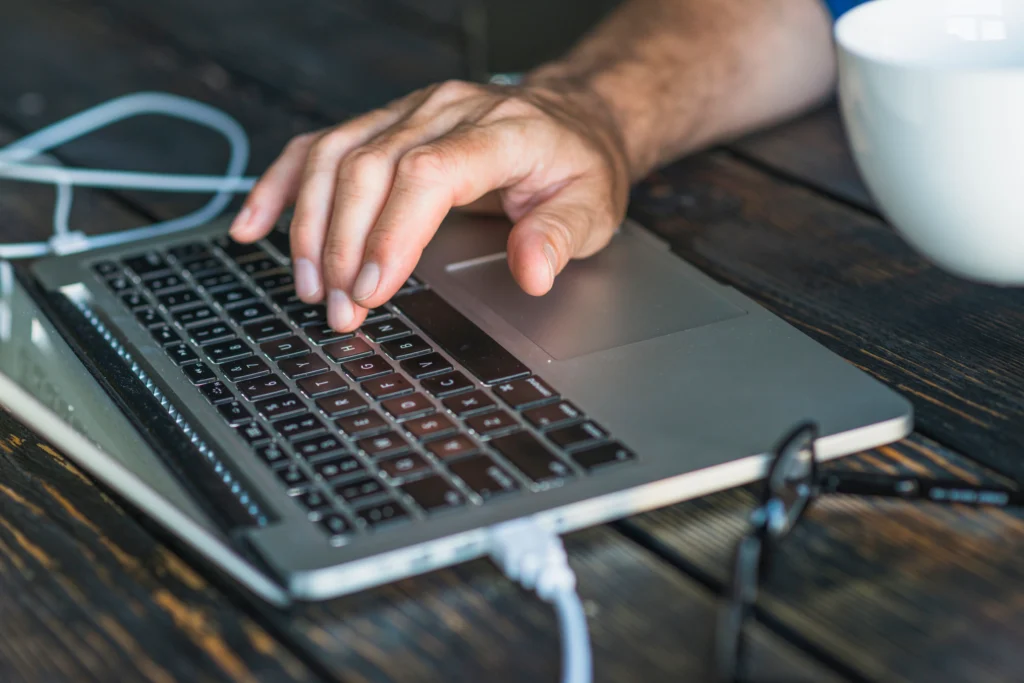
Have you ever been in the middle of an important task when suddenly your laptop trackpad stops responding? It’s one of the most frustrating issues for laptop users, leaving you scrambling for a mouse or trying to figure out what went wrong. According to a survey by TechCrunch, over 23% of laptop users report experiencing trackpad issues at some point. Whether you’re working from home or in the office, a malfunctioning trackpad can slow down productivity and cause unnecessary stress.
But don’t panic — there are several effective ways to troubleshoot and fix your laptop’s trackpad. In this guide, we’ll walk you through everything you need to know about diagnosing and solving trackpad problems, from software glitches to hardware failures. By the end, you’ll know how to get your touchpad back in working order.
What Causes a Laptop Trackpad to Stop Responding?
Is it a Software Problem?
One of the most common reasons why a trackpad may stop responding is software-related. This could be caused by driver issues, software bugs, or a misconfigured setting.
Trackpad Driver Issues
Trackpad drivers are essential for the proper functioning of your touchpad. If your laptop’s operating system cannot communicate properly with the trackpad, it can result in the trackpad failing to work. If the drivers are outdated or corrupted, you might experience issues with functionality or responsiveness.
System Updates or Software Bugs
A recent system update or software bug could have disrupted the communication between your laptop and the trackpad. Some software updates can inadvertently disable touchpad functionality, requiring a simple reset or reinstallation of drivers.
Pro Tip: Always keep your laptop’s software and drivers up to date to avoid compatibility issues.
Is it a Hardware Problem?
If the issue persists despite updating your drivers and troubleshooting software, it may be time to investigate the hardware side of things.
Physical Damage or Loose Connections
In some cases, physical damage or loose connections can cause the trackpad to stop working. For example, if your laptop has been dropped, the trackpad or its connections may have been dislodged.
Defective Trackpad Sensor
A malfunctioning trackpad sensor can also be the culprit. The sensor is responsible for detecting your finger movements, and if it’s damaged, the trackpad won’t register your touch.
How to Fix a Laptop Trackpad Not Responding
1. Check if the Trackpad is Disabled
Before diving into complex fixes, ensure that the trackpad hasn’t been accidentally disabled in the settings. Some laptops have a function key (often marked with a trackpad symbol) that toggles the trackpad on and off.
- For Windows users: Go to Control Panel > Mouse > Device Settings, and check if the trackpad is enabled.
- For Mac users: Open System Preferences > Trackpad, and make sure the trackpad is turned on.
2. Update or Reinstall Trackpad Drivers
If the trackpad is still unresponsive, updating or reinstalling the drivers might solve the problem. Here’s how:
For Windows:
- Open Device Manager.
- Find Mice and other pointing devices, then right-click on your trackpad driver.
- Select Update driver, and choose Search automatically for updated driver software.
- If the driver is already up to date, try uninstalling it and then restarting your laptop. Windows will automatically reinstall the driver on restart.
For Mac:
- Go to System Preferences > Software Update.
- If updates are available, install them to ensure your system has the latest drivers for the trackpad.
3. Check Trackpad Settings and Adjust Sensitivity
Sometimes, a trackpad may appear unresponsive due to improper sensitivity or other settings. Adjusting the settings can help resolve this:
For Windows:
- Navigate to Control Panel > Mouse > Pointer Options.
- Adjust the pointer speed and enhance pointer precision settings.
For Mac:
- Go to System Preferences > Trackpad.
- Make sure the settings for tap-to-click, dragging, and sensitivity are configured correctly.
4. Perform a System Reset
If the issue persists, performing a reset can help clear any system bugs that might be affecting the trackpad.
- For Windows: Go to Settings > Update & Security > Recovery, then choose Reset this PC.
- For Mac: Restart your Mac and hold Command + Option + P + R to reset the PRAM (Parameter Random Access Memory).
5. Inspect for Physical Damage
If you suspect that physical damage is causing the trackpad to malfunction, check for any visible signs of damage. A cracked screen or a loose connection could affect trackpad functionality. If your laptop is under warranty, it’s best to contact the manufacturer for a repair.
Pro Tip: If you’re comfortable with DIY repairs, consult a detailed guide or video to disassemble your laptop safely and inspect the trackpad connections.
6. Replace the Trackpad
In some cases, a defective or worn-out trackpad may require replacement. This is a more advanced solution that typically requires professional repair. If your laptop is still under warranty, contact the manufacturer for assistance. Otherwise, you can take your laptop to a repair center for trackpad replacement.
7. Use an External Mouse
While not a permanent solution, using an external mouse can help you continue working while waiting for a repair or finding a more permanent fix for your trackpad issues.
Conclusion
A non-responsive laptop trackpad doesn’t have to be a disaster. In many cases, a simple software fix or driver update can get things back on track. If the problem is hardware-related, you may need to replace the trackpad or seek professional help. By following the troubleshooting steps outlined in this guide, you’ll be equipped to diagnose and resolve trackpad issues on your own.
If the problem persists, don’t hesitate to reach out to a professional technician for a more in-depth inspection. Keeping your laptop’s drivers up-to-date and handling potential hardware issues early can save you from more serious disruptions down the line.
Frequently Asked Questions (FAQ)
1. Why is my laptop trackpad not responding?
There can be several reasons, including outdated drivers, misconfigured settings, or physical damage to the trackpad or its connections.
2. How do I enable my trackpad again?
Check if the trackpad has been disabled through the settings or using the function key. If it’s disabled, simply re-enable it in your laptop’s device settings.
3. Can I fix a damaged trackpad myself?
If the issue is related to software or settings, you can fix it yourself. However, if the trackpad is physically damaged, professional repair or replacement may be required.
4. How do I update trackpad drivers?
For Windows, go to Device Manager > Mice and other pointing devices, right-click your trackpad driver, and select Update driver. On a Mac, use Software Update in System Preferences.
5. Can a trackpad be replaced?
Yes, if it is physically damaged or malfunctioning, it may need to be replaced. If you’re unsure how to do this, seek professional help.
6. Is using an external mouse a good workaround?
Yes, using an external mouse is a temporary workaround that allows you to continue working while troubleshooting or awaiting repairs.
7. Why does my trackpad keep stopping working randomly?
Random trackpad failures could be caused by software glitches, driver conflicts, or even overheating. Try updating drivers or adjusting the settings to fix the issue.