
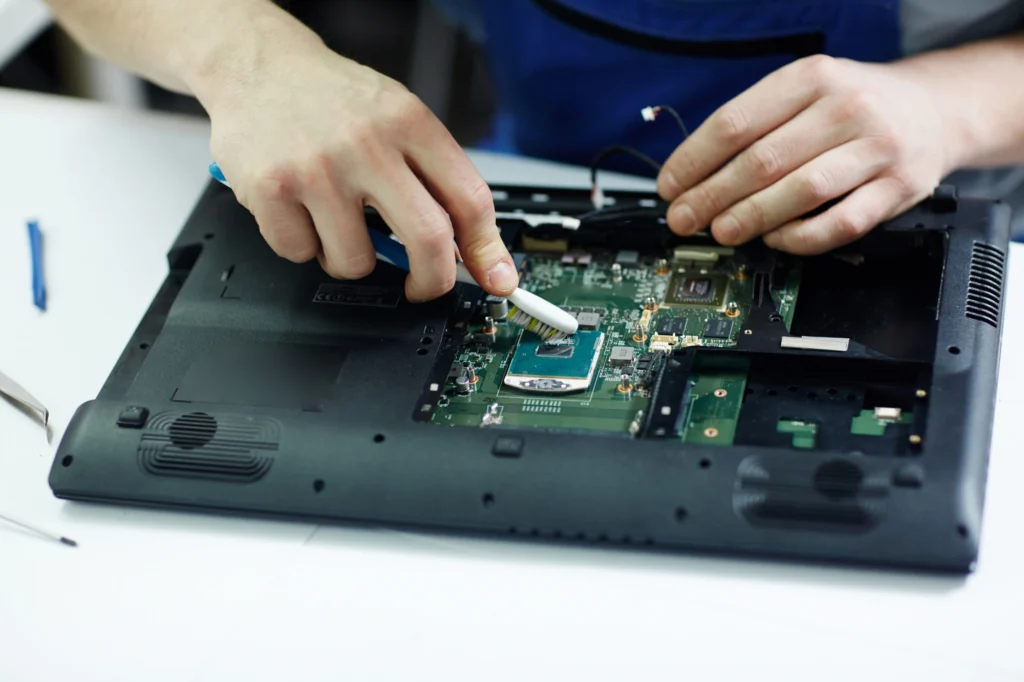
Are you struggling with an unresponsive laptop touchscreen? If you’ve recently noticed that your touchscreen is not working as it should—whether it’s not registering your taps, is too slow, or simply stops responding altogether—you’re not alone. Millions of laptop owners face similar issues, and while it can feel like a major setback, fixing it is often simpler than it seems.
In this guide, we’ll walk you through the key steps of diagnosing and repairing laptop touchscreen problems. Whether it’s a software glitch, hardware issue, or a misconfigured driver, we’ve got you covered. By the end of this post, you’ll have the tools to tackle these problems head-on and restore your laptop to its full functionality.
What Are the Common Causes of Laptop Touchscreen Issues?
1. Screen Responsiveness Issues
A laptop touchscreen can become unresponsive due to several reasons, including calibration errors, driver issues, or physical damage to the digitizer. It’s essential to identify whether the issue is software-related or if there’s physical damage to the screen or digitizer.
What to Check:
- Touchscreen Drivers: Outdated or corrupt drivers can cause lag or non-responsiveness.
- Digitizer Malfunction: The digitizer, which registers touch signals, may be malfunctioning if there’s physical damage to the screen.
2. Software Conflicts
Certain software can cause your touchscreen to behave erratically. For example, if you’ve recently installed a new program or update, it might have caused a conflict with the touchscreen’s drivers.
What to Check:
- Operating System Updates: Sometimes, OS updates can affect touchscreen functionality. Reverting to a previous restore point or reinstalling the update might help.
- Installed Software: Uninstall any recently added software to determine if it’s causing the issue.
How to Diagnose and Fix a Non-Responsive Laptop Touchscreen
1. Check for External Damage
The first step is to examine the physical condition of your touchscreen. Look for cracks, visible scratches, or dents. While small cosmetic damage may not affect the touchscreen’s performance, significant cracks can render the screen unusable.
Pro Tip:
If you suspect the touchscreen has been damaged, it’s important to get a professional repair. While some minor issues may be fixable at home, major cracks typically require part replacement.
2. Restart Your Laptop
It may sound simple, but sometimes, a restart can resolve touchscreen issues by reloading the drivers and resetting hardware components. This step helps to rule out temporary software glitches.
3. Calibrate the Touchscreen
Windows 10 and 11 include a built-in tool to calibrate the touchscreen. Calibration can help address issues like inaccurate touch registration or sluggish performance.
To Calibrate the Touchscreen in Windows:
- Go to Control Panel > Hardware and Sound > Tablet PC Settings.
- Select Calibrate under the Display tab.
- Follow the on-screen instructions to calibrate the screen.
4. Update or Reinstall Touchscreen Drivers
Outdated or faulty drivers are one of the most common causes of touchscreen issues. Here’s how you can fix it:
Steps to Update Drivers:
- Right-click on the Start Menu and select Device Manager.
- Expand Human Interface Devices and locate your touchscreen driver (usually listed as HID-compliant touch screen).
- Right-click on the driver and select Update Driver.
- Choose Search automatically for updated driver software.
If updating doesn’t work, you can try uninstalling the driver and restarting your laptop. Windows will automatically reinstall the driver after a reboot.
How to Fix Hardware Issues: Digitizer and Screen Damage
1. Digitizer Troubleshooting
If your touchscreen isn’t responding to touch at all, the issue might be with the digitizer. The digitizer is the layer of the screen responsible for registering your touch. If it’s damaged, you’ll need to replace it.
How to Diagnose Digitizer Failure:
- Test with a Stylus: Sometimes, the touchscreen may only be partially malfunctioning. Try using a stylus to see if it works better than your fingers. If it does, the issue may lie with the touch sensitivity, which could be tied to the digitizer.
- Check the Calibration: In some cases, the touchscreen might respond to specific areas but not others. This can indicate a faulty digitizer or a calibration issue.
Pro Tip:
If your laptop has suffered a drop or impact, it’s likely the digitizer is damaged. You can check the manufacturer’s warranty to see if a replacement is covered.
2. Replace the Touchscreen or Digitizer
If the screen or digitizer is beyond repair, you may need to replace the entire display. Most laptop models allow for the replacement of the screen and digitizer, but this requires some technical expertise.
When to Seek Professional Help:
If you’re not comfortable opening your laptop or handling delicate components, it’s best to take your laptop to an authorized service center. A technician can replace the damaged parts and ensure your touchscreen works as expected.
How to Prevent Future Laptop Touchscreen Issues
1. Use a Screen Protector
A screen protector can prevent scratches and minor impacts from damaging your touchscreen. It’s a simple, cost-effective way to keep your screen in good condition and reduce the risk of digitizer failure.
2. Keep Your Laptop Clean
Dirt, dust, and fingerprints can accumulate on your touchscreen, affecting its responsiveness. Regularly clean your screen with a soft microfiber cloth to maintain performance.
3. Avoid Extreme Temperatures
Avoid exposing your laptop to extreme heat or cold. Temperature extremes can cause expansion or contraction of the touchscreen layers, which may affect performance. Always use your laptop in environments within the manufacturer’s recommended temperature range.
Conclusion
Laptop touchscreen problems can be frustrating, but many of them are fixable with a bit of troubleshooting. Whether it’s a software issue, a calibration problem, or a hardware failure, following the steps in this guide can help you diagnose and repair your touchscreen effectively. Always remember to back up your data before performing repairs, and don’t hesitate to seek professional help if you’re unsure about opening your device.
If you’re still facing issues, consider contacting a local repair shop in Las Vegas, USA, where experts can offer hands-on assistance tailored to your specific laptop model.
FAQ Section
1. How do I fix a laptop touchscreen that’s not responding?
If your laptop touchscreen is unresponsive, first try restarting the device. If that doesn’t work, check if the touchscreen drivers are up-to-date. You can also recalibrate the touchscreen through the Tablet PC Settings.
2. What should I do if my laptop touchscreen is cracked?
If the touchscreen is cracked, the digitizer or screen may need to be replaced. For minor cracks, professional repair might be enough, but significant cracks require full replacement.
3. How do I know if my digitizer is damaged?
If parts of your touchscreen are not responding to touch, or the screen registers incorrect touch locations, it could be a sign of a damaged digitizer. Testing with a stylus may help confirm the issue.
4. Can software updates cause touchscreen issues?
Yes, sometimes software or operating system updates can interfere with touchscreen functionality. If this happens, you might need to roll back the update or reinstall the drivers.
5. How often should I calibrate my laptop touchscreen?
You should calibrate your laptop touchscreen whenever you notice issues like inaccurate touch registration or lag. Regular calibration can improve touchscreen performance and accuracy.

