
Have you ever wondered why your once lightning-fast laptop feels sluggish and unresponsive? Maybe you’ve noticed the dreaded “spinning wheel of death” or experience frustrating delays while running even the simplest programs. For many people, these problems lead to a common solution: buying a new laptop. But what if you didn’t have to?
According to a study, over 50% of laptop users in the U.S. report experiencing slow performance within just two years of use. The good news is that there are practical, cost-effective hardware fixes you can implement to breathe new life into your old laptop and improve its speed. In this guide, we’ll walk you through various hardware upgrades that work, offering real-world examples and actionable tips you can use immediately.
What Are the Most Common Causes of Slow Laptop Performance?
Before jumping into hardware fixes, it’s essential to understand the root causes of laptop sluggishness. Often, the performance drop isn’t due to age alone. Several factors can affect your laptop’s speed, including:
- Outdated hardware components like RAM and storage drives.
- Excessive heat buildup, causing thermal throttling.
- A cluttered hard drive filled with junk files or unnecessary programs.
- Old or incompatible drivers that slow down your system.
By pinpointing the causes, you can better focus your upgrade efforts on the most effective solutions.
How Can Upgrading Your Laptop’s RAM Improve Performance?
RAM Upgrade: One of the Fastest Ways to Boost Speed
One of the easiest and most impactful hardware upgrades you can make is increasing your laptop’s RAM. Random Access Memory (RAM) is crucial for multitasking, and as programs become more resource-intensive, more RAM can help speed up your system.
- Pro Tip: Aim for 8GB of RAM as a minimum for general use. For gaming or heavy applications, go for 16GB or more.
Real-World Example: Take Mark, a Las Vegas-based graphic designer. He upgraded his laptop from 4GB to 8GB of RAM, and immediately noticed faster processing speeds in Photoshop, with less lag while running multiple design files simultaneously.
How Does Upgrading to an SSD Improve Laptop Speed?
SSD vs HDD: Why SSD Is the Superior Choice
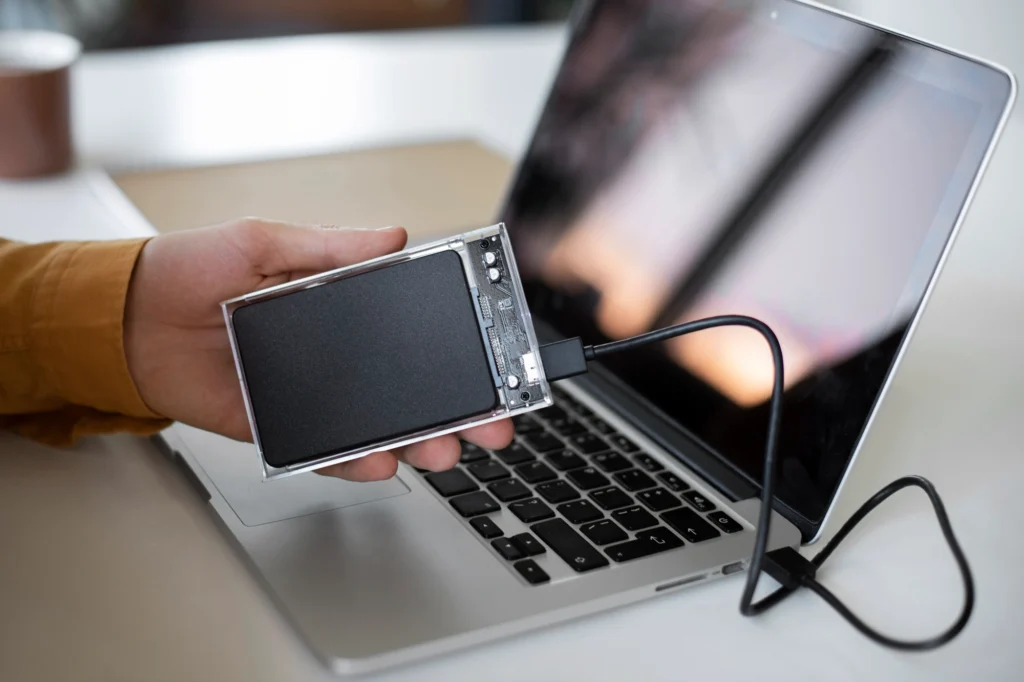
For older laptops still running on a traditional Hard Disk Drive (HDD), upgrading to a Solid State Drive (SSD) can result in a massive performance boost. SSDs are significantly faster than HDDs because they use flash memory, which offers quicker read and write speeds.
- Pro Tip: If your laptop supports it, opt for an NVMe SSD for even faster data transfer speeds.
Expert Insight: According to a 2025 report from TechRadar, switching from an HDD to an SSD can reduce boot times by up to 50-70% and improve application load times dramatically.
Real-World Example: Jessica, a student in Las Vegas, swapped her old HDD for a 500GB SSD, and her laptop went from taking over a minute to boot up to just 20 seconds.
How Can Reapplying Thermal Paste Help with Overheating?
Thermal Paste Reapplication: A Simple Fix for Overheating Issues
One often overlooked cause of slow laptop performance is overheating. Laptops generate a lot of heat, especially when performing demanding tasks, and over time, the thermal paste that helps transfer heat away from the CPU can degrade. This leads to inefficient cooling, causing the laptop to throttle its performance to avoid damage.
Reapplying high-quality thermal paste can drastically improve heat dissipation and prevent your laptop from overheating.
- Pro Tip: Choose a high-performance thermal paste like Arctic MX-4 for the best results.
Real-World Example: A tech enthusiast in Las Vegas, dealing with constant system slowdowns due to overheating, reapplied thermal paste and noticed a 20% improvement in CPU performance after cooling was optimized.
How Does Cleaning Your Laptop Internally Improve Speed?
Dusting and Cleaning: A Simple Yet Effective Maintenance Task
As your laptop ages, dust and debris can accumulate inside, clogging the fans and vents, which leads to poor cooling and higher internal temperatures. Cleaning your laptop’s internal components—especially the cooling fan—can help prevent this.
- Pro Tip: Use a compressed air canister to carefully clean the fans and vents without causing damage to internal components.
Real-World Example: Tom, a remote worker from Las Vegas, cleaned his laptop’s fan and vents for the first time in years. As a result, his laptop ran cooler and faster, especially when multitasking on Zoom meetings and spreadsheets.
Should You Replace Your Laptop Battery?
Battery Upgrade: Improve Efficiency and Speed
A failing laptop battery not only limits your mobility but can also contribute to performance issues. Modern laptops often slow down when running on a failing battery to conserve energy, or they may experience power surges when the battery isn’t functioning correctly. Replacing an old battery can ensure your system runs smoothly and efficiently.
- Pro Tip: Always buy an OEM (Original Equipment Manufacturer) battery to ensure compatibility and longevity.
Real-World Example: A Las Vegas entrepreneur, using her laptop for business management, swapped out a degraded battery for a new one. She reported a 10% increase in overall system performance as the laptop no longer throttled its power usage.
Can Adding an External Cooling Pad Help Speed Up Your Laptop?
External Cooling Pads: Low-Cost, Effective Solution for Heat Management
If you’re not ready to open up your laptop and apply thermal paste, or you simply want extra cooling support, an external cooling pad is an affordable option. Cooling pads use fans to provide additional airflow to your laptop, preventing it from overheating during intensive tasks.
- Pro Tip: Look for cooling pads with adjustable fan speeds to optimize airflow based on your needs.
Real-World Example: Alex, a Las Vegas-based video editor, uses a cooling pad during long editing sessions. This simple upgrade keeps his laptop cool and running efficiently, even during heavy rendering tasks.
Conclusion
Revitalizing your old laptop doesn’t always require a hefty investment in a brand-new device. By implementing these simple hardware fixes—upgrading your RAM, switching to an SSD, reapplying thermal paste, cleaning out dust, replacing your battery, and using an external cooling pad—you can significantly improve your laptop’s speed and overall performance.
Next time you feel like your laptop is too slow, don’t rush to replace it—try these practical upgrades instead. If you’re in Las Vegas or elsewhere in the U.S., these solutions can give your device a second life without breaking the bank.
FAQ
- How much can I improve my laptop’s speed by upgrading RAM?
Upgrading RAM can improve your laptop’s speed, especially when multitasking or running memory-intensive programs. For most users, upgrading from 4GB to 8GB or 16GB can reduce lag and improve responsiveness. - Is switching to an SSD worth it?
Yes, upgrading to an SSD from an HDD can reduce boot times by 50-70% and increase the speed of data access. It’s one of the most effective upgrades for improving laptop performance. - Can overheating cause my laptop to slow down?
Yes, excessive heat can cause your laptop to throttle performance to prevent damage. Reapplying thermal paste or cleaning out dust can help reduce overheating and improve performance. - Should I clean my laptop’s cooling fan?
Absolutely! Dust buildup in the cooling fan can cause your laptop to overheat and slow down. Cleaning it regularly can prevent performance throttling and extend the lifespan of your laptop. - How do I know if my laptop’s battery is affecting performance?
If your laptop slows down when unplugged or behaves erratically when using the battery, it could be a sign that the battery is failing and affecting performance. Replacing it with a new battery can help restore efficiency. - What’s the best way to prevent overheating in a laptop?
Besides upgrading thermal paste, you can use external cooling pads to provide additional airflow and prevent overheating. Keep the laptop in a cool environment and ensure vents aren’t blocked.

