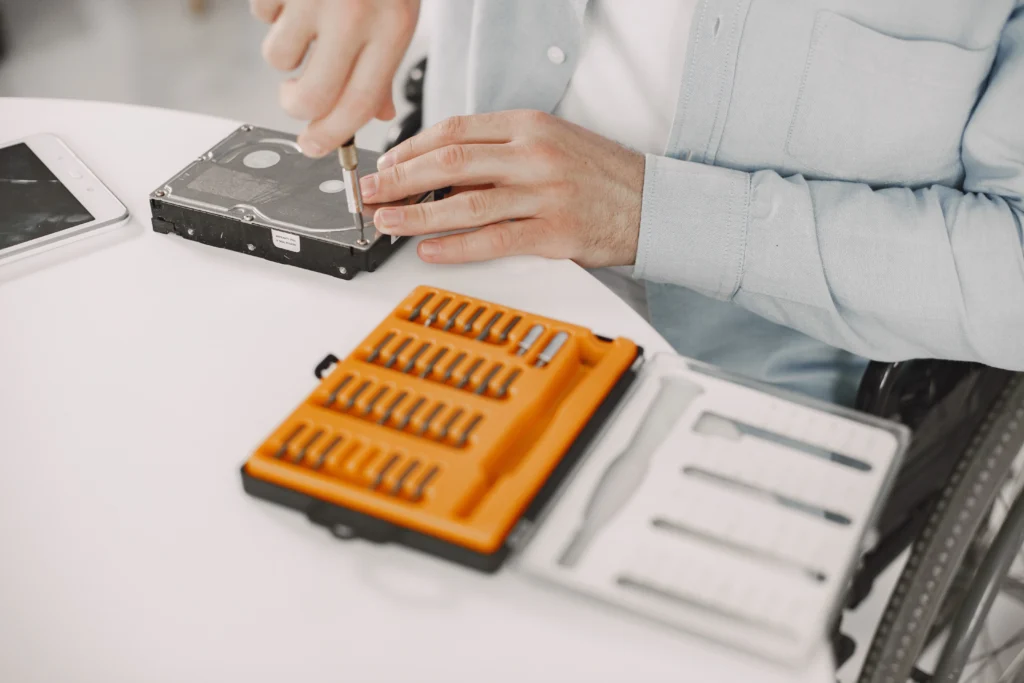
Have you ever encountered a dead laptop hard drive, one that’s no longer accessible, leaving you desperate to recover important files? It’s a nightmare many of us face, whether it’s due to a system crash, physical damage, or a malfunctioning hard drive. But don’t panic just yet! With the right approach and tools, recovering your precious data is often possible.
In this guide, we’ll walk you through the steps to recover data from a dead laptop hard drive, share pro tips, and highlight some common pitfalls to avoid. Whether you’re trying to salvage personal photos, work documents, or critical business files, this post will give you the knowledge you need to handle the situation like a pro.
1. Why Does a Laptop Hard Drive Fail?
Before diving into recovery steps, it’s important to understand the reasons why a laptop hard drive might fail. Laptop hard drives can fail due to various reasons, such as:
- Mechanical failure: Physical damage to the disk components (e.g., read/write head or motor) often results in the hard drive becoming unresponsive.
- Logical failure: Corruption of the file system or accidental formatting can make the data inaccessible without causing any physical damage.
- Power failure: A sudden power surge or failure can disrupt the drive’s functionality.
- Overheating: Excessive heat can cause hardware failure or damage the internal components.
Understanding the type of failure can help you choose the right recovery method. Keep reading to discover how to deal with both mechanical and logical failures.
2. How Do You Know If Your Laptop Hard Drive Is Dead?
Before you attempt data recovery, you need to confirm whether your laptop hard drive is actually dead or if it’s a different issue. Here are some signs to look out for:
2.1 Physical Symptoms:
- Loud noises: If you hear clicking, grinding, or beeping noises, your hard drive may have suffered physical damage.
- Failure to boot: If your laptop fails to start or presents a “No Bootable Device” error, the hard drive could be the culprit.
- Overheating: If the laptop gets excessively hot, the hard drive may have failed due to overheating.
2.2 Logical Symptoms:
- File system errors: If you receive error messages related to file system corruption or disk integrity, the drive could be failing logically.
- Disappearing files: Files becoming inaccessible or disappearing without explanation is often a sign of logical failure.
Identifying whether your hard drive has experienced a mechanical or logical failure is the first step in selecting the appropriate recovery technique.
3. How to Recover Data from a Dead Laptop Hard Drive
3.1 Step 1: Check for Physical Damage
Before assuming your data is lost, start by inspecting your laptop for any signs of physical damage. If the laptop is severely damaged, or if you hear strange noises coming from the drive, it could be a hardware issue. In such cases, here’s what you can do:
- External Enclosure: Try removing the hard drive from the laptop and connecting it to another working laptop or desktop using a USB-to-SATA adapter or external hard drive enclosure.
- Professional Help: If the hard drive makes clicking sounds or shows signs of severe mechanical damage, it’s best to consult a professional data recovery service.
3.2 Step 2: Perform Logical Repair with Software
If the hard drive shows no signs of physical damage, but you’re unable to access the data, a logical failure is the likely cause. In this case, using data recovery software could be the solution. Here are some reliable programs you can try:
- Recuva: Great for recovering deleted files from a dead hard drive, provided the drive itself is still detected by the system.
- EaseUS Data Recovery Wizard: Known for its user-friendly interface and deep scan capabilities, it can recover data from a failed laptop hard drive if the drive is still accessible.
- Disk Drill: Offers a robust suite of data recovery tools, including options for recovering data from failing or corrupted drives.
Make sure you install the recovery software on a different drive to avoid overwriting any recoverable data on the dead hard drive.
3.3 Step 3: Use Command Line Tools
For advanced users, command-line tools like chkdsk (Check Disk) on Windows can help repair file system corruption and potentially allow access to data. To run chkdsk:
- Open Command Prompt as Administrator.
- Type chkdsk X: /f (replace “X” with the drive letter of the dead laptop hard drive).
- Press Enter and let the process run. It will attempt to fix file system errors and might allow access to files on the drive.
3.4 Step 4: Recover Data from a Failed Laptop Hard Drive Using Linux
If you are comfortable with Linux, you can try connecting the drive to a Linux machine. Linux has built-in tools that can sometimes detect and mount drives that Windows cannot.
- Boot into a live Linux environment (via a USB drive or CD).
- Connect the dead hard drive to the system.
- Use GParted or TestDisk to check for the drive’s partitions and attempt to recover files.
4. When to Seek Professional Help
While DIY methods can work in many cases, there are situations where professional help is your best bet. Here’s when you should consider consulting a professional data recovery service:
- Severe physical damage: If your hard drive has been dropped, exposed to water, or is making clicking sounds, professional recovery services are equipped with clean rooms and specialized tools to retrieve data.
- Inaccessible data: If data recovery software fails or the hard drive is not recognized by your system, professionals may be able to use advanced techniques like chip-off recovery.
Expert Insight:
“Data recovery is not just about pulling files off a dead hard drive; it’s about doing so in a way that maintains data integrity. Professionals can handle complex cases and avoid further data loss.” – David Anderson, Senior Data Recovery Engineer
5. Pro Tips for Preventing Data Loss in the Future
Once you’ve recovered your data (or if you want to avoid going through this process again), here are some preventative measures you can take to protect your data moving forward:
- Regular Backups: Use cloud storage services like Google Drive, Dropbox, or OneDrive for automatic backups. Consider external drives for offline backups.
- Monitor Hard Drive Health: Tools like CrystalDiskInfo provide real-time insights into the health of your hard drive. Pay attention to signs of wear and replace drives before they fail.
- Use a UPS: A Uninterruptible Power Supply (UPS) can prevent power outages from causing damage to your laptop or hard drive.
6. Common Mistakes to Avoid During Data Recovery
Here are some mistakes that could make your recovery process more difficult, or even result in permanent data loss:
- Don’t overwrite data: If the drive is still accessible, don’t save new data to it, as it can overwrite the space where your lost data resides.
- Don’t attempt physical repairs: Unless you’re trained in hardware repair, don’t attempt to open the drive yourself, as it could make the problem worse.
- Ignoring symptoms: If your hard drive shows signs of failing, don’t ignore it. Act immediately to back up your data.
Conclusion
Recovering data from a dead laptop hard drive can seem daunting, but with the right tools and techniques, it’s often achievable. Whether you’re dealing with a logical failure or mechanical damage, there are multiple methods you can try before resorting to professional help. Just remember, the sooner you act, the higher the chances of a successful recovery.
If you’re dealing with a dead hard drive, don’t panic. Start with the DIY methods mentioned above, and if those fail, don’t hesitate to consult an expert. And, most importantly, take steps now to protect your data in the future by implementing regular backups and monitoring tools.
Pro Tip: Always back up your critical data regularly to prevent the stress of data recovery in the first place!
FAQ Section
Q1: Can I recover data from a physically damaged laptop hard drive?
Yes, but recovery is more complex. If your hard drive is physically damaged, professional recovery services may be required to prevent further damage.
Q2: What is the best software for recovering data from a dead laptop hard drive?
Some of the best software options include Recuva, EaseUS Data Recovery Wizard, and Disk Drill.
Q3: Can I recover data from a hard drive that is not detected by my laptop?
In some cases, using a different computer or Linux-based tools can help detect the hard drive and recover data.
Q4: How can I prevent future data loss on my laptop?
Regular backups to cloud storage or an external hard drive, monitoring your hard drive health, and using a UPS for power protection can help prevent data loss.
Q5: Is it possible to recover data without damaging it?
Yes, if done carefully and using the right tools, data recovery can be performed without causing further damage, especially when using professional services.