
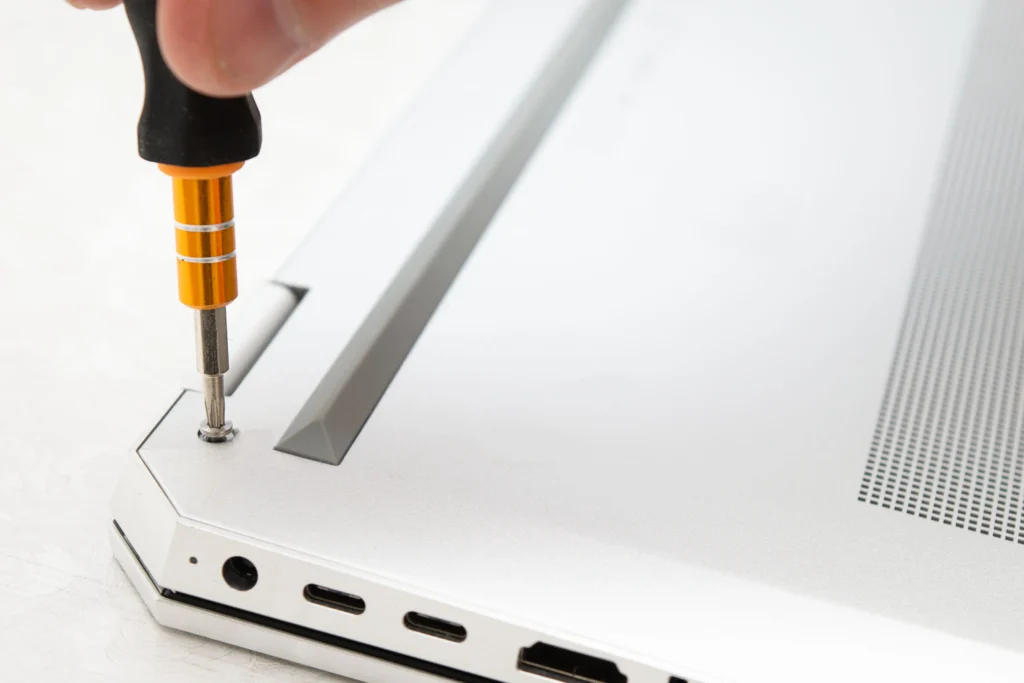
Are you facing issues with your Lenovo laptop? Whether it’s a slow performance, a broken screen, or a Wi-Fi connection problem, dealing with laptop malfunctions can be a major headache. A survey by TechRadar revealed that 63% of users experience laptop malfunctions that disrupt their daily routine. If you are living in Las Vegas, you know how essential it is to keep your laptop in perfect working condition, whether for work or entertainment.
In this guide, we’ll break down some of the most common Lenovo laptop repair issues and provide actionable solutions that can help you resolve them quickly. From power-related problems to screen malfunctions, we’ll walk you through the troubleshooting steps, including brand-specific fixes and model-based solutions for Lenovo laptops. Whether you’re a Las Vegas local or just looking for answers to your Lenovo laptop issues, this post will give you the information you need to get back on track.
Common Lenovo Laptop Issues and Their Solutions
1. Lenovo Laptop Won’t Power On: What To Do?
Common Causes and Quick Fixes
If your Lenovo laptop doesn’t power on, don’t panic. There are several reasons this could happen, from a dead battery to a faulty charger. Before seeking professional help, follow these troubleshooting steps:
- Check the Power Button: Ensure the power button isn’t stuck or damaged.
- Inspect the Battery: A worn-out battery could be the culprit. Try removing the battery, holding down the power button for 30 seconds, then reattaching the battery and plugging it back in.
- Test the Charger: Use a different charger to see if your current charger is working. If the LED indicator doesn’t light up, the charger may be faulty.
- Check the RAM: Loose or malfunctioning RAM can cause power issues. Reseating or replacing the RAM might help.
Pro Tip: If you are unsure whether the problem is with your charger or the laptop, take the charger to a local Las Vegas repair shop to test it.
2. Lenovo Laptop Overheating: Causes and Remedies
Why It Happens
Overheating is a common issue with Lenovo laptops, especially if you use them for heavy tasks like gaming or video editing. Excessive heat can cause the laptop to shut down unexpectedly or lead to permanent damage if not addressed.
How to Fix It
- Clean the Cooling System: Dust buildup in the cooling system can obstruct airflow, causing overheating. Regular cleaning, using a can of compressed air, can help prevent this.
- Replace the Thermal Paste: Over time, thermal paste (the paste between the CPU and the heat sink) can dry out. Reapplying thermal paste can reduce heat buildup.
- Use a Cooling Pad: A cooling pad can provide additional ventilation and reduce internal temperatures.
Pro Tip: In Las Vegas, where temperatures can rise, it’s wise to invest in a cooling pad or place your laptop in a well-ventilated area to avoid overheating.
3. Lenovo Laptop Screen Issues: Flickering or Black Screen
Troubleshooting Tips
A black or flickering screen is a frustrating issue that may arise for various reasons. Here are some steps to troubleshoot:
- Perform a Hard Reset: Hold down the power button for 30 seconds, then power it on again.
- Check the Display Settings: Sometimes, the display might be set to an external monitor. Press Fn + F8 (depending on the model) to toggle between display modes.
- Inspect the Screen Cable: A loose or damaged cable connecting the screen to the motherboard can cause screen problems.
If these steps don’t work, a professional technician can help replace the display or screen components.
Pro Tip: Las Vegas heat can affect the internal components of laptops, leading to screen issues. Keep your laptop cool to prevent damage.
4. Lenovo Laptop Keyboard Malfunction
Common Keyboard Problems
Many Lenovo laptop users experience unresponsive keys or broken keys. Here’s how to troubleshoot:
- Check for Debris: Dust, crumbs, or other debris can get stuck under the keys, causing malfunction. Turn the laptop upside down and gently shake it to remove any particles.
- Update Keyboard Drivers: Sometimes outdated or corrupt keyboard drivers cause issues. Update your drivers through Lenovo Vantage or Device Manager.
- External Keyboard Test: Plug in an external USB keyboard to check if the issue is with the built-in keyboard or the laptop’s internal settings.
Pro Tip: If you’re in Las Vegas, visit a local repair shop to replace the keyboard if necessary. Many repair shops offer express services for this common issue.
5. Lenovo Laptop Battery Draining Fast: Solutions for Longer Battery Life
Causes and Fixes
Lenovo laptops are known for having long-lasting batteries, but over time, the battery’s performance can degrade. If you find your Lenovo laptop’s battery draining too fast, here’s what you can do:
- Adjust Power Settings: In Windows, navigate to Settings > System > Power & Sleep and adjust the power settings for better battery management.
- Disable Power-Hungry Applications: Close unnecessary apps running in the background that consume a lot of battery power.
- Battery Calibration: Fully charge the battery, then discharge it completely to recalibrate the battery.
Pro Tip: Las Vegas locals often experience extreme temperatures, which can impact battery performance. Avoid charging your laptop in direct sunlight to ensure the battery lasts longer.
6. Lenovo Laptop Wi-Fi Connectivity Issues
Why It Happens
Wi-Fi issues are common on Lenovo laptops, and they can stem from driver issues, router problems, or signal interference.
Fixes for Wi-Fi Problems:
- Restart Your Router and Laptop: Sometimes, a simple restart can resolve connectivity issues.
- Update Network Drivers: Visit Lenovo’s official website or use the Device Manager to update the wireless network drivers.
- Reset TCP/IP Settings: Open Command Prompt (admin) and type netsh int ip reset to reset your TCP/IP settings and fix connectivity issues.
Pro Tip: In Las Vegas, interference from surrounding Wi-Fi networks can also cause connectivity problems. Ensure your router’s frequency band is optimized (2.4GHz or 5GHz).
Conclusion
Lenovo laptops are designed to offer robust performance, but like any other tech device, they are susceptible to issues over time. The key to keeping your laptop in great condition is proactive maintenance. From common power problems to overheating issues, knowing the right troubleshooting steps can save you time and money. If you’re facing complex issues, don’t hesitate to consult professional repair services in Las Vegas to ensure your Lenovo laptop gets the care it deserves.
FAQ Section
1. How Can I Fix a Lenovo Laptop That Won’t Turn On?
To fix a Lenovo laptop that won’t turn on, check the battery, charger, and power button. If these are functional, reseat the RAM or test with an external monitor.
2. How Do I Fix My Lenovo Laptop Overheating?
Clean the laptop’s cooling system, apply fresh thermal paste, and use a cooling pad to keep temperatures under control.
3. Why Is My Lenovo Laptop Screen Flickering?
A flickering screen could be due to faulty graphics drivers, hardware issues, or a loose connection. Update the drivers or reset the display settings to fix this.
4. What Can I Do If My Lenovo Laptop Keyboard Stops Working?
If your keyboard stops working, clean the keys, check for driver updates, and test with an external keyboard to isolate the issue.
5. Why Is My Lenovo Laptop Battery Draining So Quickly?
A fast-draining battery could be due to power-hungry apps or degraded battery health. Calibrate the battery, adjust power settings, and manage background applications to extend battery life.
6. How Do I Solve Wi-Fi Issues on My Lenovo Laptop?
To solve Wi-Fi issues, restart your router, update network drivers, or reset TCP/IP settings using the Command Prompt.
7. When Should I Seek Professional Help for Lenovo Laptop Repair?
If basic troubleshooting doesn’t fix your Lenovo laptop’s issues, or if there is significant hardware damage, it’s time to consult a professional repair service.

