
Have you ever found yourself in a panic after spilling water on your laptop? It’s a common yet heart-stopping scenario that can make anyone’s heart race. Whether it’s a cup of coffee, water, or soda—liquids and electronics don’t mix. In fact, according to a 2023 survey, more than 30% of people have experienced some form of liquid spill on their laptop. The good news is that immediate action can drastically reduce the risk of permanent damage.
In this guide, we’ll walk you through what to do the moment water is spilled on your laptop. By acting fast, you could save your device from costly repairs or total failure. Let’s dive into the essential steps to take and avoid, plus expert tips to ensure your laptop is back up and running in no time.
What Should You Do Immediately After Spilling Water on Your Laptop?
When you spill water on your laptop, time is of the essence. Every second that passes could lead to more damage. But don’t panic—stay calm and follow these crucial steps:
1. Turn Off the Laptop and Disconnect Everything
Why? Powering off the laptop immediately cuts off the electrical flow, which helps prevent short circuits. It’s tempting to leave it on, hoping the water will evaporate, but doing so increases the chances of severe damage.
- Action: Hold the power button down for 5-10 seconds to turn off the laptop. If you can, remove the battery (especially for older models with removable batteries).
- Pro Tip: If your laptop is plugged into a charger, unplug it. This is critical to prevent further electrical damage.
2. Dry the Exterior with a Microfiber Cloth
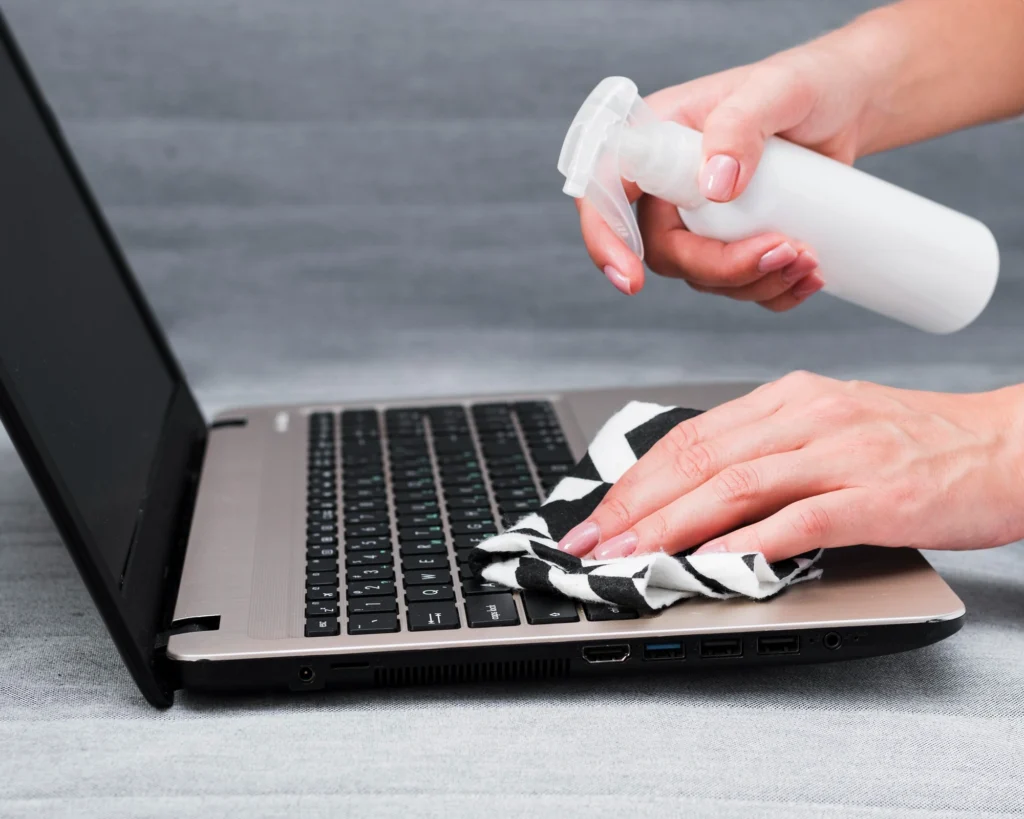
While the laptop is off, start by wiping the exterior gently with a microfiber cloth to remove as much water as possible. Focus on the keyboard, screen, and any other areas that may have gotten wet. Do not shake the laptop or blow air into it, as this could push the water further inside.
- Pro Tip: Avoid using paper towels as they can leave lint or particles on your laptop’s surface.
3. Position the Laptop for Optimal Drainage
Once the visible water has been wiped away, position the laptop to allow any remaining liquid to drain out. Place the laptop upside down in a tent-like position (keyboard facing down) to let gravity do the work.
- Pro Tip: Lay the laptop on a flat surface like a towel or table to prevent water from getting into additional crevices.
4. Let the Laptop Dry for At Least 24-48 Hours
The most important thing is patience. Avoid turning the laptop back on until you’re confident it’s fully dry. In fact, experts recommend leaving it to dry for at least 24 hours in a dry, warm environment. If you have access to silica gel packets, you can place the laptop in a sealed bag with a few packets to help absorb moisture.
- Pro Tip: Never use a hairdryer or direct heat source. Excessive heat can damage your laptop’s components further.
What to Do If Water Spilled on Laptop Screen or Ports?
If water has seeped into your laptop’s ports or screen, don’t assume it’s game over. Taking specific actions can often prevent irreversible damage.
1. Dry the Ports Immediately
Water trapped in the ports (USB, charging port, etc.) can be especially troublesome. Use a can of compressed air to blow out the moisture carefully. This is often more effective than trying to dry it with a cloth.
- Pro Tip: Do not insert anything into the ports to avoid further damage.
2. Check the Screen
If your laptop screen has water spots or has become unresponsive, it’s likely that moisture has gotten inside. Avoid pressing on the screen, as this can cause further damage.
- Pro Tip: Use a microfiber cloth to gently dab at the screen, but never rub it.
Can You Prevent Liquid Damage to Your Laptop in the Future?
While water spills are often unavoidable, there are steps you can take to reduce the risk of liquid damage in the future.
1. Invest in a Waterproof Laptop Sleeve or Case
A good waterproof sleeve or case can provide an added layer of protection. There are many affordable options available that are designed to protect your laptop from spills, rain, and other accidental moisture exposure.
- Pro Tip: Make sure the sleeve or case is lightweight and portable to avoid adding unnecessary bulk.
2. Set Up a Spill-Free Zone
When using your laptop, especially in environments like kitchens or coffee shops, designate a “spill-free” zone where you keep all liquids away from the laptop. Using coasters, trays, or even placing drinks on a higher shelf can help prevent accidents.
- Pro Tip: Consider using spill-resistant keyboard covers. These thin silicone covers can protect your keyboard from drops of liquid.
3. Backup Regularly
In the event that your laptop succumbs to liquid damage despite your best efforts, having a reliable backup system in place ensures you won’t lose critical data. Regular backups to an external hard drive or cloud storage can save you time, money, and headaches.
How Do You Know If Your Laptop Has Suffered Liquid Damage?
After following the initial steps to dry your laptop, it’s time to assess if any damage has occurred. Some signs to watch for include:
1. Laptop Fails to Turn On
If your laptop won’t power on even after drying it thoroughly, liquid damage is likely. At this point, it’s best to consult a professional repair service to check the internal components.
2. Unusual Behavior
If your laptop powers on but exhibits strange behavior (e.g., keys sticking, screen flickering, or slow performance), there may be residual moisture affecting the internal components.
3. Corrosion or Visible Water Damage
When you remove the battery or open your laptop (if safe to do so), check for visible corrosion or water stains on the internal components. This is a sure sign that liquid has caused damage.
Should You Attempt Emergency Laptop Fixes at Home?
In some cases, you might be able to perform basic repairs at home, especially if you have experience with electronics. However, if you’re not confident, it’s always best to seek professional help to prevent worsening the situation.
1. Try Disassembling (If You’re Comfortable)
If your laptop allows for easy disassembly, carefully remove the components (battery, RAM, hard drive) to ensure they dry thoroughly. But this should only be attempted if you’re comfortable working with delicate electronics.
- Pro Tip: Be cautious when opening your laptop. Without proper knowledge, you could void the warranty or cause further damage.
2. Consult a Professional
If the liquid has seeped into areas beyond your expertise, it’s time to consult a professional technician. Liquid damage can be complicated, and an expert may be able to clean the internal components and replace any damaged parts.
Your Laptop Deserves Expert Care
What’s the Cost of Repairing Liquid Damage on a Laptop?
Liquid damage repair costs can vary depending on the extent of the damage and the laptop model. On average, repairs can range from $150 to $1,000 or more. For instance, replacing a damaged motherboard can cost as much as $500, while repairing a faulty keyboard can be less than $100.
- Pro Tip: If your laptop is still under warranty, check if liquid damage is covered. Many warranties don’t cover liquid damage unless you have accidental damage coverage.
Conclusion
Water spills on laptops are one of the most dreaded accidents any laptop user can face. However, knowing how to respond quickly can mean the difference between a minor setback and a major disaster. By following the immediate steps outlined above and taking preventive measures, you can protect your laptop from liquid damage and avoid costly repairs.
If your laptop has already been damaged, take action immediately. Whether you decide to attempt an emergency fix or seek professional help, the key is to act quickly and avoid further exposure to moisture.
To keep your laptop safe, invest in protective cases, set up a spill-free workspace, and backup your data regularly. Taking these simple precautions can save you time and money in the long run.
FAQ Section
1. How do I know if my laptop has liquid damage?
Look for signs like failure to power on, strange behavior (e.g., keyboard issues), or visible water stains inside the laptop. If these occur, it’s likely your laptop has sustained liquid damage.
2. Can I use rice to dry my laptop after a water spill?
Rice is often recommended, but it’s not the most effective solution. Silica gel packs or leaving the laptop in a warm, dry place for 24-48 hours is a better approach.
3. Is it safe to open my laptop after a water spill?
Only attempt to open your laptop if you’re comfortable with the process. If you’re unsure, it’s better to consult a professional technician to avoid causing further damage.
4. Can water damage my laptop permanently?
Yes, water damage can permanently damage internal components like the motherboard or hard drive. Acting quickly can sometimes minimize the risk of permanent damage.
5. Should I attempt to fix liquid damage myself?
It’s not recommended unless you have experience with laptop repairs. For most people, consulting a professional technician is the best option.
6. How can I prevent future liquid damage to my laptop?
Invest in a waterproof laptop case, keep liquids away from your laptop, and use a spill-resistant keyboard cover to minimize the risk of spills.
7. How much does it cost to repair liquid damage on a laptop?
The cost of repairs can vary depending on the extent of the damage, ranging from $150 to $1,000 or more for parts replacement or motherboard repairs.