
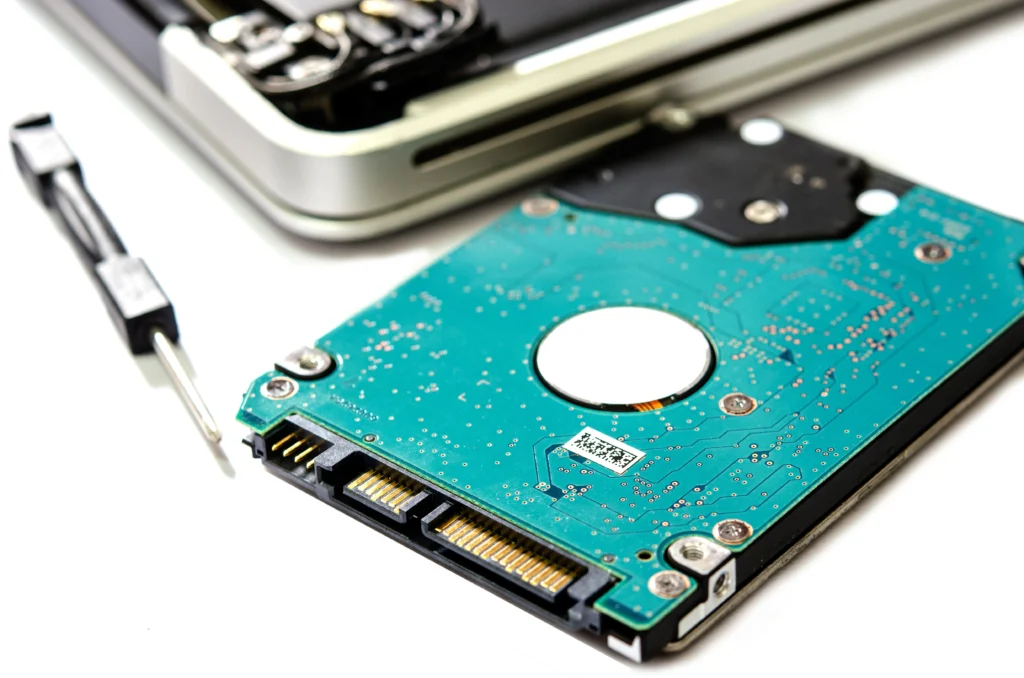
In 2026, the debate between Solid-State Drives (SSD) and Hard Disk Drives (HDD) remains relevant for many businesses, entrepreneurs, and individual users. As data storage technology continues to evolve, the question arises—should you repair, replace, or upgrade your current storage solution? Whether you’re running a business, managing an IT infrastructure, or simply using a laptop for personal tasks, the decision between SSD vs HDD can have a significant impact on your system’s performance and longevity.
The Problem:
Many users face storage failures at some point, whether it’s a slow-performing HDD or a malfunctioning SSD. The question then becomes: Is it worth repairing the drive, replacing it with a new one, or upgrading to a better solution?
The Solution Preview:
In this blog post, we’ll break down the differences between SSD and HDD, providing actionable insights on whether it’s better to repair, replace, or upgrade. We’ll also give expert recommendations based on current trends and technological advancements in 2026.
Value Proposition:
By the end of this article, you will understand the pros and cons of SSD and HDD, how to decide when to repair or replace your storage device, and why upgrading your storage to SSD might be a wise investment for your system’s speed and reliability.
SSD vs HDD: What’s the Difference?
Before diving into repair, replacement, or upgrade options, it’s important to understand the fundamental differences between SSD and HDD:
HDD (Hard Disk Drive)
- Technology: HDDs use mechanical platters and read/write heads to access data. This makes them slower and more prone to physical damage.
- Cost: HDDs are typically cheaper per gigabyte.
- Storage Capacity: They offer larger storage capacities, making them ideal for mass storage.
- Durability: Less durable due to mechanical parts that can fail over time.
SSD (Solid-State Drive)
- Technology: SSDs use flash memory to store data, offering faster read and write speeds.
- Cost: SSDs are more expensive per gigabyte than HDDs but prices have been dropping.
- Speed: SSDs are significantly faster than HDDs, improving boot times, file transfers, and overall system performance.
- Durability: No moving parts make SSDs more durable and resistant to physical damage.
When to Repair an SSD or HDD?
1. Signs You Need a Repair
Both SSDs and HDDs can experience failure, but the signs differ slightly due to their technologies.
HDD Repair Indicators:
- Strange noises: Grinding or clicking sounds from an HDD often indicate mechanical failure.
- Frequent freezes: If the system freezes or stutters while reading or writing data, it might be due to a malfunctioning HDD.
- Slow performance: An HDD showing a consistent slowdown, especially after long-term use, may be repairable with tools like Disk Check on Windows.
SSD Repair Indicators:
- Slow boot times: If your SSD is suddenly slow to boot up or launch applications, it could be a sign of deteriorating health.
- Data corruption: Files failing to open or becoming corrupted may point to a faulty SSD.
- System crashes: Frequent system crashes or “blue screen” errors related to disk access are indicative of SSD failure.
2. Can SSDs Be Repaired?
While SSDs can fail, they generally don’t require repairs in the same way that HDDs do. SSDs rely on software tools to manage bad sectors or wear leveling. Tools like Samsung Magician or CrystalDiskInfo can help monitor the health of your SSD. If the damage is severe (e.g., failed controller), replacement may be the only option.
3. Can HDDs Be Repaired?
HDD repairs are often feasible but challenging. If the drive is making noise, it might be repairable by a professional data recovery service that can fix or replace the failing parts. However, the risk of further damage makes DIY repairs difficult.
Pro Tip: If your HDD is physically damaged, it’s advisable to seek professional data recovery instead of attempting to repair it yourself.
When to Replace Your SSD or HDD?
1. When to Replace an HDD
Replacing an HDD is usually necessary if:
- Physical damage: Severe mechanical issues like clicking noises or inability to read data.
- Frequent failure: If your HDD experiences constant read/write errors or crashes.
- Age: HDDs are less reliable over time, especially if they are older than 5 years. Their lifespan is generally around 3-5 years under heavy use.
2. When to Replace an SSD
Although SSDs are more durable than HDDs, they too have a lifespan. You should consider replacing your SSD if:
- Failure to boot: Your SSD doesn’t boot your system or shows errors during the boot process.
- Excessive wear: SSDs wear out after a certain number of write cycles. If the drive is nearing its maximum write threshold, it’s time to replace it.
- Storage size: If you’ve upgraded your system and need more storage than your current SSD can handle, replacing it with a larger SSD is a good idea.
Expert Insight: SSDs offer superior performance compared to HDDs. If you’re still using an HDD in your system, consider replacing it with an SSD for better speed and reliability.
When to Upgrade to SSD in 2026?
1. Upgrade for Speed
Upgrading to an SSD provides faster read and write speeds, dramatically improving system performance. If you’re still using an HDD, especially in a laptop or older desktop, upgrading to an SSD can be a game-changer in terms of boot speed, application launch times, and overall responsiveness.
Real-World Example:
One study found that replacing an HDD with an SSD improved boot times by up to 50% and application loading times by 2-3x.
2. Upgrade for Reliability
SSDs are more reliable due to their lack of moving parts, making them less prone to failure from physical damage. If you work in environments with vibrations or travel frequently, switching to an SSD will reduce the risk of losing important data.
3. Cost-Effective Storage Solution
Although SSDs are more expensive than HDDs, the cost of SSDs has been dropping rapidly. For a similar price, you can now purchase SSDs with larger storage capacities that offer a great balance of speed and cost.
4. Future-Proof Your Setup
As technology continues to evolve, SSDs are becoming the standard in modern computing. By upgrading to an SSD now, you’ll be better prepared for future software and hardware developments.
Pro Tip: If you’re using your computer for resource-heavy applications like video editing, gaming, or software development, upgrading to an SSD is a no-brainer. It will enhance your productivity and system responsiveness.
How to Perform an SSD or HDD Upgrade in 2026?
1. Choose the Right Storage Size and Type
When upgrading, make sure to select the appropriate storage size and form factor. If you’re replacing an HDD, you’ll likely need to install a 2.5-inch SATA SSD. For high-performance systems, NVMe SSDs can provide lightning-fast speeds, but they require specific motherboard compatibility.
2. Backup Your Data
Before performing any upgrade, always back up your data. Use cloud storage or an external hard drive to save your essential files.
3. Install the New Drive
- For HDDs: If you’re replacing an HDD, ensure that the new SSD is securely connected to the system and formatted properly.
- For SSDs: Many systems now come with pre-installed SSDs, but if you’re upgrading to a larger SSD, ensure that the OS and applications are reinstalled or cloned from the old drive.
Expert Insight: Many users skip the cloning step, but migrating your old data to a new SSD can save you time. Tools like Macrium Reflect or Acronis True Image are excellent for cloning your old HDD/SSD to a new one.
Conclusion: Repair, Replace, or Upgrade?
Whether you repair, replace, or upgrade your storage device depends on the health of your current system and your needs in 2026. While repairing an HDD is possible in some cases, SSDs offer faster speeds, greater reliability, and a better overall experience. Replacing old or damaged drives, especially HDDs, with SSDs is highly recommended to future-proof your system and improve performance. Remember to weigh your options based on performance, budget, and longevity before making a decision.
FAQ
- Should I repair or replace my hard drive?
If your HDD is physically damaged, replacement is the best option. For minor errors, repairing the file system might suffice. - How long do SSDs last?
SSDs typically last 5-10 years, depending on usage. Regular monitoring tools can help you track the health of your SSD. - Can I upgrade from an HDD to an SSD?
Yes, upgrading from an HDD to an SSD is a great way to boost performance. Ensure compatibility and consider cloning your data to avoid reinstalling everything. - Are SSDs better than HDDs for gaming?
Yes, SSDs offer faster loading times and improved overall system responsiveness, making them ideal for gaming. - How much does an SSD upgrade cost?
The price of SSDs has dropped significantly in recent years. A 500GB SSD typically costs between $40-$80, depending on the brand and speed.