Have you ever accidentally spilled liquid on your laptop? If so, you’re not alone. According to a survey by Rescuecom, liquid damage is one of the top reasons for laptop failures in the United States, causing a significant disruption for businesses and personal users alike. Whether it’s a cup of coffee or a water spill, the damage can be severe and costly to repair.
In this guide, we’ll explore proven techniques to protect your laptop from liquid spills, with a special focus on the often-overlooked area: the laptop liquid spill camera. You’ll also learn about hardware corrosion and how it affects the longevity of your device. By the end of this post, you’ll know the best practices to prevent liquid damage and ensure that your laptop remains in top condition for years.
What Is Liquid Damage, and Why Is It So Dangerous for Laptops?
What happens when liquid spills onto a laptop?
Liquid spills on laptops can lead to short circuits, which may permanently damage internal components. Depending on the type of liquid and the laptop’s exposure to it, the internal circuits can corrode, causing the system to fail completely. The laptop’s cooling system, keyboard, screen, and hard drive are especially vulnerable.
Pro Tip: The laptop liquid spill camera can capture the spread of the liquid on the surface of your device. This can help technicians assess the extent of the spill and advise on necessary repairs.
Key Areas of Laptop Vulnerable to Liquid Damage
Which laptop parts are most susceptible to liquid damage?
- Keyboard and Trackpad: Liquid can seep through the gaps and affect the electrical components beneath.
- Ports and Vents: These are common entry points for spills, affecting charging ports, USB slots, and other important hardware.
- Display: Spills near the screen or camera module can disrupt your laptop’s visual elements.
- Internal Circuitry: Liquid reaching the motherboard can cause significant damage and may render the device completely unusable.
Expert Insight: Most laptop repairs for liquid damage involve cleaning the internal parts to remove liquid and prevent corrosion. The sooner you act, the better the chances of minimizing damage.
How Can You Prevent Laptop Liquid Spills?
What preventive measures can be taken to avoid liquid spills?
- Use a Laptop Sleeve or Case: Invest in a quality protective sleeve that will shield your laptop from spills. This small investment can prevent water and other liquids from reaching the laptop’s surface.
- Keep Liquids Away: The most effective way to avoid liquid spills is to keep drinks and liquids far from your laptop. Designate a specific space for your beverage and use spill-proof containers.
- Opt for a Spill-Proof Keyboard Cover: These are available for most laptop models and can effectively block any liquid from reaching the internal components of your device.
- Use a Laptop Stand or Desk Organizer: Elevating your laptop can prevent liquid from seeping into the bottom parts of your device.
Pro Tip: Laptop liquid spill cameras can help identify any remaining traces of liquid after a spill, ensuring that you’ve completely cleaned the device before powering it back on.
What Should You Do Immediately After a Liquid Spill?
What steps should you take if liquid spills on your laptop?
- Turn off the laptop immediately: Powering off your device will help prevent short circuits and minimize the extent of electrical damage.
- Disconnect external devices: Unplug your charger, mouse, or any other accessories to prevent them from being damaged.
- Remove the battery: If your laptop allows it, remove the battery to avoid additional short circuits.
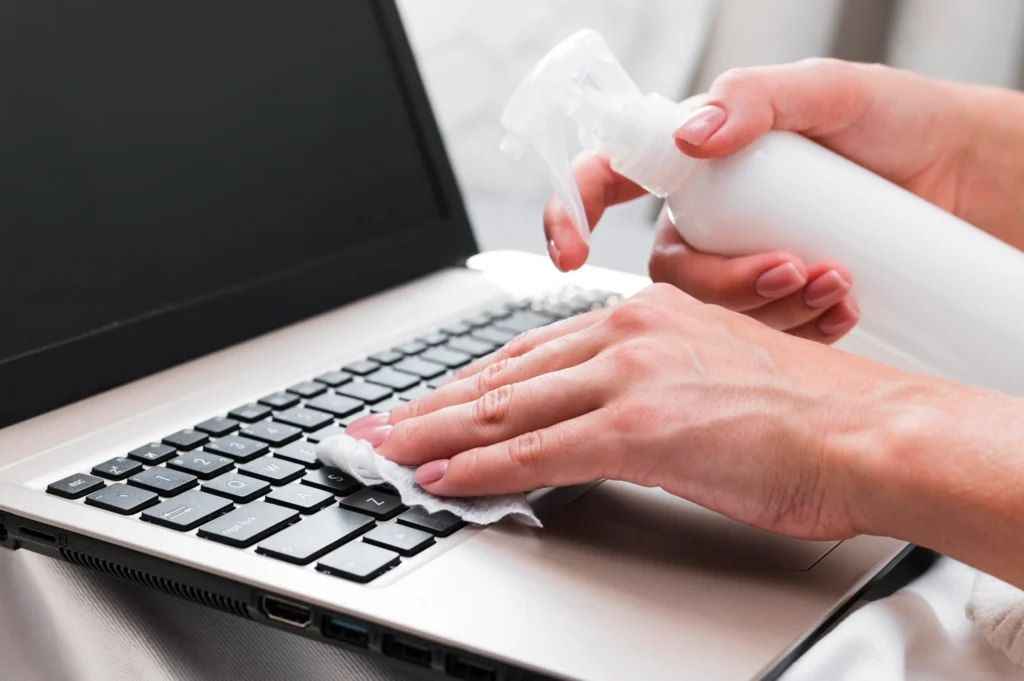
- Dry the laptop thoroughly: Use absorbent materials like paper towels or a clean cloth to soak up as much liquid as possible.
- Turn it upside down: This will help drain any liquid trapped inside.
Pro Tip: After you’ve dried the laptop, place it in front of a fan or near a dehumidifier for at least 24 hours to ensure that no moisture is left inside.
Can You Repair a Laptop After a Liquid Spill?
Is it possible to fix a laptop after liquid damage?
Yes, it is possible, but it depends on the extent of the damage. Minor spills can often be cleaned and dried, while severe damage might require replacement of parts like the motherboard, keyboard, or screen.
Real-World Case Study: A Las Vegas-based business owner, after spilling coffee on his laptop, quickly powered off the device, wiped it down, and let it dry for 48 hours. Fortunately, he avoided major issues, but he did have to replace his keyboard and trackpad, which had corroded.
Expert Insight: The longer the liquid stays inside the device, the higher the chances of hardware corrosion. You can significantly increase the chances of successful repair by acting quickly.
Preventive Tools and Products to Protect Your Laptop
Which tools can help prevent liquid damage?
- Waterproof Laptop Bags and Cases: These cases offer full protection against accidental spills.
- Silica Gel or Absorbent Packs: Use silica gel packs to absorb moisture inside your laptop.
- Laptop Cooling Pads: These not only keep your laptop cool but also provide a layer of protection against spills.
- Keyboard Covers and Screen Protectors: A simple yet effective method to prevent liquids from damaging your laptop’s internal components.
How Can a Laptop Liquid Spill Camera Help in Diagnosing Damage?
What is the role of a laptop liquid spill camera?
A laptop liquid spill camera helps in diagnosing the spread of liquid inside the device. By using a special lens, it can show if there’s any moisture inside the keyboard, ports, or other critical areas. This diagnostic tool is particularly helpful for identifying potential corrosion risks that might not be visible on the surface.
Pro Tip: When you have a professional service technician inspect your device, ask them to use a laptop liquid spill camera for a more thorough diagnosis.
Conclusion: Protect Your Laptop Today
Preventing liquid damage to your laptop is crucial for prolonging its lifespan and maintaining optimal performance. By taking simple preventive measures, such as keeping liquids away, using protective covers, and reacting quickly after a spill, you can safeguard your device against costly repairs.
Remember, when spills do happen, acting fast can make a significant difference. If you want to further ensure your device’s health, consider using a laptop liquid spill camera to inspect the internal components after cleaning. By incorporating these best practices into your daily laptop usage, you’ll minimize risks and keep your device in prime condition for years to come.
Call to Action: Have you experienced a liquid spill on your laptop? Take proactive steps today by investing in protective tools and ensuring you’re ready for any unexpected accidents.
FAQ Section
- How quickly should I turn off my laptop after a liquid spill?
You should turn off your laptop immediately after a spill to prevent electrical damage. Disconnecting the power and removing the battery (if possible) is also important. - Can liquid damage be repaired?
Yes, depending on the extent of the spill. Minor issues like keyboard corrosion can be fixed, but severe damage to the motherboard may require part replacements. - What are some common liquid damage symptoms?
Common signs of liquid damage include a malfunctioning keyboard, distorted display, or unresponsive touchpad. If your laptop doesn’t power on, it may also be a sign of liquid-related damage. - How can I prevent future spills?
You can prevent future spills by keeping beverages away from your laptop, using a waterproof case, and investing in a spill-proof keyboard cover. - Can a laptop liquid spill camera really help?
Yes, it helps diagnose the extent of liquid penetration inside your device, ensuring that no moisture remains and preventing further damage. - How can I protect my laptop from overheating after a spill?
Using a cooling pad and ensuring the device is thoroughly dried can help prevent overheating. Proper airflow is essential after a spill.