
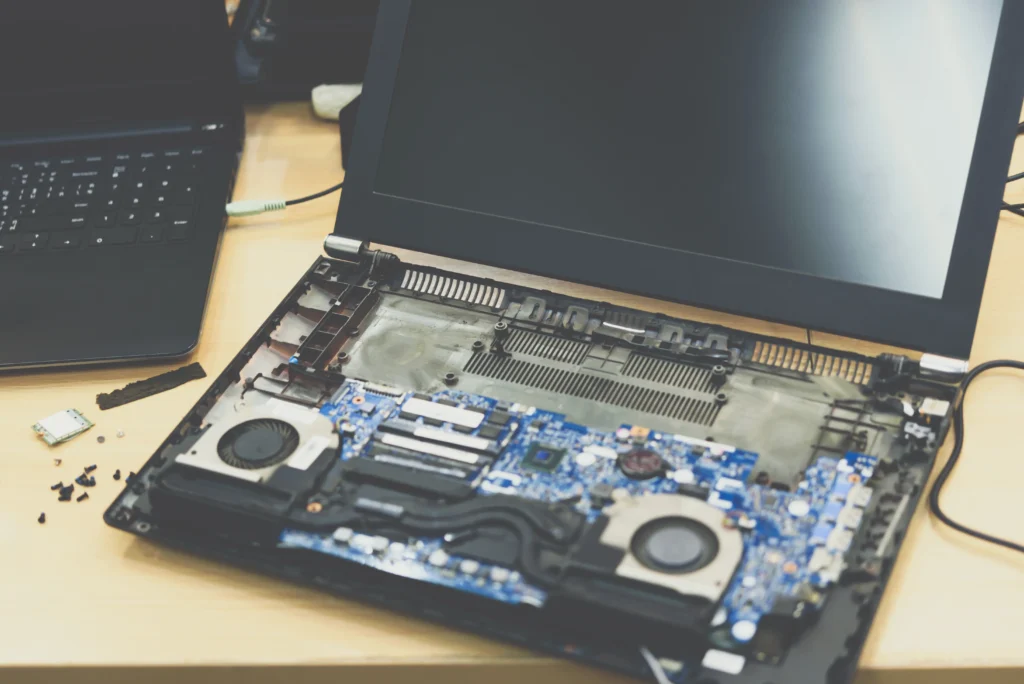
Ever experienced that frustrating moment when you’re trying to play a song or stream a video, but the sound on your laptop just isn’t working? You’re not alone. In fact, this issue affects thousands of laptop users, especially in bustling cities like Las Vegas. Whether you’re in the middle of a Zoom call, gaming session, or enjoying your favorite movie, no sound can make your experience miserable. But don’t worry! In this guide, we’ll walk you through a series of proven steps to get your laptop’s audio working again. By the end of this article, you’ll know how to quickly diagnose and fix common sound issues, and when it might be time to seek professional help for speaker repair.
Why is My Laptop Sound Not Working?
Is it a Software or Hardware Problem?
The first question you should ask is whether the issue lies with the software or the hardware. Here’s a quick rundown:
- Software Issues: These can be easily fixed through software settings, drivers, or applications.
- Hardware Problems: If the speakers are physically damaged or malfunctioning, you’ll need to seek a professional for speaker repair.
Common Causes of Sound Issues
- Muted Audio: Often, the simplest cause for no sound is the audio being muted or turned down low.
- Outdated or Corrupted Drivers: Audio drivers that are outdated or corrupted can lead to sound malfunctions.
- Wrong Audio Output Device: Sometimes, the laptop may be playing audio through another device like a Bluetooth speaker, even though you’re expecting the sound to come from the built-in speakers.
- Physical Damage: If the laptop’s speakers have suffered from damage, that’s when a speaker repair may be required.
By narrowing down the cause, you can either fix the issue yourself or decide if it’s time to take your laptop for speaker repair.
How to Fix Laptop Sound Issues: A Step-by-Step Guide
Step 1: Check the Volume Settings
Before diving into complex troubleshooting, check the basics. It might be as simple as the volume being turned down too low or the laptop being muted.
- Mute Button: Ensure that the mute button (often located on the keyboard or in the taskbar) isn’t activated.
- Volume Slider: Check the volume slider and make sure it’s turned up to an audible level.
- Audio Settings: Go into your laptop’s audio settings and confirm that everything is correctly configured.
Step 2: Restart Your Laptop
Sometimes, a simple restart can resolve many audio-related issues. Restarting your laptop helps in refreshing the software and fixing minor glitches that might be affecting the sound.
Step 3: Check for Audio Output Device Issues
If you have external devices like Bluetooth speakers, headphones, or HDMI outputs connected to your laptop, it’s possible that the audio is being routed to them instead of the built-in speakers. Here’s how to check:
- Windows: Right-click the sound icon on your taskbar and select “Playback devices.” Ensure that the correct output device (your laptop’s speakers) is selected.
- Mac: Open “Sound Preferences” from the Apple menu and verify that the correct output device is selected.
Step 4: Update Audio Drivers
Outdated or corrupt drivers are a common cause of audio problems. To update them:
- Windows: Go to “Device Manager” > “Sound, video and game controllers” > Right-click your audio device and choose “Update driver.”
- Mac: Apple typically handles driver updates through macOS updates, so ensure that you’re running the latest version of the OS.
Your Laptop Deserves Expert Care
Step 5: Check Audio Settings and Advanced Options
If the basic steps don’t work, dive into the advanced audio settings. This includes checking settings for enhancements, spatial audio, or specific software conflicts that might be preventing the sound from working correctly.
For Windows:
- Go to “Sound Settings” > “Advanced Sound Options” and ensure that the correct sound format is selected.
- Try disabling any sound enhancements or special effects.
Step 6: Run the Troubleshooter
Both Windows and Mac have built-in troubleshooting tools for fixing sound issues:
- Windows: Go to “Settings” > “Update & Security” > “Troubleshoot” > “Playing Audio.”
- Mac: Run the “Audio MIDI Setup” utility to check the output settings.
Step 7: Check for Physical Damage
If none of the above steps have worked, it’s time to inspect the hardware. Ensure that the speakers haven’t been damaged due to drops, spills, or prolonged exposure to dust and dirt. In some cases, laptop speakers may stop working entirely due to internal hardware issues.
Pro Tip: If you suspect physical damage, it’s best to take the laptop to a professional technician for a speaker repair.
When to Seek Professional Help for Speaker Repair?
How to Recognize a Faulty Speaker
Sometimes, software solutions just won’t cut it, and a faulty speaker might be the root cause. If you’ve tried everything—updated drivers, checked the settings, and even tried different audio sources—and the sound still isn’t working, the problem may lie in the hardware. Here are some signs that your laptop speakers may need professional repair:
- Distorted Sound: If your laptop makes buzzing or crackling noises even when the volume is set low, it could indicate a speaker failure.
- No Sound at All: If no sound is produced, and all settings and drivers are correct, the speakers might be dead.
- Intermittent Sound: If the sound cuts in and out without explanation, it could be due to loose wiring or a connection issue within the speaker system.
Finding a Speaker Repair Technician in Las Vegas
In Las Vegas, you have access to a range of skilled technicians who specialize in laptop speaker repair. Here’s how to find one:
- Google Reviews: Look for highly rated laptop repair shops in your area.
- Ask for Referrals: If you’re in the Las Vegas business community, ask for recommendations from other entrepreneurs.
- Check Certification: Ensure that the repair shop is certified by the manufacturer or has experience with your laptop brand.
Cost of Speaker Repair
The cost of speaker repair varies depending on the laptop model and the nature of the problem. Generally, you can expect the cost to range from $50 to $200 for a professional speaker repair service.
Conclusion
When your laptop’s sound isn’t working, it can be frustrating and disruptive, especially for business owners and professionals in Las Vegas who rely on technology for communication and productivity. However, by following these troubleshooting steps, you can quickly identify whether the issue is software-related or requires professional intervention for speaker repair. Don’t let sound issues derail your day—take action now to restore your laptop’s audio and ensure you stay on top of your game.
Next Steps
- Try the troubleshooting steps listed in this article.
- If you’re still facing issues, consider contacting a Las Vegas laptop repair shop for professional speaker repair.
- Check out additional resources on audio troubleshooting or consider upgrading your laptop’s sound system for better audio quality in the future.
FAQ Section
1. How do I check if my laptop’s speakers are working?
To check if your speakers are working, go to your sound settings on your laptop, make sure the correct output device is selected, and test by playing a video or sound. If you hear sound, your speakers are fine. If not, troubleshoot further using the steps outlined in this article.
2. What should I do if my laptop sound isn’t working even after updating drivers?
If updating drivers doesn’t resolve the issue, try checking the audio output settings or use the built-in troubleshooter on Windows or macOS. You might also want to test the sound with external speakers or headphones to rule out a hardware issue.
3. Why does my laptop’s sound cut in and out?
Intermittent sound issues could be due to faulty wiring, software conflicts, or driver problems. Try updating your drivers, checking audio settings, and restarting your laptop. If the issue persists, you might need a professional repair service.
4. How much does it cost to fix laptop speakers in Las Vegas?
The cost of speaker repair in Las Vegas varies, typically ranging from $50 to $200, depending on the laptop model and extent of the damage. Always get a quote before committing to repairs.
5. Can I fix my laptop’s speakers myself?
Minor sound issues, like software problems or incorrect settings, can often be fixed yourself. However, if the speakers are physically damaged or the issue is beyond software, professional speaker repair is recommended.
6. How can I prevent future sound issues with my laptop?
To prevent future sound issues, keep your drivers updated, avoid physical damage by using protective cases, and clean your laptop regularly to avoid dust buildup in the speakers.
7. What if my laptop’s sound is not working even with external speakers connected?
If external speakers are also not working, check the cable connections and make sure the external speakers are functioning properly. If they are, your laptop may have a deeper hardware issue that needs professional repair.