
Have you ever wondered why your laptop seems to slow down or overheat despite only using it for a short period? Dust build-up inside your laptop may be the culprit. Imagine working on a crucial project or enjoying your favorite online game, only to have your laptop start acting sluggish or shutting down unexpectedly. It’s a frustrating experience, right?
Dust may seem harmless, but over time, it can lead to serious performance issues, including overheating, reduced processing speed, and even hardware damage. In this blog, we’ll explore how laptop dust cleaning can improve your device’s performance and longevity. You’ll also learn about internal laptop cleaning, why it’s essential, and how to keep your laptop running smoothly.
Why Does Dust Affect Your Laptop’s Performance?
What Happens Inside the Laptop When Dust Builds Up?
Laptops are designed to run quietly and efficiently, but they rely heavily on cooling systems to maintain their internal temperature. The main cooling components inside a laptop include fans and heat sinks, which help dissipate heat generated by the processor and other hardware. Dust build-up obstructs these components, reducing airflow and causing your laptop to overheat.
Over time, the dust accumulates around these critical parts, leading to inefficient cooling. As a result, your laptop may start to throttle performance to avoid overheating, or worse, shut down unexpectedly to protect itself from damage.
Pro Tip: If you notice that your laptop is getting hot or making a loud noise, it could be a sign that dust is blocking airflow inside. Regular internal laptop cleaning is key to preventing this.
How Does Dust Affect the Laptop’s Cooling System?
Laptop cooling systems work by circulating air through vents and around critical components like the CPU and GPU. Fans help with this circulation, and dust can clog these vents, reducing their ability to dissipate heat. When the cooling system is compromised, the internal temperature rises, leading to thermal throttling—meaning your laptop reduces its processing speed to prevent damage.
In more severe cases, accumulated dust can cause the fan to fail, which might lead to permanent hardware damage. Dust also creates a sticky residue that attracts more dust over time, creating a vicious cycle that only worsens performance.
Case Study: A 2019 report by PCWorld highlighted how users of high-performance laptops, like gaming laptops, often experience a decline in performance due to dust build-up. After a cleaning, these laptops reported temperature drops of up to 10°C, significantly improving performance.
Signs Your Laptop Needs Cleaning
How Do You Know If Your Laptop Needs Cleaning?
The most common signs of a dusty laptop include:
- Overheating: If your laptop gets uncomfortably hot or the fan runs excessively, dust may be clogging the cooling system.
- Sluggish Performance: Dust can reduce processing power as the system tries to handle excess heat. This leads to slow load times, lagging applications, or stuttering video playback.
- Loud Fan Noises: A noisy fan can be a sign of dust accumulation, as it struggles to cool the system efficiently.
- Unexpected Shutdowns: Overheating caused by dust can lead to sudden shutdowns to prevent hardware damage.
Expert Insight: One of the easiest ways to check if dust is causing your laptop’s overheating issue is by gently blowing air through the vents. If dust comes out, it’s a clear indication that cleaning is necessary.
What Happens If You Ignore Dust Build-Up?
Ignoring dust build-up inside your laptop can lead to various long-term consequences:
- Decreased Longevity: Prolonged overheating accelerates the wear and tear on internal components, reducing the laptop’s lifespan.
- System Instability: Constant thermal throttling or shutdowns can cause data corruption and even hardware failure.
- Warranty Voidance: Some laptop manufacturers may void your warranty if overheating or damage is linked to dust build-up. Always follow maintenance guidelines provided by the manufacturer.
How to Clean Dust From Your Laptop
What Are the Best Methods for Laptop Dust Cleaning?
Cleaning your laptop requires careful attention. Here’s a step-by-step guide for a safe internal laptop cleaning process:
- Shut Down and Unplug: Always power off your laptop and unplug it before cleaning.
- Use Compressed Air: Use compressed air to blow dust out of vents. Hold the can upright to avoid moisture damage.
- Open the Back Panel: If comfortable, carefully remove the back panel to access internal components like fans and heat sinks. Use compressed air or a soft brush to gently clean the components.
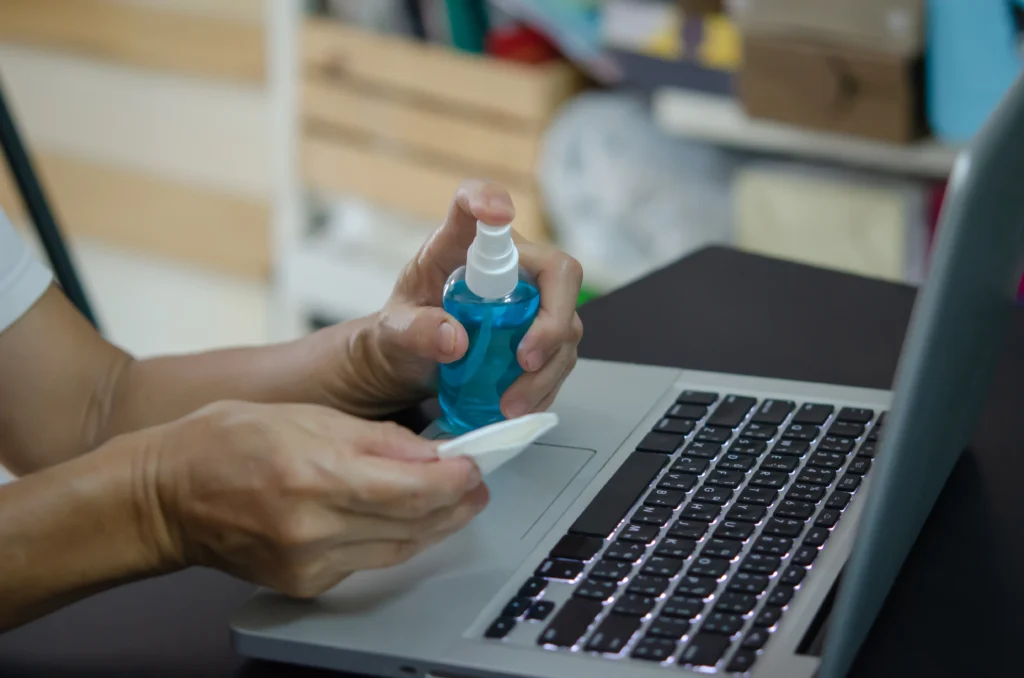
- Clean Keyboard and Screen: Dust often accumulates on the keyboard and screen. Use a microfiber cloth and a light cleaning solution to wipe them down.
Pro Tip: Always avoid using harsh chemicals or liquids directly on the laptop’s interior or screen, as they can cause damage. Use a dry microfiber cloth for cleaning the exterior.
When Should You Take Your Laptop to a Professional?
If you’re uncomfortable opening the laptop or if it requires a deeper clean (such as the thermal paste replacement on the CPU or GPU), it’s best to take your laptop to a professional. They can perform a thorough internal cleaning, including replacing thermal paste and cleaning hard-to-reach components.
Real-World Example: Many Las Vegas-based laptop repair shops offer professional cleaning services to fix overheating issues. These services can cost anywhere from $50 to $100, but they are often necessary for maintaining the long-term health of the laptop.
Your Laptop Deserves Expert Care
How Often Should You Clean Your Laptop?
Is There a Recommended Cleaning Frequency?
The frequency of cleaning depends on factors like:
- Environmental Conditions: If you use your laptop in dusty environments, like construction sites or cafes, you may need to clean it more often.
- Usage: High-performance laptops, especially gaming laptops, should be cleaned more frequently than regular-use laptops.
- Manufacturer Recommendations: Always follow the manufacturer’s guidelines on maintenance.
As a general rule, internal laptop cleaning should be done every 6 to 12 months for most users. However, those using laptops for resource-heavy tasks or in dusty conditions may need cleaning more often.
Pro Tip: Keeping your laptop in a cool, dust-free environment can help reduce the need for frequent cleaning.
Conclusion
Laptop dust build-up is a common yet often overlooked issue that can significantly impact your device’s performance. From overheating to reduced processing speeds, dust can cause a variety of problems, and regular internal laptop cleaning is essential to maintain optimal performance.
By understanding how dust affects your laptop’s cooling system and following proper cleaning methods, you can extend the lifespan of your device, enhance performance, and avoid costly repairs. Remember, regular maintenance is key to ensuring that your laptop keeps running smoothly for years to come.
FAQ Section
-
How do I clean the dust out of my laptop safely?
Use compressed air to blow dust out of the vents, and for more thorough cleaning, remove the back panel to clean internal components gently. Always ensure your laptop is powered off and unplugged.
-
Can dust damage my laptop permanently?
Yes, prolonged dust build-up can cause overheating, which accelerates wear on components, potentially leading to hardware failure.
-
How often should I clean my laptop’s internal parts?
It’s recommended to clean the internal parts of your laptop every 6 to 12 months, depending on usage and environmental conditions.
-
Why is my laptop fan so noisy?
A noisy fan is often a sign that dust is blocking the airflow. Cleaning the vents and internal components can help reduce noise and improve cooling.
-
Can I clean my laptop myself, or should I hire a professional?
If you’re comfortable with opening the laptop, you can clean it yourself. However, if you’re unsure or want a more thorough clean, hiring a professional is advisable.
-
Will laptop cleaning void my warranty?
In most cases, cleaning your laptop does not void the warranty, but it’s essential to follow the manufacturer’s guidelines. If you’re unsure, consult your warranty terms.
-
How does dust affect my laptop’s performance?
Dust can clog cooling systems, leading to overheating, thermal throttling, slower performance, and even potential hardware damage.