
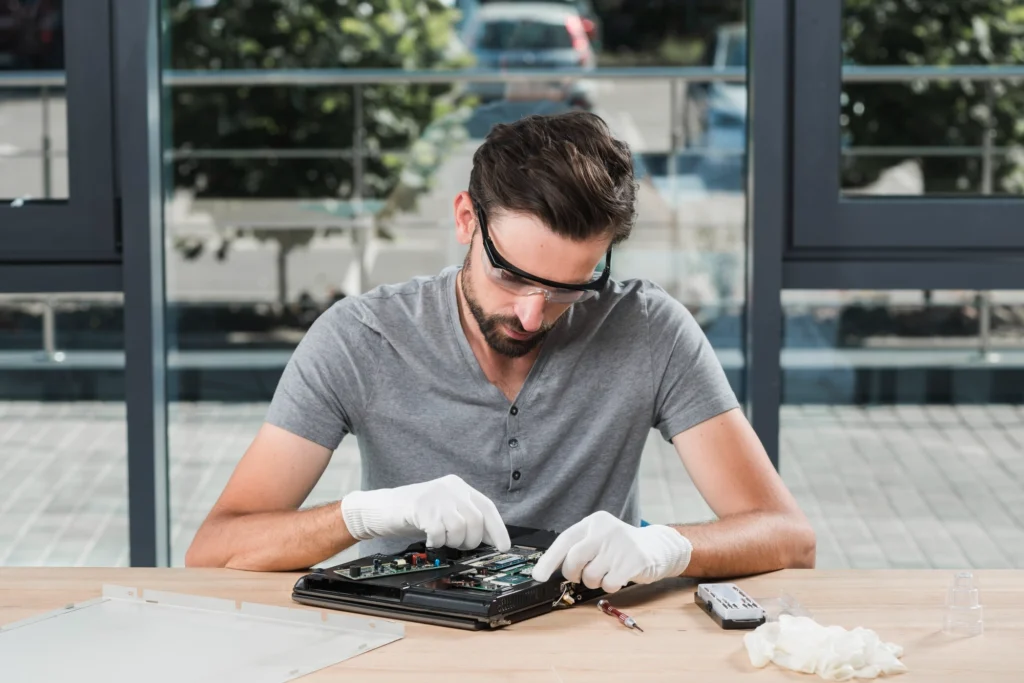
Have you ever clicked on a link or opened an application, only to watch as your laptop struggles to respond, leaving you frustrated and wasting precious time? You’re not alone. A slow laptop is one of the most common complaints among users. In fact, studies show that over 70% of people feel the impact of slow computer performance on their productivity. Whether you’re a business owner, entrepreneur, or casual user, a lagging laptop can be a major hindrance.
The good news is, before you rush to buy a new machine, there are several proven strategies to improve your laptop’s performance. In this guide, we’ll walk you through step-by-step methods to fix a slow laptop without replacing it, helping you reclaim speed and efficiency with minimal cost and effort.
What Causes a Laptop to Slow Down?
Before jumping into solutions, it’s essential to understand why your laptop is lagging. The culprit could be a variety of factors:
- Outdated Software: Both your operating system and applications can become outdated, causing performance issues.
- Too Many Background Processes: Applications running in the background eat up memory and CPU power.
- Hard Drive Fragmentation: Over time, files on your hard drive can get scattered, making it harder for your laptop to access them quickly.
- Insufficient RAM: When your laptop doesn’t have enough memory to handle multiple tasks, it slows down.
- Malware or Bloatware: Unwanted software can consume system resources and significantly reduce performance.
By addressing these issues, you can significantly speed up your laptop without the need for expensive repairs or replacements.
How Can I Speed Up My Laptop in 5 Simple Steps?
Improving your laptop’s performance doesn’t need to be complicated. Here are five straightforward steps you can follow to boost its speed:
1. Clear Out the Clutter (Delete Unnecessary Files and Programs)
Over time, your laptop accumulates files and applications that you don’t need anymore. These can include old documents, unused software, and browser cache. These files not only take up space but can also slow down your system.
Actionable Tips:
- Go through your applications and uninstall those you no longer use.
- Use disk cleanup tools to remove temporary files, system files, and other unnecessary data.
- Regularly clean your desktop. Files cluttering your workspace can also contribute to a slower laptop experience.
Pro Tip: Use tools like CCleaner to automate the cleaning of junk files, including browser history, cookies, and cache, that tend to build up over time.
2. Optimize Your Startup Programs
Many programs start automatically when you power up your laptop, often without your knowledge. These programs consume system resources right from the start, leading to a sluggish performance.
Actionable Tips:
- Open the Task Manager (press Ctrl + Shift + Esc) and go to the “Startup” tab to see which programs start automatically.
- Disable any unnecessary programs. For example, you probably don’t need your media player, chat apps, or cloud storage syncing right when you boot up.
Pro Tip: Be careful when disabling startup programs. Some are critical for your laptop’s operations (like antivirus programs). If unsure, you can always Google the program name to verify its necessity.
3. Upgrade Your RAM (Random Access Memory)
One of the most effective ways to speed up a laptop is to add more memory. RAM is crucial for multitasking. If your laptop has insufficient RAM, it will struggle to run multiple applications simultaneously, leading to slowdowns.
Actionable Tips:
- Check your current RAM usage through Task Manager to see if your laptop is running out of memory during heavy use.
- If possible, upgrade your laptop’s RAM. For many laptops, this is a relatively easy and inexpensive process.
Real-World Example:
A small business owner upgraded their laptop’s RAM from 4GB to 8GB, and the improvement was substantial. Applications like Excel, Adobe Creative Cloud, and multiple browser tabs ran smoothly, significantly enhancing productivity.
4. Switch from a Hard Drive to a Solid-State Drive (SSD)
If you’re still using a traditional hard disk drive (HDD), upgrading to an SSD could be a game-changer. SSDs are much faster than HDDs and can dramatically improve the boot time and load speed of your applications.
Actionable Tips:
- Backup your data before upgrading to an SSD.
- Use software like Clonezilla to transfer your system from your HDD to the new SSD.
- Choose an SSD with sufficient space to accommodate your operating system and essential files.
Statistical Insight:
Upgrading from an HDD to an SSD can reduce boot times from 1-2 minutes to just 20-30 seconds, according to data from PCMag. This simple upgrade can make your laptop feel like new.
5. Update Your Operating System and Drivers
Outdated drivers or software can hinder your laptop’s performance. Regular updates not only bring new features but also fix bugs and security vulnerabilities that may affect your system’s speed.
Actionable Tips:
- Regularly check for operating system updates through your laptop’s settings.
- Visit the manufacturer’s website to download and install the latest drivers for your hardware components (like graphics and network adapters).
Expert Insight:
A client of mine once overlooked driver updates, causing their laptop to lag significantly when running high-performance applications. After updating drivers, the laptop ran smoother and faster—sometimes, the smallest fixes make the biggest difference.
What Are Some Advanced Fixes for a Slow Laptop?
If you’ve tried the basic steps and still notice slowdowns, it’s time to consider some advanced fixes. These may take a bit more effort, but they can make a world of difference.
1. Reduce Visual Effects
Windows, macOS, and even Linux have visual effects that can consume resources unnecessarily. While these effects look appealing, they can slow down older laptops.
Actionable Tips:
- On Windows, go to “System Properties” → “Advanced” → “Performance Settings” and choose “Adjust for best performance.”
- On macOS, you can turn off some visual effects under the “Accessibility” settings.
Pro Tip: Disabling animations, transparency, and fancy transitions can drastically speed up older laptops.
2. Run Disk Defragmentation (For HDD Users)
For those still using an HDD, disk fragmentation is one of the major causes of slower laptop performance. Fragmentation happens when files are scattered across the disk, making it harder for your laptop to access them quickly.
Actionable Tips:
- Use the built-in Disk Defragmenter on Windows to reorganize your files for faster access.
- Regularly schedule this task to keep your hard drive optimized.
Expert Insight:
Even though SSDs don’t need defragmentation, HDD users should defrag their drives at least once a month. Skipping this maintenance can lead to noticeable performance degradation.
How Can I Prevent My Laptop From Slowing Down in the Future?
Now that your laptop is running faster, how do you keep it that way? Prevention is key to maintaining a fast laptop.
1. Be Mindful of Your Storage
Regularly manage your files and clean up unneeded documents. Cloud storage solutions like Google Drive or Dropbox can offload data that you don’t need immediate access to.
2. Install Antivirus Software
Malware can dramatically affect your laptop’s performance. Install reputable antivirus software and run regular scans to protect against malicious threats.
3. Reinstall Your Operating System
As a last resort, you can perform a full system reset or reinstall your operating system. This clears out all the junk and restores your laptop to a fresh state. However, be sure to back up your files first!
Conclusion
A slow laptop can be incredibly frustrating, but it doesn’t mean you need to spend hundreds of dollars on a new machine. By following these simple yet effective steps, you can breathe new life into your laptop and enjoy faster performance, improved productivity, and a smoother user experience.
Don’t forget to implement these laptop performance tips regularly and keep an eye on software updates and storage management. Remember, a little maintenance goes a long way.
If you’re still facing issues, consider upgrading your hardware, like adding RAM or switching to an SSD. These upgrades are cost-effective and can give your laptop a significant performance boost.
Frequently Asked Questions (FAQ)
1. How do I speed up my laptop without buying new hardware?
Start by clearing out unnecessary files, optimizing startup programs, and updating your software. Upgrading your RAM or switching to an SSD are great hardware upgrades that don’t require replacing your entire laptop.
2. Can a slow laptop be fixed with a factory reset?
Yes, performing a factory reset can clear out all the bloatware and unwanted files. However, make sure to back up your data first.
3. Why is my laptop so slow despite having enough RAM?
Even with sufficient RAM, your laptop could still be slow due to fragmented hard drives, too many background processes, or outdated software. Follow the steps above to optimize your system.
4. Should I defragment my SSD?
No, SSDs don’t need defragmentation. In fact, defragmenting an SSD can reduce its lifespan. Only defragment HDDs.
5. How often should I update my drivers?
You should check for driver updates at least once every few months. If you notice performance issues, updating drivers immediately is a good troubleshooting step.
6. What is the best free tool to clean up my laptop?
CCleaner is a popular tool for cleaning junk files and optimizing your system. However, be cautious and make sure not to delete essential files.