
Do you ever feel like your laptop is slowing down just when you need it the most? Maybe it’s been a year or two since you purchased it, and now it feels sluggish, overheats, or has a shorter battery life. It’s frustrating, isn’t it?
Many people assume that laptops have a limited lifespan and that there’s nothing they can do to prolong their use. However, with the right care and maintenance, your laptop can last for years beyond its typical life expectancy. In fact, studies show that laptops that receive regular maintenance can last up to 50% longer than those that don’t (source: TechRadar). This article will dive into essential laptop maintenance tips to extend its lifespan, enhance performance, and prevent costly repairs.
By the end of this post, you’ll know exactly how to clean your laptop, prevent hardware failure, and optimize its performance — ensuring it serves you well for years to come.
1. Why Is Regular Laptop Maintenance Important?
When was the last time you cleaned your laptop? If you’re like most people, the answer is probably “too long ago.” A lack of regular care can lead to dust build-up, overheating, and diminished performance. Over time, this neglect can cause hardware failure and even shorten your laptop’s lifespan.
Real-World Example:
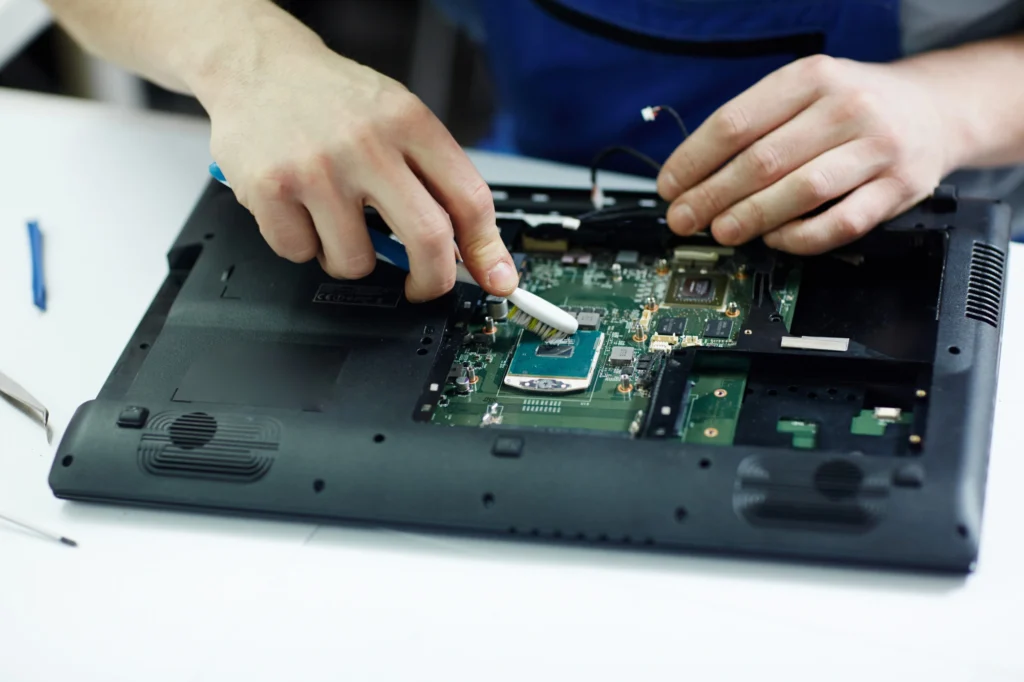
A colleague of mine neglected his laptop maintenance for over a year. Eventually, his device started overheating, causing the system to slow down dramatically. The overheating problem was traced back to excessive dust in the cooling fan, which could have been easily avoided with a simple cleaning.
Expert Insight:
Regular maintenance not only prevents major hardware failure but also ensures that your laptop runs efficiently, saving you from expensive repairs and replacements.
2. How Can You Keep Your Laptop Clean?
Your laptop collects dust, dirt, and oils from your fingers. Over time, this grime can affect its performance and even damage the internal components if left unchecked. Here’s how to clean your laptop:
Cleaning Your Laptop’s Exterior
- Use a microfiber cloth to wipe down the screen, keyboard, and outer casing.
- For stubborn dirt or stains, lightly dampen the cloth with a mixture of water and mild soap. Never spray directly on the laptop.
- Ensure the laptop is powered off and unplugged before cleaning.
Cleaning the Keyboard
- Turn your laptop upside down and gently tap to dislodge loose debris.
- Use compressed air to blow out dirt between the keys.
- A cleaning gel or keyboard cleaning putty can be used for deeper cleaning between the keys.
Cleaning the Screen
- Gently wipe the screen with a microfiber cloth. If necessary, use a screen-safe cleaning solution. Avoid harsh chemicals like window cleaners.
3. How Do You Prevent Overheating?
Overheating is a silent killer of laptops. High temperatures can cause long-term damage to your laptop’s components, including the motherboard and CPU. Here’s how to prevent your laptop from overheating:
Pro Tips:
- Use a Cooling Pad: Laptop cooling pads can significantly reduce the temperature, especially when running resource-heavy applications like games or design software.
- Elevate the Laptop: Position your laptop on an elevated surface to allow air circulation underneath. This helps keep the fan cool.
- Regular Cleaning: Dust buildup on the fan or vents can cause overheating. Clean the vents every few months using compressed air.
Real-World Example:
A friend of mine, a graphic designer, often worked on intense design files. She ignored her laptop’s overheating issues, thinking it was just normal. After a few months, the laptop’s performance took a major hit. A visit to the repair shop revealed that overheating had damaged the processor. A simple cooling pad could have saved her laptop.
4. How Can You Extend Your Laptop’s Battery Life?
One of the biggest complaints laptop owners have is short battery life. Here are some laptop maintenance tips to make sure your laptop battery lasts longer:
Pro Tips:
- Avoid Extreme Temperatures: Keep your laptop away from direct heat or extreme cold, as both can degrade the battery’s performance.
- Charge Wisely: Don’t leave your laptop plugged in all the time; try to keep the battery level between 20% and 80% to extend its lifespan.
- Disable Power-Hungry Features: Turn off features you don’t need, such as Wi-Fi, Bluetooth, or keyboard backlighting when you’re not using them.
Real-World Case Study:
One entrepreneur I worked with noticed his laptop’s battery dying quickly. After researching, he discovered that leaving the laptop plugged in overnight was a key cause. Once he started unplugging the laptop when it reached 80%, his battery life extended significantly.
5. How Can You Prevent Hardware Failure?
Preventing hardware failure involves regular checks on your laptop’s vital components, including the hard drive, RAM, and cooling systems. Here’s what you can do:
Pro Tips:
- Run Diagnostic Tests Regularly: Many laptops come with built-in diagnostic tools that can check the health of your system. Running these tests every couple of months can catch potential issues before they become problems.
- Back Up Your Data: Always keep backups of important files in case your hard drive fails. Using cloud storage or an external drive can save you from losing critical work.
- Keep Software Updated: Regular updates to your operating system and software patches help avoid compatibility issues that could lead to hardware failures.
6. How Do You Protect Your Laptop from Viruses and Malware?
While this is often overlooked, maintaining software health is crucial in ensuring the longevity of your laptop. Viruses, malware, and unnecessary programs can slow down your laptop’s performance and put your personal data at risk. Here’s what you can do:
Pro Tips:
- Install Anti-Virus Software: Ensure that your laptop has up-to-date antivirus protection to prevent malware from corrupting your system.
- Avoid Unnecessary Software: Uninstall any programs that you no longer use. These programs consume system resources, slowing down your laptop.
- Use a VPN: A VPN will protect your device from cyber threats, especially if you’re using public Wi-Fi frequently.
7. How Can You Manage Your Laptop’s Storage Effectively?
Laptops tend to slow down when storage space is full or fragmented. Keeping your laptop’s hard drive or SSD optimized can improve its speed and efficiency. Here’s how:
Pro Tips:
- Clean Up Old Files: Regularly delete or archive files that you no longer need. Tools like Disk Cleanup (Windows) or CleanMyMac can help automate this process.
- Upgrade Storage: If your laptop allows it, upgrading to an SSD (Solid State Drive) can significantly improve speed and storage capacity.
- Use External Storage: For large files like videos or backup images, consider an external hard drive or cloud storage solutions.
8. How Can You Keep Your Laptop Safe from Physical Damage?
Physical damage is one of the most common causes of laptop malfunctions. Taking proactive steps can minimize the risk of your laptop being damaged:
Pro Tips:
- Invest in a Quality Laptop Case: A well-padded case can protect your laptop from drops and scratches.
- Avoid Eating or Drinking Near Your Laptop: Spilled liquids and food particles can cause irreparable damage to your device.
Conclusion:
With these simple yet effective laptop maintenance tips, you can extend the life of your device and avoid costly repairs or replacements. Regular cleaning, monitoring performance, and practicing preventative care will not only improve your laptop’s speed and efficiency but also ensure it serves you well for years.
By adopting these practices today, you’re investing in a future where your laptop continues to perform at its best. Ready to get started? Start with a quick cleaning session and work your way through the rest of these tips. Your laptop will thank you.
FAQ Section
1. How often should I clean my laptop?
It’s recommended to clean your laptop every 1-3 months. Regular dusting helps prevent overheating and keeps your system running smoothly.
2. How can I tell if my laptop is overheating?
If your laptop is unusually hot to the touch or if the fan runs loudly, it’s likely overheating. Performance issues such as lag or shutdowns may also indicate overheating.
3. Is it safe to leave my laptop plugged in all the time?
No, leaving your laptop plugged in constantly can reduce the battery’s lifespan. Unplug it once it’s charged to around 80% to extend the battery’s life.
4. What should I do if my laptop’s battery is draining too quickly?
Check for power-hungry apps running in the background, update your laptop’s power settings, and consider replacing the battery if it’s old or defective.
5. How can I prevent my laptop from slowing down over time?
Keep your software up to date, remove unnecessary files and programs, and regularly clean the laptop’s hardware. Also, consider upgrading to an SSD for better performance.
6. Can using a cooling pad really help my laptop?
Yes, cooling pads help keep your laptop cool by improving airflow. They are especially useful for laptops used for gaming or other resource-heavy tasks.
7. How can I protect my laptop from viruses?
Install a reputable antivirus program, avoid downloading files from untrusted sources, and ensure that your operating system is up to date to protect against malware.