
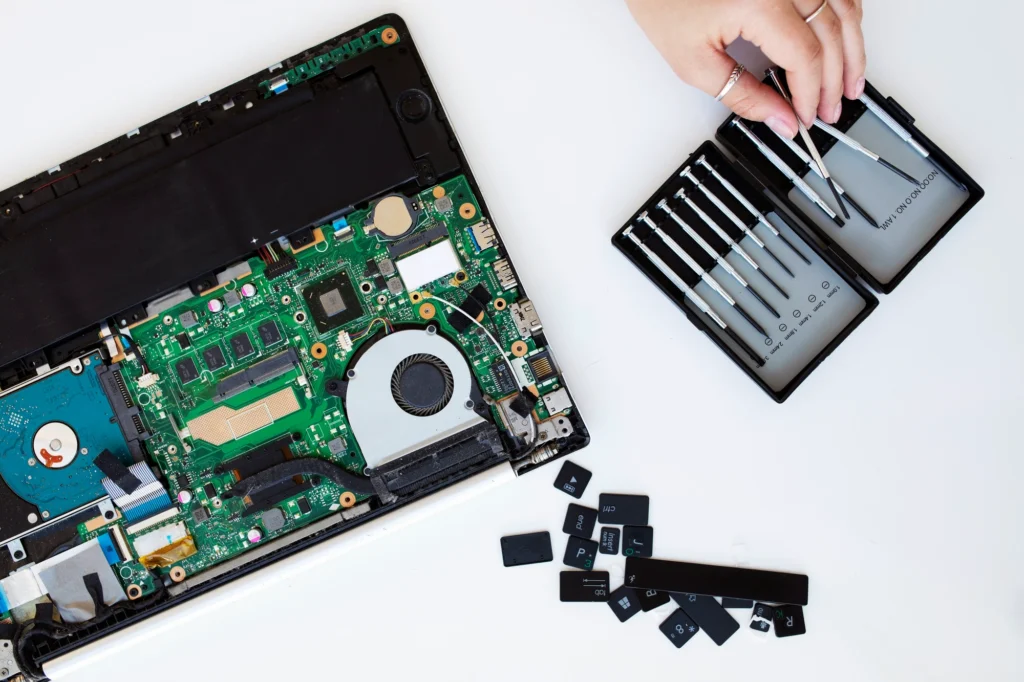
Have you ever been in the middle of an important project or a Zoom call when your laptop suddenly restarts—again and again? If this is happening to you, you’re not alone. A laptop that keeps restarting is an incredibly frustrating issue, one that can cost you time and productivity.
In fact, according to a report by Microsoft, nearly 20% of computer issues reported by users involve hardware malfunctions or operating system errors, which often result in unexpected restarts. But don’t panic. Understanding why your laptop keeps restarting and how to address it is key to fixing the problem.
In this post, you’ll discover the common causes of this issue, effective troubleshooting steps, and how you can prevent your laptop from restarting in the future. Let’s dive into the problem and arm you with the solutions you need!
Why Does My Laptop Keep Restarting?
There are a few key reasons why your laptop might be caught in a constant restart loop. From software issues to hardware malfunctions, the cause can be complex—but the solutions are often within reach.
1. Is Your Laptop Stuck in a Boot Loop?
One of the most common reasons your laptop keeps restarting is being stuck in what’s known as a boot loop. In this scenario, your laptop fails to load the operating system properly and continually restarts itself.
What Causes Boot Loops?
Boot loops often occur due to:
- Corrupted System Files: Software updates, malware, or accidental file deletions can corrupt vital system files, preventing the operating system from starting properly.
- Driver Issues: A malfunctioning or incompatible driver, especially after a recent update, can prevent Windows or macOS from completing its startup process.
- Overclocking or Hardware Changes: If you’ve recently made changes to your laptop’s hardware (e.g., installed new RAM or overclocked the CPU), these adjustments may be causing conflicts.
How to Fix It
To resolve a boot loop, try the following steps:
- Boot into Safe Mode: Restart your laptop and press F8 or Shift + F8 repeatedly during boot. If successful, you can access Safe Mode and uninstall problematic updates or drivers.
- System Restore: If you’ve created restore points, roll back to a stable configuration when your laptop worked properly.
- Reinstall the Operating System: As a last resort, reinstalling the OS can eliminate corrupted files and restore your laptop to a fresh state.
2. Could a Software Update Be to Blame?
If your laptop keeps restarting after an update, the issue could be caused by faulty or incompatible software updates.
How Updates Lead to Restarting
- Windows Updates: A common cause of restarts on Windows laptops is failing updates. When an update goes wrong, your laptop may try and retry to install it, leading to endless restarts.
- Application Conflicts: Certain applications may not be compatible with newer OS versions, causing instability.
How to Fix It
- Pause or Uninstall Updates: On Windows, go to Settings > Update & Security > Windows Update and pause updates for 7 days or uninstall recent updates under the View Update History section.
- Check for Specific App Issues: Identify recently installed software or apps that could be causing the issue and uninstall them.
3. Could a Malware Infection Be the Culprit?
Malware and viruses are other potential causes for a laptop that keeps restarting. These malicious programs can corrupt your system files, cause high CPU usage, and force your laptop to restart unexpectedly.
How Malware Affects Your Laptop
Malware may:
- Corrupt System Files: Leading to instability and constant restarts.
- Cause Overheating: Malicious software running in the background could spike CPU usage, causing the system to overheat and restart.
How to Fix It
- Run Antivirus Software: Use a trusted antivirus program to run a full scan of your laptop. If you can’t boot your laptop, try running the scan from Safe Mode or using an external bootable USB drive.
- Use Malware Removal Tools: Tools like Malwarebytes can identify and remove threats that traditional antivirus software may miss.
4. Is Overheating Triggering the Restart?
Your laptop could be restarting because it’s getting too hot. Overheating is a common issue that triggers automatic restarts to protect your hardware.
How Overheating Affects Your Laptop
Overheating can result from:
- Clogged Fans: Dust buildup in your laptop’s vents and cooling system can cause poor ventilation.
- High-Performance Demands: Running high-demand software (like video games or video editing) can stress your laptop’s CPU and GPU, causing excessive heat.
- Poor Thermal Paste: Over time, the thermal paste between your laptop’s processor and cooling system may degrade, leading to ineffective heat dissipation.
How to Fix It
- Clean Vents and Fans: Use compressed air to blow out dust from your laptop’s cooling system. Make sure the vents are unobstructed.
- Use a Cooling Pad: A laptop cooling pad helps reduce temperatures during heavy use.
- Reapply Thermal Paste: If you’re comfortable doing so, you can reapply thermal paste or have it done by a professional.
5. Could Your Laptop’s Hardware Be Faulty?
A faulty hardware component is another potential cause of random restarts. While rare, damaged RAM, a malfunctioning hard drive, or a failing motherboard can all contribute to system instability.
How Faulty Hardware Affects Your Laptop
- Bad RAM: If your laptop’s RAM is faulty, it can lead to crashes, freezes, and restarts.
- Failing Hard Drive: A damaged hard drive may prevent your laptop from booting, causing repeated restarts.
- Motherboard Issues: In extreme cases, motherboard issues can cause irregular power cycles and restarts.
How to Fix It
- Run Hardware Diagnostics: Many laptops have built-in diagnostic tools you can use to check hardware components for errors.
- Replace Faulty Components: If diagnostics indicate a hardware issue, you may need to replace the malfunctioning component, such as RAM or the hard drive.
6. Are Your Power Settings Causing the Issue?
Sometimes, it’s not the hardware or software, but the settings themselves. Your laptop’s power settings or a faulty battery could be causing the issue.
How Power Settings Affect Your Laptop
- Battery Issues: A failing battery can cause power interruptions, resulting in restarts.
- Power Settings: Certain configurations, such as automatic sleep mode or hibernation, may trigger unexpected restarts.
How to Fix It
- Check Power Settings: Go to Control Panel > Power Options on Windows, or System Preferences > Energy Saver on macOS, and adjust settings that might be causing restarts.
- Replace the Battery: If your battery is faulty, replacing it with a new one should resolve the issue.
Conclusion
A laptop that keeps restarting is more than just a nuisance—it’s a productivity killer. By understanding the common causes of restart loops, like software issues, overheating, or hardware failures, you can quickly identify the source of the problem and take action.
If your laptop is stuck in a boot loop or exhibiting any of the issues mentioned, don’t wait for it to get worse. Try the solutions we’ve discussed, and if needed, reach out to a professional. Ultimately, regular maintenance, keeping your system up-to-date, and ensuring that your laptop is clean and cool can go a long way in preventing future restarts.
Call to Action: If you’re still struggling with laptop restarts, check out our troubleshooting guides on resolving software issues and cleaning your laptop’s cooling system for more in-depth solutions.
FAQ Section
1. What is a boot loop, and how can I fix it?
A boot loop occurs when your laptop keeps restarting without successfully loading the operating system. To fix it, try booting into Safe Mode, performing a system restore, or reinstalling the OS.
2. Can malware cause my laptop to keep restarting?
Yes, malware can cause system instability, leading to random restarts. Run antivirus software or malware removal tools to eliminate the threat.
3. How do I know if overheating is the issue?
If your laptop gets too hot to touch or restarts during heavy usage, overheating could be the cause. Clean the vents and consider using a cooling pad to help with ventilation.
4. Can faulty hardware cause my laptop to restart?
Yes, faulty RAM, hard drives, or other hardware components can cause your laptop to restart. Run diagnostics to check for hardware issues and replace any damaged components.
5. How do I adjust my laptop’s power settings?
To adjust power settings, go to Control Panel > Power Options (Windows) or System Preferences > Energy Saver (macOS), and make sure settings like sleep and hibernation aren’t causing restarts.
6. Why does my laptop restart after an update?
Faulty or incomplete updates can cause your laptop to restart. If this happens, try uninstalling recent updates or pausing future ones to resolve the issue.
7. Should I replace my laptop’s battery if it keeps restarting?
A faulty battery can cause random restarts. If your battery is showing signs of failure, replacing it can prevent further issues.

