
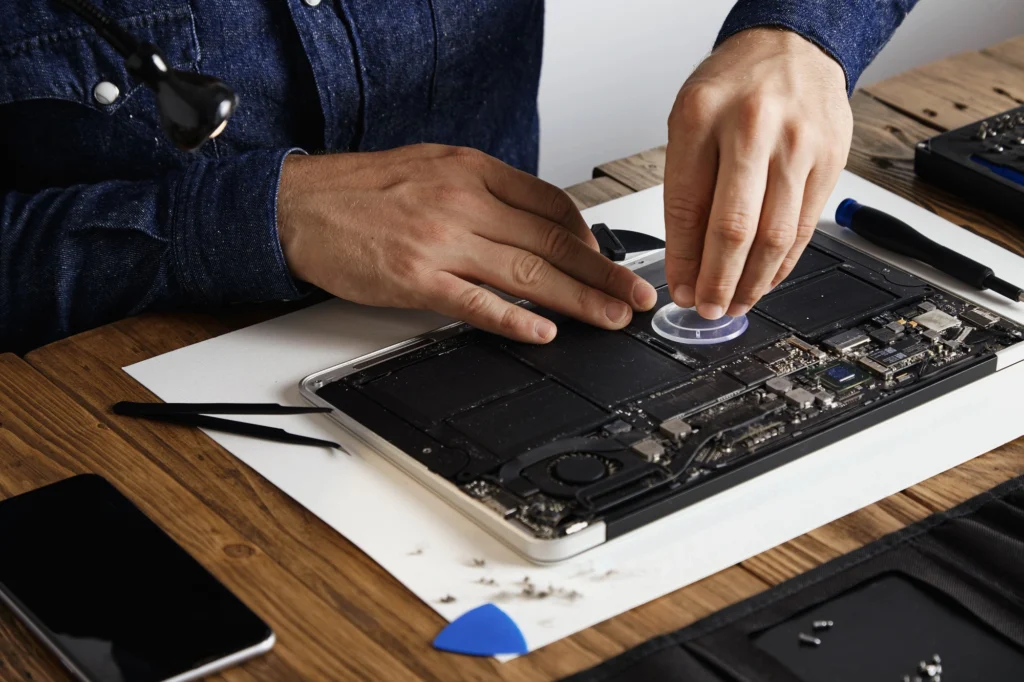
Have you ever wondered how technicians quickly pinpoint the complex issues behind your laptop’s malfunction? A slow boot, erratic performance, or a broken screen can leave you frustrated, but it’s all part of the intricate process of diagnosing a laptop fault.
When your laptop encounters issues, it’s not always easy to figure out whether the problem lies in the software, hardware, or something else entirely. The troubleshooting process involves several layers, each with its own set of challenges. A professional laptop diagnostics guide will take you behind the scenes to understand how technicians approach these faults and make informed repair decisions.
In this article, we’ll explore the diagnostic process in detail, helping you understand how technicians assess problems and come to their conclusions. Whether you are a business owner in Las Vegas seeking to understand your laptop repairs better or simply curious about what happens when your device is in the shop, this guide is for you.
What Are the Key Steps in Diagnosing Laptop Faults?
Laptop diagnostics are more than just a quick check of obvious issues. It’s a systematic process of elimination, testing, and analysis that involves several key steps. Here’s a breakdown of the process technicians follow:
1. Initial Assessment and Problem Identification
When a laptop enters a repair shop, the first step is always an initial assessment. Technicians begin by asking the user to describe the problem in detail. Is the laptop not turning on? Is it running slow? Does the screen flicker?
From here, technicians move to observe how the laptop behaves under normal operation. This step is critical for spotting subtle issues that might not be immediately visible.
2. Run Preliminary Diagnostics
Once the initial assessment is done, technicians often use software tools to run diagnostics tests. These tools check for software issues, hard drive health, and more. Common software tools include:
- MemTest86 for RAM issues
- CrystalDiskInfo for hard drive health
- Windows Memory Diagnostic for testing RAM
- Prime95 for CPU stress testing
These tools help technicians rule out common software-based problems and identify any hardware discrepancies.
3. Hardware Inspection
If software diagnostics don’t reveal the issue, the next step is a thorough hardware inspection. Technicians check for the most common hardware issues that may cause performance issues or failure to power on. The key components checked include:
- Motherboard
- Power Supply
- Battery
- Hard Drive or SSD
- Cooling System
For example, a failed power supply or faulty battery might explain why your laptop isn’t charging. In some cases, it could be a damaged charging port or internal connector.
4. Component Isolation
In this stage, technicians isolate individual components to determine which one is causing the issue. For instance, if the screen is malfunctioning, they might replace the display or test it with an external monitor to confirm if the issue is with the laptop’s display or the graphics card.
5. Testing and Replacing Faulty Parts
Once the issue is identified, technicians proceed with replacing faulty components. They may replace the battery, screen, or other internal components. This phase includes testing new parts to ensure the repair is successful.
How Do Technicians Make Repair Decisions?
Technicians don’t just diagnose and repair problems—they also have to make decisions on whether to replace, repair, or clean certain parts. This decision-making process depends on several factors:
1. Cost of Repair vs. Replacement
One of the primary decisions a technician must make is whether to repair the existing part or replace it entirely. If a hard drive is failing, for example, a technician might recommend replacing the drive with a newer SSD, especially since modern drives are more cost-effective than ever.
2. Time Constraints
In busy repair shops, time is of the essence. Technicians may opt for a repair solution that is faster to implement, provided it will still fix the issue adequately. For instance, software-related issues might be resolved with a system restore, while hardware issues might require full component replacements.
3. Warranty and Service Agreements
If your laptop is still under warranty, the decision to repair versus replace will often depend on the terms of the warranty. In such cases, technicians will typically follow the manufacturer’s guidelines to ensure that warranty clauses remain intact.
4. Diagnosis Complexity
Some problems are complex and require a deep dive into the laptop’s internals. Issues like motherboard failures or water damage require a more meticulous, time-consuming approach. In these cases, technicians may need to order replacement parts or seek specialized equipment to fix the fault.
Real-World Example: Diagnosing a No-Power Laptop Issue
Let’s take a real-world example of diagnosing a laptop that refuses to turn on, which is one of the most common issues people encounter.
Scenario: Laptop Won’t Power On
Initial Assessment: The user reports that the laptop will not power on at all. The screen remains black, and there are no signs of power (no fan sound, no lights).
Preliminary Diagnostics: The technician runs a software diagnostic and finds no software-related issues, ruling out potential operating system failures.
Hardware Inspection: The technician inspects the power supply, battery, and motherboard. The battery is functional, but the charging port is damaged. This leads to the conclusion that the issue lies in the power input, likely due to a broken connector inside the charging port.
Repair Decision: The technician opts to replace the charging port and verifies the power input is restored.
Pro Tips: How to Prevent Common Laptop Issues
While diagnosis and repairs are essential, prevention is always better than cure. Here are some pro tips that can help you extend the life of your laptop:
- Keep Your Laptop Clean: Regularly clean your laptop’s keyboard, screen, and vents. Dust buildup inside the laptop can cause overheating and other issues.
- Invest in a Good Case: A protective case will help prevent accidental drops or spills.
- Regular Backups: Always back up your files regularly. In case your laptop fails, you won’t lose important data.
- Use Surge Protectors: Power surges can fry your laptop’s internal components, so always use surge protectors to prevent electrical damage.
Conclusion
Diagnosing and repairing a laptop is a complex process that requires both skill and experience. Technicians must carefully assess the issue, perform diagnostic tests, and make informed decisions on how best to proceed. Whether you’re a business owner in Las Vegas dealing with malfunctioning laptops or someone simply looking to understand the diagnostic process, this guide has given you a peek behind the curtain.
For your next laptop repair, make sure you’re working with professionals who understand the intricacies of the diagnosis and repair process. With the right knowledge, tools, and decision-making abilities, technicians can bring your laptop back to life in no time.
FAQ Section
1. How do technicians diagnose a laptop that won’t turn on?
Technicians begin by checking the power supply and battery. They might then inspect the charging port, motherboard, and screen to identify the root cause of the issue.
2. How long does it take to diagnose a laptop issue?
The time it takes to diagnose a laptop issue depends on the complexity of the problem. Simple issues like software problems can take just a few minutes, while hardware problems may take several hours.
3. Should I repair or replace my laptop if it’s over 5 years old?
It depends on the problem. If the laptop’s hardware is outdated or the cost of repairs exceeds the price of a new model, it’s often better to replace it.
4. Can technicians diagnose software issues remotely?
Yes, many software-related issues can be diagnosed remotely through remote access tools. However, hardware issues generally require physical inspection.
5. What are the most common laptop problems technicians deal with?
Common laptop problems include battery failure, hard drive issues, overheating, broken screens, and malfunctioning charging ports.

