
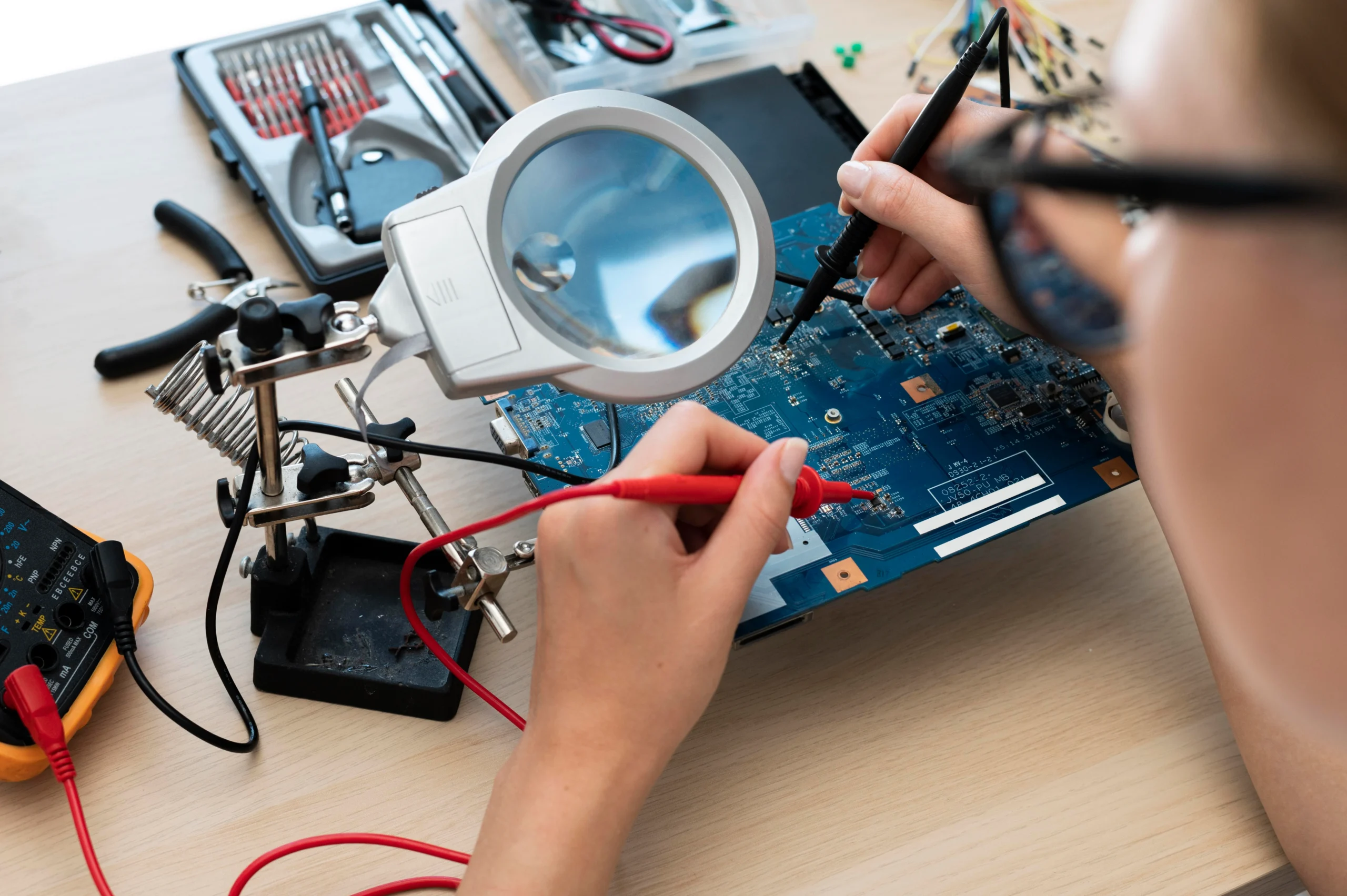
Do you find yourself struggling with your HP laptop acting up, from frequent crashes to a dead battery? You’re not alone. Many HP laptop users face common technical problems that can halt productivity and cause significant frustration. The good news? You don’t have to be an expert to fix many of these issues. This guide will walk you through simple yet effective repair tips to resolve common HP laptop issues quickly, saving both time and money.
Whether you’re dealing with overheating, a malfunctioning keyboard, or screen problems, this guide provides step-by-step instructions on how to troubleshoot and fix your laptop without professional help. By the end of this guide, you’ll have the tools and knowledge needed to handle most common HP laptop repairs, enabling you to get back to work with minimal downtime.
Common HP Laptop Issues and How to Fix Them
1. Overheating: What’s Causing It and How to Solve It?
Overheating is a common issue for HP laptops, especially for those running high-performance applications or playing graphics-intensive games. Excessive heat can lead to system slowdowns, crashes, or even permanent damage to internal components.
Pro Tips for Fixing Overheating:
- Clean the Fans: Dust buildup can clog your laptop’s cooling fans, causing overheating. Use compressed air to blow dust out of the vents and fans.
- Use a Cooling Pad: A cooling pad can help reduce the temperature by providing additional airflow to the laptop.
- Check Power Settings: Set your laptop to ‘Power Saver’ mode when not running heavy applications to reduce heat generation.
Real-World Example: A Las Vegas business owner reported that their HP laptop started overheating after frequent use for online meetings and design work. After cleaning the fans and using a cooling pad, the laptop’s temperature dropped significantly, and performance returned to normal.
2. Laptop Battery Not Holding Charge: How to Fix It?
HP laptop users often complain about poor battery life, which is an issue that can affect overall productivity. A laptop that won’t hold a charge may indicate a malfunctioning battery or charging port.
Fixes for Battery Issues:
- Battery Calibration: Sometimes, your battery needs to be recalibrated. Fully charge your laptop, then let it discharge completely before recharging to 100%.
- Replace the Battery: If your battery is old or has been through many charge cycles, it may need to be replaced with an OEM (Original Equipment Manufacturer) part.
- Check Power Settings: Make sure your laptop is optimized for battery usage by adjusting settings like screen brightness and disabling unnecessary background apps.
Expert Insight: In Las Vegas, high temperatures can accelerate battery wear. Ensure you keep your laptop in a cool environment to extend battery life.
3. Broken Laptop Keyboard: How to Replace or Fix It?
A malfunctioning keyboard is another frequent issue for HP laptop users. Whether keys are sticking, not responding, or have become unresponsive, this can greatly hinder your workflow.
Steps to Repair or Replace the Keyboard:
- Check for Software Issues: First, check if the issue is software-related by restarting your laptop or checking if a keyboard driver update is needed.
- External Keyboard: Use an external USB keyboard temporarily while troubleshooting.
- Replace the Keyboard: If it’s a hardware issue, you may need to replace the entire keyboard. Always use an OEM part for better durability and compatibility.
Pro Tip: Ensure the laptop is powered off and unplugged before attempting any keyboard replacement.
4. Wi-Fi Connectivity Issues: How to Fix Drops or Slow Speeds?
Wi-Fi issues are some of the most frustrating problems HP laptop users encounter. Slow internet or dropped connections can significantly impact work efficiency and even entertainment.
Fixing Wi-Fi Issues:
- Restart Your Router: Sometimes, the problem is with the network, not the laptop. Power cycle your router and reconnect.
- Update Wi-Fi Drivers: Go to Device Manager and ensure your Wi-Fi driver is up to date.
- Use a Wi-Fi Extender: If your laptop is far from the router, consider using a Wi-Fi extender to boost signal strength.
Real-World Example: A Las Vegas small business owner with a home office noticed their HP laptop dropped Wi-Fi frequently. By updating the Wi-Fi driver and relocating the router closer, their Wi-Fi issues were resolved, improving work performance.
5. Screen Flickering: How to Troubleshoot and Fix It?
A flickering screen on an HP laptop can be caused by faulty hardware, software conflicts, or even driver issues. This problem can be extremely distracting and affect your work or leisure time.
Fixes for Screen Flickering:
- Update Graphics Drivers: Ensure your graphics drivers are up-to-date by checking HP’s website for the latest updates.
- Check for Physical Damage: If your screen flickers after being dropped, you may need to replace the screen or other damaged components.
- Adjust Refresh Rate: Go to Display Settings and adjust the screen’s refresh rate to see if it resolves the flickering.
Expert Insight: In Las Vegas, laptops are exposed to higher temperatures and dust, both of which can contribute to screen flickering. Keep your device clean and in a cool environment for optimal performance.
6. Slow Performance: How to Speed Up Your HP Laptop?
Over time, your HP laptop may become sluggish due to a buildup of unnecessary files, background processes, or outdated hardware.
How to Speed Up Your Laptop:
- Clean Up Your Hard Drive: Use disk cleanup tools to remove unnecessary files and free up space.
- Upgrade RAM or SSD: If your laptop is running slow due to outdated hardware, consider upgrading the RAM or switching from an HDD to an SSD for faster performance.
- Disable Unnecessary Startup Programs: Check the Task Manager for apps that automatically start when your laptop boots up and disable unnecessary ones.
Pro Tip: For Las Vegas businesses that rely heavily on performance, upgrading to an SSD can make a huge difference in load times and overall system speed.
Conclusion
HP laptops are robust machines, but like any electronic device, they come with their share of problems. From overheating to battery issues and slow performance, these common problems can often be solved with basic repairs and maintenance. By following the steps outlined in this guide, you’ll be able to address these problems effectively and efficiently.
Remember, when replacing parts, always opt for OEM replacements to ensure compatibility and longevity. If you’re not comfortable performing the repairs yourself, consider seeking professional help, especially for more complex issues. Keep your HP laptop in optimal working condition, and it will continue to serve you well for years to come.
Next Steps: If you’re experiencing persistent issues that you can’t fix on your own, consider visiting an authorized HP service center for a professional diagnosis. For further guidance on keeping your laptop in top shape, check out our other blogs on laptop maintenance.
FAQ Section
1. How do I know if my HP laptop battery needs replacing?
If your laptop battery drains quickly, doesn’t charge fully, or shows a rapid decrease in performance after each charge, it may be time for a replacement. Use HP’s battery check tool to assess its health.
2. Why is my HP laptop running so slow?
HP laptops can become slow due to a cluttered hard drive, too many background programs, or outdated software. Regular maintenance, including disk cleanup and software updates, can help speed up your system.
3. Can I replace the keyboard on my HP laptop myself?
Yes, you can replace the keyboard on most HP laptops. Be sure to follow proper instructions, disconnect the power source, and purchase an OEM replacement part to ensure compatibility.
4. What should I do if my HP laptop screen is flickering?
First, check for software or driver issues. If the problem persists, it may be a hardware issue requiring a professional replacement of the screen or graphics card.
5. How can I fix Wi-Fi connectivity problems on my HP laptop?
Wi-Fi issues can often be fixed by restarting your router, updating drivers, or adjusting network settings. If the problem continues, you may need to replace the wireless card or consider using a Wi-Fi extender.
6. How do I prevent my HP laptop from overheating?
Keep your laptop clean by regularly removing dust from the vents and fans, use a cooling pad, and adjust the power settings to reduce heat generation during intensive tasks.
7. Can I replace an HDD with an SSD in my HP laptop?
Yes, upgrading from an HDD to an SSD can significantly improve the speed and performance of your HP laptop. Make sure to back up your data before performing the upgrade.

