Have you ever noticed your laptop overheating or running slower than usual? One major culprit could be dust buildup inside your device. Over time, dust accumulates in critical areas like fans, vents, and internal components, blocking airflow and causing performance issues. In fact, studies show that overheating is one of the leading causes of hardware failure in laptops, leading to costly repairs or replacements.
This blog post will guide you on the best ways to clean laptop dust and keep your device in top-notch condition. Whether you’re a business owner, marketer, or tech-savvy individual, these tips will help you extend your laptop’s lifespan and ensure optimal performance. Ready to dive into cleaning your laptop? Let’s get started!
Why Is Cleaning Laptop Dust So Important?
What happens when you don’t clean your laptop?
Laptops are susceptible to dust accumulation, especially in Las Vegas, where dry conditions can exacerbate the issue. When dust clogs vents and internal components, it can cause:
- Overheating: Dust traps heat, causing your laptop to overheat, which can lead to sudden shutdowns and system crashes.
- Reduced Performance: As cooling systems get blocked, your laptop may struggle to maintain its performance levels, leading to sluggishness.
- Shortened Lifespan: If left unchecked, the dust buildup can damage sensitive components such as the CPU, GPU, and motherboard, resulting in costly repairs.
Cleaning your laptop regularly not only prevents these issues but can also keep your device running faster and cooler, ultimately extending its life.
What Tools Do You Need to Clean Your Laptop?
Do you need special tools to clean your laptop?
Yes, and here’s what you’ll need to get started:
- Compressed Air Canister: The most effective tool for removing dust from vents and fans without damaging internal components.
- Microfiber Cloth: To wipe off external surfaces without leaving streaks or scratches.
- Screwdriver Set: To open the back panel if you need to clean inside (be sure to follow your manufacturer’s guidelines).
- Anti-Static Wrist Strap: To prevent static buildup that could damage sensitive components while working on your laptop.
- Isopropyl Alcohol (70% or higher): Used for cleaning sticky residues on your keyboard or screen.
Pro Tip: Avoid using a vacuum cleaner on your laptop—it can generate static electricity that may damage components.
Step-by-Step Guide to Cleaning Laptop Dust
How can you clean your laptop effectively?
Cleaning your laptop may seem like a daunting task, but it’s simple when done right. Here’s a step-by-step guide:
1. Power Off Your Laptop
Always power off your laptop before cleaning. Unplug it from any power sources, and remove the battery if possible.
2. External Surface Cleaning
Using a microfiber cloth lightly dampened with isopropyl alcohol, gently wipe down the exterior of your laptop. This includes the screen, keyboard, and trackpad. Be careful not to let any liquid seep into the openings.
3. Blow Out Dust with Compressed Air
Hold your laptop at an angle and use the compressed air canister to blow out dust from the keyboard, vents, and fans. Move the air canister in short bursts and avoid shaking it. Keep the nozzle a few inches away from the device to prevent moisture buildup.
4. Open the Laptop (Optional)
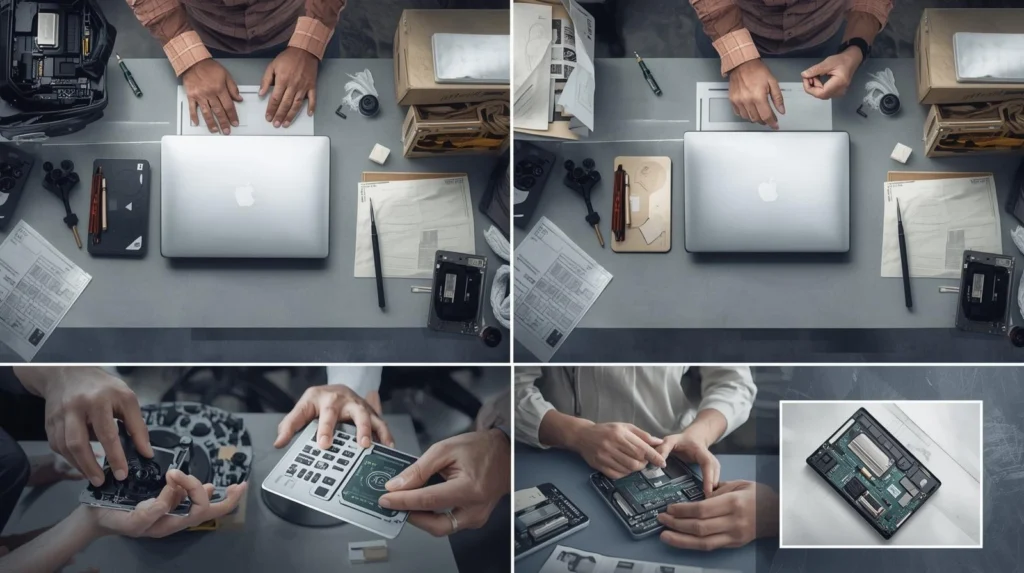
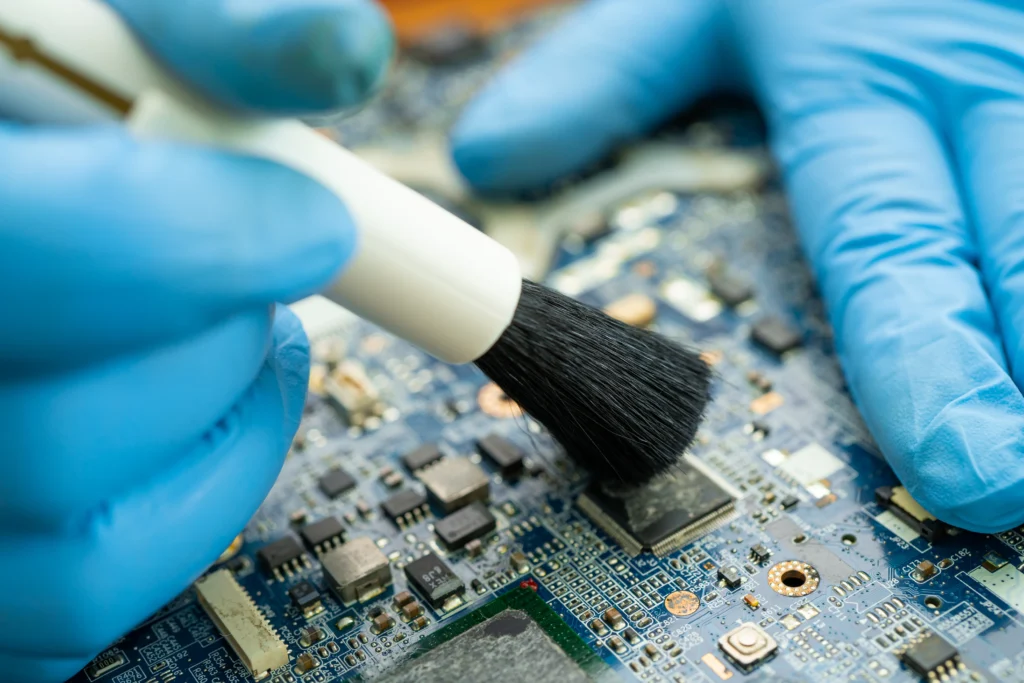
If you’re comfortable and your laptop allows for it, open the back panel to access the internal components. Use compressed air to clear out dust from the fan and other internal areas. Make sure not to touch any internal components to avoid damaging them.
5. Reassemble Your Laptop
Once everything is clean, reassemble your laptop, replace the battery, and power it back on.
How Often Should You Clean Your Laptop?
Is there a set schedule for cleaning your laptop?
Ideally, you should clean your laptop every 3 to 6 months, depending on your usage and environment. However, in a dusty or dry region like Las Vegas, it’s recommended to clean your laptop more frequently, especially if you use it in areas with heavy dust exposure.
Pro Tip: If your laptop starts to overheat or run slow more frequently, it may be time for a cleaning session.
What Are the Risks of Not Cleaning Your Laptop?
What could happen if you neglect laptop dust cleaning?
- Overheating: Dust buildup in the cooling system restricts airflow, causing your laptop to overheat. This can lead to permanent damage to internal components like the CPU and GPU.
- Sluggish Performance: Overheating can trigger the laptop’s thermal throttling feature, slowing down processing speed to prevent damage.
- System Crashes: Excessive heat can cause your laptop to shut down unexpectedly or even crash the operating system.
- Higher Repair Costs: If dust leads to hardware failure, repair or replacement costs can be substantial.
Laptop Maintenance Tips to Prevent Dust Buildup
How can you prevent dust from accumulating in your laptop?
- Use Laptop Cooling Pads: A cooling pad with built-in fans can help reduce the temperature and prevent dust buildup.
- Store Your Laptop in a Clean Area: Keep your laptop in an area with minimal dust. If possible, avoid using it on soft surfaces like beds or couches that can trap dust.
- Regularly Check and Clean Vents: Be proactive by regularly checking the vents for dust buildup. This can prevent major issues down the line.
- Use an Anti-Dust Laptop Sleeve: Consider using a protective sleeve when not in use to keep dust away from the laptop’s vents and keyboard.
Expert Insights on Laptop Dust Cleaning
What do professionals recommend for dust cleaning?
- “Regular cleaning is key. In my experience, dust is the number one reason laptops fail prematurely. A simple cleaning every 3 to 6 months can save you hundreds in repairs.” – John, IT Specialist, Las Vegas
- “Don’t overdo it with compressed air. A gentle, controlled burst is enough to dislodge most dust. Excessive force can damage sensitive components.” – Sarah, Laptop Repair Technician, USA
Conclusion
Cleaning your laptop is a simple yet crucial maintenance task that can significantly improve its performance and lifespan. Regular dust cleaning helps prevent overheating, reduce sluggishness, and avoid costly repairs. With the right tools and techniques, you can ensure your laptop runs smoothly for years to come.
Next Steps: Start cleaning your laptop today to avoid future problems. If you’re looking for professional assistance, don’t hesitate to reach out to a local expert in Las Vegas. Stay proactive about laptop care, and it will pay off in the long run.
FAQ Section
- How do I know if my laptop is overheating due to dust?
If your laptop becomes hot to the touch or shuts down unexpectedly, dust buildup could be blocking airflow. Regular cleaning can resolve these issues. - Can I clean my laptop with a vacuum cleaner?
No, using a vacuum cleaner is not recommended as it can generate static electricity, which may damage internal components. Use compressed air instead. - How often should I clean the keyboard and screen?
It’s good practice to clean the external parts of your laptop every 1-2 months, depending on usage. This includes wiping down the keyboard and screen with a microfiber cloth. - Will cleaning my laptop improve its speed?
Yes, cleaning dust from internal components helps prevent overheating, which can improve processing speed and prevent thermal throttling. - Can I clean my laptop without opening it?
Yes, using compressed air can effectively clean the external vents and keyboard without needing to open the laptop. However, opening it can allow for a deeper clean of internal components.