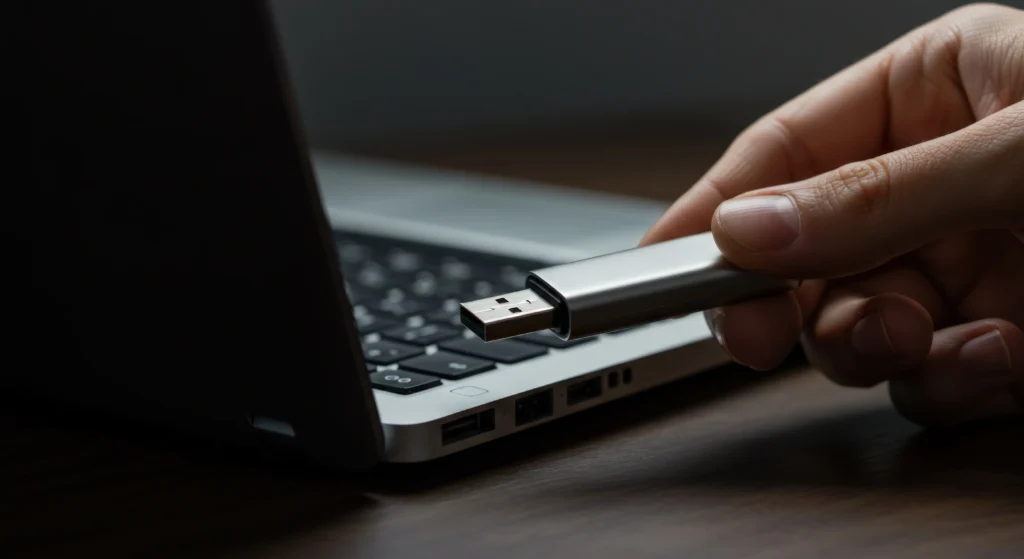
Have you ever plugged your USB device into your laptop, only to realize that the port isn’t working? It’s an infuriating problem that many people face, yet few know how to resolve it quickly. Whether you’re working on a project, transferring important files, or just charging a device, a malfunctioning USB port can completely halt your productivity. In fact, studies show that nearly 30% of laptop users encounter connectivity issues, including faulty USB ports, at some point in their device’s lifespan.
But don’t worry, we’ve got you covered! In this guide, we’ll walk you through the common reasons your laptop’s USB ports might stop working, as well as how you can troubleshoot, repair, or replace them—without the need for costly repairs. By the end, you’ll know how to get your laptop back in action with minimal hassle.
Why Did My Laptop USB Port Stop Working?
USB ports are essential components in any laptop, used for connecting a wide range of devices such as external hard drives, flash drives, keyboards, and more. When these ports stop functioning, there can be several reasons behind it.
1. Software Issues:
Often, your laptop’s USB ports may stop working because of software-related issues, such as outdated or corrupt drivers. Sometimes, a system update can inadvertently cause compatibility issues, which may lead to your USB ports not being recognized.
2. Hardware Malfunctions:
Sometimes the problem is physical. If the USB port is damaged due to wear and tear, bending, or exposure to foreign objects, it might fail to function properly. In more extreme cases, the internal components of the port, like the metal connectors, may break or become dislodged.
3. Power Supply Issues:
Laptops often power their USB ports using a battery or an AC adapter. If there’s a power supply issue, the USB port may not receive the necessary voltage to function correctly. This is more common with laptops that have older batteries or failing charging adapters.
How to Troubleshoot a Non-Working USB Port
Before considering any physical repairs or replacements, it’s always a good idea to run through some basic troubleshooting steps. Here’s how you can approach the problem:
1. Restart Your Laptop
This is the simplest solution that often works. Restarting the laptop can resolve any software glitches or temporary issues that might be affecting the USB port functionality.
2. Check Device Manager for Driver Issues
- Open the Device Manager on your laptop (you can search for it in the Start Menu).
- Expand the Universal Serial Bus Controllers section.
- Look for any yellow warning signs next to the USB host controller or root hub drivers. This indicates a problem with the driver.
- Right-click and choose Update Driver to ensure you have the latest version.
3. Test with Different USB Devices
Sometimes, the issue may be with the device you’re trying to connect. Test the USB port with multiple devices (USB flash drive, mouse, keyboard, etc.) to see if the problem persists with all of them. If only one device isn’t working, the issue could be with the device itself.
4. Check for External Conflicts
Some software, like security programs or virtual machines, may interfere with USB functionality. Disable any unnecessary external programs or disconnect peripherals to test if they are causing the issue.
How to Fix a Broken USB Port
If your USB port still isn’t working after troubleshooting, you might be dealing with a hardware issue. Here’s what you can do to fix it:
1. Clean the USB Port
Dirt, dust, and debris can block the metal pins inside the USB port, preventing proper connectivity. Use a can of compressed air to blow out any dirt or dust. Be gentle to avoid damaging the internal components.
2. Inspect for Physical Damage
If your USB port looks bent or has visible damage, it might need replacement. Carefully inspect the port for any obvious signs of physical damage such as broken pins or a loose connection.
3. Reseating the Laptop’s Internal Connections
If you’re comfortable with taking your laptop apart, you can try reseating the internal USB components. Sometimes, the connection may simply be loose or disconnected. This step should only be performed if you have experience with laptop hardware or are willing to take the risk of voiding your warranty.
4. Replace the USB Port
If the port is irreparably damaged, replacing it is often the best option. You can either take your laptop to a certified repair shop or order a replacement USB port online. If you choose to replace it yourself, make sure you purchase the correct part compatible with your laptop model.
When to Seek Professional Help
While DIY fixes are great for minor issues, there are situations where professional repair is necessary. Here’s when you should consider calling in an expert:
1. You’re Unable to Fix the Issue Yourself
If the troubleshooting steps and minor fixes don’t resolve the problem, it’s time to seek professional help. Sometimes, the problem is more complicated than a simple software issue or dirty port.
2. The USB Port Is Physically Damaged
If the port is physically damaged and beyond cleaning or reseating, replacing the port yourself can be tricky. It’s often safer to leave this type of repair to a professional to avoid causing further damage to the motherboard.
3. You’re Not Comfortable with Laptop Disassembly
Laptops are delicate machines, and improper disassembly can lead to more problems. If you’re uncomfortable with taking apart your laptop, consider taking it to a technician who can safely replace the USB port.
Pro Tips for Preventing Future USB Port Issues
1. Use a USB Hub
If you frequently use multiple USB devices, consider using a USB hub. This will help reduce wear and tear on individual ports, ensuring they last longer.
2. Be Gentle with Your USB Ports
When plugging in or removing USB devices, be gentle. Forcefully inserting or removing a USB device can damage the port over time.
3. Keep Your Laptop in a Clean Environment
Dust, dirt, and moisture are your USB port’s worst enemies. Try to keep your laptop in a clean environment and avoid eating or drinking near it.
Conclusion
A malfunctioning USB port can be a real productivity killer, but fortunately, most issues can be fixed without the need for costly repairs. Whether the issue lies in software, physical damage, or power supply, there are a variety of troubleshooting and repair methods you can try. By following the tips in this guide, you should be able to get your laptop’s USB ports up and running again in no time.
If you find that your attempts at troubleshooting don’t work, don’t hesitate to seek professional help. A quick repair could save you the cost of a new laptop and ensure your USB ports keep functioning for years to come.
Frequently Asked Questions (FAQ)
Q1: How do I know if my laptop USB port is physically damaged?
Look for signs such as bent or broken pins inside the port, or if the USB device doesn’t fit securely.
Q2: Can I replace a broken USB port myself?
Yes, but it’s tricky. If you’re confident in your skills, you can purchase a replacement part and install it yourself. Otherwise, seek professional help.
Q3: Why is only one USB port not working on my laptop?
It could be a software issue or the port could be physically damaged. Test with multiple devices and update your drivers to rule out software problems.
Q4: Can using a USB hub prevent future damage to laptop USB ports?
Yes, using a hub reduces the stress on individual ports, extending their lifespan.
Q5: How often should I clean my laptop’s USB ports?
Cleaning your USB ports every few months or when you notice any issues can help keep them free from debris and dust.