
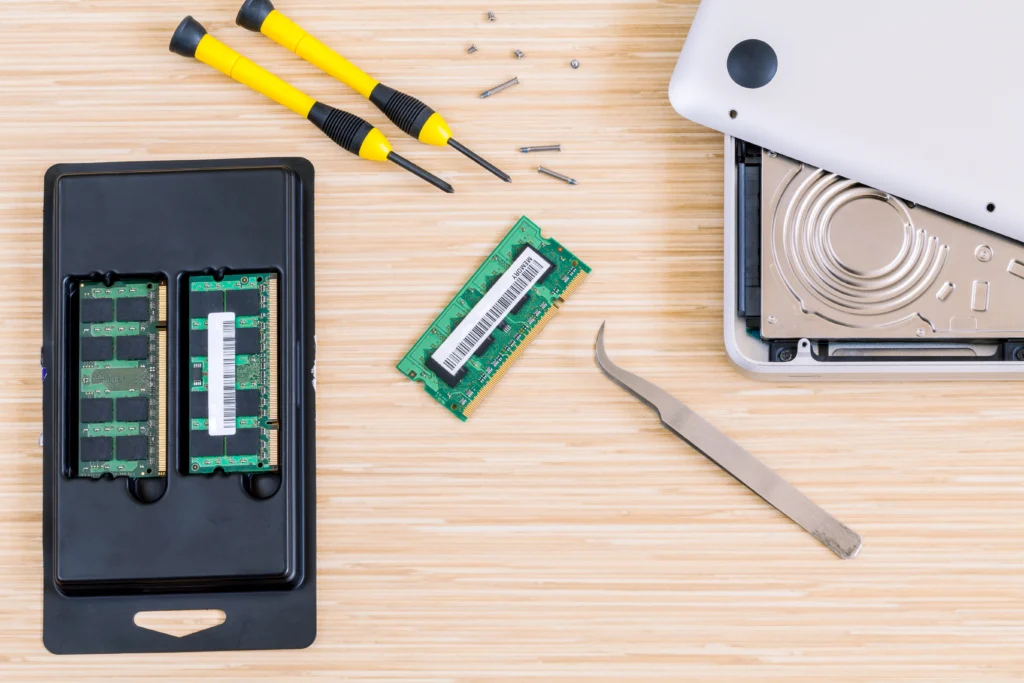
Have you ever found your laptop lagging during simple tasks like browsing or working on a document? Or perhaps you’ve struggled with performance issues while multitasking? These are telltale signs that your laptop’s RAM is underperforming, and the good news is that upgrading it can lead to a smoother, faster experience. In this guide, I’ll walk you through the steps to upgrade your laptop RAM the right way—without breaking a sweat. Whether you’re a business owner, entrepreneur, or just someone looking to improve laptop performance, you’ll find actionable advice backed by expert insights to help you make the most out of your upgrade.
Why Upgrading Your Laptop RAM Matters
RAM, or Random Access Memory, is the short-term memory of your laptop, used to store data that is actively being used or processed. If you frequently run multiple applications or keep many browser tabs open, your laptop may experience performance issues if it doesn’t have enough RAM. Upgrading your RAM is one of the most cost-effective ways to enhance your system’s speed and efficiency.
A laptop with insufficient memory can lead to sluggish performance, application crashes, and increased loading times, which can severely impact productivity. Thankfully, upgrading your laptop RAM is a straightforward process that can significantly improve performance—without the need to purchase a brand-new laptop.
Why Upgrade Your Laptop RAM?
Does My Laptop Need More RAM?
Before you begin the process, you need to identify whether an upgrade is necessary. Here are a few signs your laptop may benefit from additional RAM:
- Frequent Slowdowns – If your laptop takes a long time to boot up or slows down significantly during normal use, your RAM might be overloaded.
- Excessive Application Crashes – Applications might crash or freeze when you’re multitasking because the system is out of available memory.
- Running Memory-Intensive Applications – Programs like photo or video editing software, games, or even multiple browsers with many open tabs can eat up available RAM.
- System Alerts – If you’ve seen notifications indicating low memory, it’s definitely time for an upgrade.
Expert Insight: The more RAM you have, the more your laptop can handle at once. This means faster performance and the ability to run more programs simultaneously.
How Much RAM Do You Need?
One of the most frequently asked questions when upgrading RAM is: How much RAM do I need?
For most users:
- 8GB is the minimum for standard tasks like browsing, word processing, and video streaming.
- 16GB is recommended for gamers, designers, or anyone using resource-heavy software like Adobe Photoshop or virtual machines.
- 32GB or more is ideal for professionals working with 3D rendering, video editing, or other high-performance applications.
It’s important to check your current usage and determine how much additional memory you need. You can open the Task Manager (Ctrl+Shift+Esc on Windows) or Activity Monitor on Mac to monitor your memory usage.
What to Know Before Upgrading
Can I Upgrade My Laptop RAM?
Not all laptops allow RAM upgrades. Some laptops, especially ultra-thin models or MacBooks, have RAM soldered to the motherboard, making upgrades impossible. Before you start shopping for memory, check your laptop’s specifications to confirm whether it’s upgradeable. If you’re unsure, consult the manufacturer’s manual or check the model number online for more details.
Pro Tip: Always check the number of RAM slots in your laptop before purchasing memory. If you already have two RAM sticks installed, you may need to replace them entirely, or you might be able to add an additional stick depending on the number of slots available.
How to Choose the Right RAM for Your Laptop
DDR vs. DDR4: What’s the Difference?
Laptops typically use DDR (Double Data Rate) memory. The latest laptops use DDR4 RAM, which is faster and more energy-efficient than previous DDR generations. Ensure you purchase RAM that matches your laptop’s specifications, as compatibility is key.
Here’s a quick breakdown of RAM types:
- DDR3: Older, slower, and less energy-efficient.
- DDR4: The current standard, offering faster speeds and lower power consumption.
- DDR5: Newer and faster, but not yet common in most laptops.
When upgrading, it’s essential to choose the correct DDR type for your machine.
Step-by-Step Guide to Upgrading Your Laptop RAM
1. Check Your Laptop’s RAM Capacity
Before purchasing new RAM, you need to check your laptop’s current memory configuration. This will tell you how much RAM you have installed and whether your laptop has any available slots for additional memory.
- For Windows: Press Ctrl+Shift+Esc to open the Task Manager, go to the Performance tab, and select Memory.
- For Mac: Click the Apple menu > About This Mac > Memory.
2. Choose the Right RAM
Once you know your laptop’s specifications, purchase the RAM that matches:
- Capacity: 8GB, 16GB, etc.
- Speed: Measured in MHz, typically 2133MHz, 2400MHz, or 3200MHz.
- Type: DDR3, DDR4, or DDR5, depending on what your laptop supports.
Use a tool like Crucial’s Memory Advisor Tool to help find the right RAM for your specific laptop model.
3. Power Off Your Laptop
Before you begin, make sure to shut down your laptop and disconnect it from the power source. If your laptop has a removable battery, take it out as well.
4. Open Your Laptop’s Back Panel
Most laptops have an access panel on the bottom that allows you to access the RAM slots. Some laptops may require you to remove the entire bottom panel, while others have a dedicated RAM compartment. Use a small screwdriver to remove screws, and carefully lift the panel.
5. Install the New RAM
If you’re adding RAM, insert the new stick into the available slot at an angle (usually 45 degrees) and press down firmly until it clicks into place. If you’re replacing old RAM, gently release the existing sticks by pulling the metal clips to the side, and then remove the RAM sticks.
Be cautious not to touch the metal pins of the RAM with your bare hands to avoid static damage. You can use an anti-static wristband for added protection.
6. Reassemble Your Laptop
Once the new RAM is securely in place, replace the back panel and screws. Reinsert the battery if necessary.
7. Power On Your Laptop
Turn on your laptop and check the system to ensure the new RAM is detected. You can do this by going back into Task Manager or Activity Monitor to verify the new memory.
Troubleshooting Common Issues After Installing RAM
1. Laptop Doesn’t Boot
If your laptop doesn’t boot after the RAM upgrade, it could be due to improper installation. Power off the laptop, reopen it, and ensure the RAM is correctly seated in the slot.
2. Laptop Detects Only One Stick of RAM
This can happen if the RAM sticks are incompatible or improperly installed. Check the RAM specifications and ensure they match. Try reinstalling them one at a time to identify if a faulty stick is causing the issue.
3. System Freezes or Crashes
If you experience system instability after the upgrade, it could be due to incompatible RAM. Make sure the memory speed and capacity are compatible with your laptop’s motherboard.
Conclusion
Upgrading your laptop RAM is an effective way to improve performance, especially if you use memory-heavy applications or multitask frequently. By following the steps outlined in this guide, you can ensure a smooth and successful RAM upgrade. Remember to verify your laptop’s compatibility, choose the right memory type and capacity, and handle the installation process with care. With the right upgrades, your laptop can run faster, smoother, and handle more demanding tasks, ultimately boosting your productivity.
Next Steps
- If you’re unsure about compatibility, consider reaching out to your laptop’s manufacturer or a professional technician for guidance.
- Explore other laptop upgrades, such as SSD installations, to further boost your system’s speed and storage capacity.
FAQ
- Can I upgrade my laptop RAM myself?
Yes, most laptops allow for a RAM upgrade. Just make sure to check your laptop’s specifications and follow the steps outlined in the guide. - How do I know how much RAM my laptop can support?
You can find this information in your laptop’s manual or by searching your model online. Tools like Crucial’s Memory Advisor can also help you find compatible RAM. - What happens if I install incompatible RAM?
Incompatible RAM can cause system crashes, failure to boot, or instability. Always ensure you purchase RAM that is compatible with your laptop’s specifications. - How can I check if my laptop is running out of RAM?
Open Task Manager on Windows or Activity Monitor on Mac to monitor your RAM usage. If it’s frequently at or near 100%, you likely need an upgrade. - How much RAM is enough for gaming?
For gaming, 16GB is typically sufficient for most games. However, more demanding titles or tasks may benefit from 32GB or higher.

