
Is your laptop getting hotter than usual, even when you’re just browsing the web or working on documents? Have you noticed that your device is slowing down, freezing, or shutting down unexpectedly? These could be signs that your laptop’s cooling system is on the verge of failing. Laptop cooling systems are designed to prevent your device from overheating, but just like any other component, they don’t last forever. If left unchecked, an inefficient cooling system can lead to severe damage, impacting performance and lifespan.
In this blog post, we’ll discuss hidden signs of a failing laptop cooling system, common troubleshooting techniques, and provide expert tips on how to fix or replace your cooling system. Whether you’re a business professional working on tight deadlines or a gamer enjoying your favorite titles, understanding these symptoms could save you from costly repairs and downtime. Read on to discover how to troubleshoot overheating and keep your laptop running smoothly for years to come.
1. Why Is Overheating a Big Deal for Your Laptop?
Laptops, like any electronic device, are built with sensitive components that can easily be damaged by excessive heat. When the temperature inside your laptop rises too much, it can cause hardware to malfunction, degrade, or even fail entirely. So, what makes overheating such a serious issue?
- Performance Decrease: When a laptop overheats, it often enters thermal throttling mode to prevent further heat damage. This means the CPU and GPU slow down to reduce power consumption, leading to a noticeable lag in performance.
- Component Damage: Over time, heat can break down internal components like the motherboard, hard drive, and battery. If left unchecked, these issues can lead to permanent damage.
Pro Tip: If you notice frequent slowdowns, check the CPU and GPU temperatures. Tools like HWMonitor can help you monitor system temperatures in real-time.
2. Key Symptoms of a Failing Cooling System
If you’ve been experiencing sudden shutdowns, lagging performance, or strange noises, the cooling system may be failing. Here are the key signs that your laptop cooling system is no longer working efficiently:
1.1. Excessive Heat Under the Keyboard
A build-up of heat near the keyboard area is one of the first signs of an issue with your laptop’s cooling system. Laptops are designed to dissipate heat through vents and fans, but when these components fail, the heat accumulates in the internal components.
1.2. Constantly Running Fans
If you hear your laptop fans running at full speed even with minimal tasks running, it could mean the system is struggling to cool down the internal components. This indicates that the thermal management system isn’t working as effectively as it should.
1.3. Sudden Shutdowns
Unexpected shutdowns are a red flag. Laptops have built-in mechanisms to shut down when they reach critical temperatures to protect the components. If your laptop keeps shutting down randomly, overheating might be the cause.
1.4. Frequent Freezes and Crashes
When your laptop cooling system fails, it leads to overheating, which in turn can cause freezes, crashes, or slowdowns. If your device is consistently unresponsive, it’s time to investigate the cooling system.
3. Common Causes of Cooling System Failures
Understanding what leads to a failure in your laptop’s cooling system can help prevent future issues. Here are some of the main culprits:
3.1. Dust and Debris Build-up
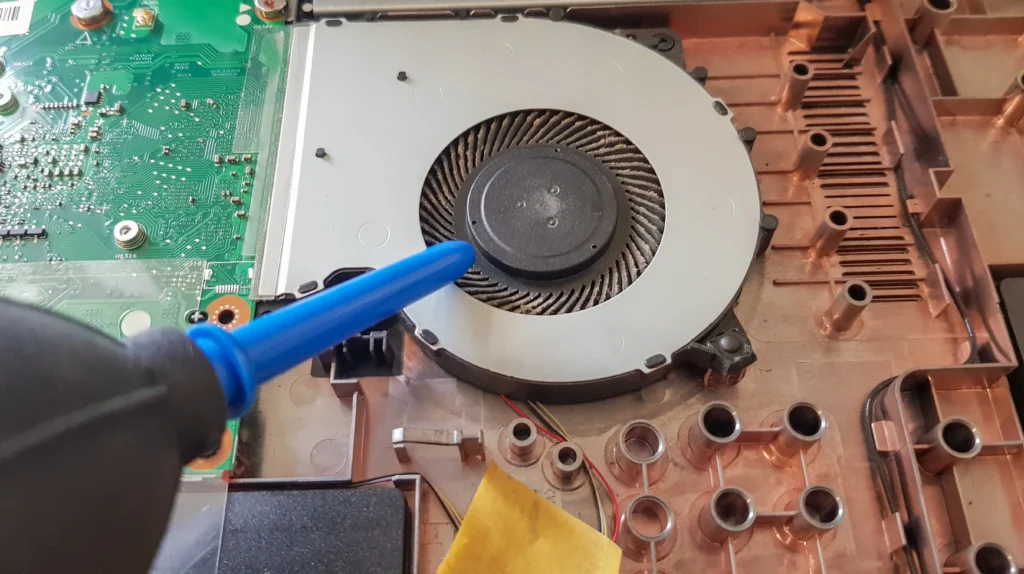
Dust can clog up the fan and vents, preventing airflow and leading to overheating. This is especially common in laptops that are frequently used in environments with a lot of dust or pet hair.
3.2. Broken or Malfunctioning Fans
Over time, fans can wear out or malfunction, leading to insufficient airflow. This often results in increased heat and fan noise, and if left unchecked, it could cause permanent damage to internal components.
3.3. Thermal Paste Degradation
Thermal paste is a substance that helps transfer heat from the processor and graphics card to the heatsink. Over time, thermal paste can dry out and lose its effectiveness, resulting in higher temperatures.
3.4. Damaged Vents or Heatsinks
The laptop’s cooling system relies on proper airflow. If vents or heatsinks become damaged, obstructed, or clogged, heat cannot be effectively dissipated, leading to overheating.
Pro Tip: Regularly clean the vents and fans using a can of compressed air to prevent dust accumulation.
4. How to Troubleshoot Overheating
Now that you know the signs and causes of a failing cooling system, let’s talk about how you can troubleshoot the issue. Here are some practical steps:
4.1. Check for Blockages and Clean the Vents
The first step in troubleshooting your laptop’s cooling system is to check for any dust, hair, or debris blocking the vents or fans. Use compressed air to gently blow out any buildup. This should improve airflow and cooling efficiency.
4.2. Monitor Your Laptop’s Temperature
Install temperature monitoring software to check the internal temperature of your CPU and GPU. If they’re running higher than the recommended range (usually between 40°C and 70°C), then the cooling system is likely struggling to do its job.
4.3. Use a Cooling Pad
Using a cooling pad with additional fans can help improve airflow and reduce the strain on your laptop’s internal cooling system. While not a permanent fix, it can temporarily help alleviate heat build-up, especially during intensive tasks like gaming or video editing.
4.4. Replace the Thermal Paste
If the thermal paste has degraded over time, it may be worth reapplying a new layer. This process involves disassembling your laptop, so if you’re not comfortable doing it yourself, it’s advisable to seek professional help.
Pro Tip: When replacing the thermal paste, ensure you use high-quality paste and apply it carefully to avoid overheating and potential damage to the CPU.
5. When to Seek Professional Help
While many cooling system issues can be addressed by DIY methods, some problems may require professional intervention. Here are a few cases where you should consult a professional:
- Fan Replacement: If the fan is completely dead or malfunctioning, a replacement might be necessary.
- Complex Overheating Issues: If troubleshooting doesn’t resolve the overheating issue, it could be an indication of a deeper problem such as a damaged motherboard or faulty heatsink.
- System Overhaul: If your laptop is old, consider a system overhaul or upgrading to a more modern laptop with a better cooling system.
6. Prolonging the Life of Your Cooling System
Taking care of your laptop’s cooling system can significantly extend its life and maintain optimal performance. Here are some additional tips to keep your laptop cool:
6.1. Keep Your Laptop Elevated
Using a laptop stand to raise the rear of the laptop slightly can improve airflow underneath, helping cool down the device.
6.2. Avoid Using Your Laptop on Soft Surfaces
Soft surfaces like beds or couches can obstruct the cooling vents, causing the laptop to overheat. Always use your laptop on a hard, flat surface.
6.3. Avoid Overworking Your Laptop
Continuous heavy use can wear out the cooling system faster. Be mindful of how much load you’re putting on your laptop. Taking short breaks can allow the cooling system to catch up and keep things cool.
Conclusion
A failing laptop cooling system is a major issue that should not be ignored. By understanding the hidden signs, common causes, and troubleshooting techniques, you can keep your laptop running smoothly and avoid costly repairs. Remember, regular maintenance and timely intervention are key to prolonging your laptop’s life and ensuring that it performs at its best.
If you’ve noticed any of the symptoms mentioned in this post, it’s crucial to take action immediately. Clean the vents, monitor your laptop’s temperature, and replace the thermal paste if necessary. In more severe cases, don’t hesitate to consult a professional. By being proactive, you can prevent overheating from ruining your device and keep it running at peak performance for years to come.
FAQ
-
What causes my laptop to overheat?
Laptops overheat due to poor airflow, dust accumulation, broken fans, or degraded thermal paste.
-
How can I clean my laptop’s cooling system?
Use a can of compressed air to blow out dust and debris from the vents and fan.
-
What’s the ideal temperature range for my laptop?
The safe operating temperature is typically between 40°C and 70°C for most laptops.
-
Should I replace my laptop’s fan myself?
If you’re experienced with laptop repairs, you can replace the fan yourself. If not, it’s better to consult a professional.
-
Can overheating damage my laptop?
Yes, prolonged overheating can cause permanent damage to your laptop’s components, such as the motherboard, hard drive, or battery.
-
How often should I clean my laptop’s cooling system?
It’s a good idea to clean the cooling system every 3-6 months, depending on the environment and usage.
-
When should I seek professional help for cooling issues?
If the problem persists after troubleshooting, or if the cooling system requires complex repairs like fan replacement or thermal paste reapplication, seek professional assistance.

