
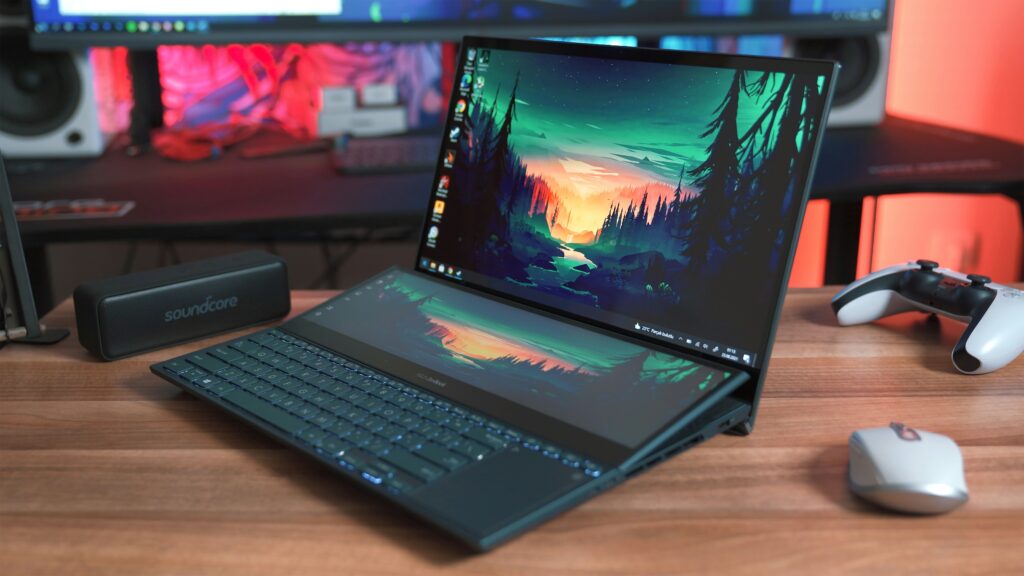
Have you ever been in the middle of an intense gaming session, only for your laptop to freeze, overheat, or slow down dramatically? You’re not alone. Many gamers, especially those using high-end laptops in Las Vegas, encounter issues that affect their gameplay experience. Whether you’re facing performance drops, overheating problems, or simply a laptop that’s not living up to expectations, gaming laptop repair can help.
The problem is clear: gaming laptops, while designed for powerful performance, are prone to issues that can hinder your experience. But don’t worry; in this guide, we’ll dive deep into the most common issues and provide practical solutions for fixing them. By the end, you’ll understand how to restore your gaming rig to peak performance, save money on costly repairs, and enjoy smoother gameplay once again.
Common Gaming Laptop Issues and How to Fix Them
-
What Are the Causes of GPU Overheating in Gaming Laptops?
One of the most common issues with gaming laptops is GPU overheating. Your laptop’s GPU (Graphics Processing Unit) is responsible for rendering high-quality graphics, especially during gaming. When it overheats, it can lead to performance drops, crashes, or even permanent damage.
Why Does This Happen?
- Dust buildup: Over time, dust accumulates in the fans and vents, restricting airflow. This causes the GPU to overheat as it struggles to keep cool.
- Poor thermal paste application: If the thermal paste that conducts heat away from the GPU is worn out, the heat can’t dissipate effectively.
- Heavy gaming sessions: Intense gaming sessions push the GPU to its limits, making it more susceptible to overheating.
Fixes for GPU Overheating:
- Clean the vents and fans: Regularly clean out the vents and fans using compressed air to remove dust. This will improve airflow and prevent overheating.
- Reapply thermal paste: If you’re comfortable opening your laptop, consider reapplying thermal paste to the GPU to ensure efficient heat transfer.
- Use a cooling pad: A laptop cooling pad provides additional airflow to reduce the strain on your laptop’s cooling system.
- Adjust game settings: Lowering in-game graphics settings or frame rates can reduce the GPU workload, which in turn minimizes overheating.
-
How Can You Improve Gaming Performance on Your Laptop?
Even with the most advanced gaming laptop, performance issues can arise, especially if you’re playing resource-heavy games. Lag, low frame rates, and stuttering are all signs that your laptop isn’t performing as it should.
Why Does This Happen?
- Outdated drivers: Graphics drivers play a crucial role in the performance of your GPU. If they’re outdated, your laptop may not be able to deliver the best performance.
- Insufficient RAM: Games these days require large amounts of memory to run smoothly. If your laptop doesn’t have enough RAM, it can struggle to keep up with demanding titles.
- Background processes: Running too many applications in the background can consume valuable system resources and slow down your game.
Fixes for Improving Gaming Performance:
- Update drivers regularly: Make sure to keep your graphics drivers up-to-date for optimal performance. Manufacturers like Nvidia and AMD release performance-enhancing driver updates regularly.
- Upgrade RAM: If your laptop allows for RAM upgrades, consider adding more memory to improve game performance. Many modern games benefit from 16GB or more of RAM.
- Close unnecessary applications: Before gaming, close all background applications to free up resources for your game.
- Optimize in-game settings: Adjusting the settings in-game, like lowering the resolution or turning off extra effects, can significantly improve frame rates.
-
Why Does Your Laptop Keep Crashing During Gameplay?
Game crashes are frustrating, especially when you’re deeply invested in a match or campaign. These crashes may happen due to a variety of reasons, such as software issues or hardware malfunctions.
Common Causes:
- Overheating: As mentioned earlier, overheating can cause your laptop to shut down unexpectedly to prevent damage.
- Driver conflicts: Conflicts between graphics drivers or corrupted files can lead to crashes.
- Power supply issues: If your laptop isn’t getting enough power, it might not be able to sustain the high demand of gaming.
Fixes for Laptop Crashes:
- Monitor your temperature: Use software tools like HWMonitor to keep an eye on your laptop’s temperature. If it’s overheating, take the steps mentioned earlier to cool it down.
- Reinstall graphics drivers: Uninstall and reinstall your graphics drivers to fix any corruption or conflicts. This may help with crashes related to driver issues.
- Check power settings: Ensure your laptop is plugged into a power source and adjust your power settings to “High Performance” mode to ensure it’s getting enough juice for gaming.
-
What to Do If Your Laptop’s Battery Dies Quickly During Gaming?
Gaming laptops are known for draining battery life quickly due to the high power demands of gaming. But what happens if your battery starts draining too fast, even when you’re not gaming?
Common Causes:
- Old or degraded battery: Over time, laptop batteries lose their ability to hold a charge.
- Power-hungry applications: Certain applications or processes running in the background can drain your battery faster.
- Power settings: If your laptop is set to low power or battery-saving mode, it may throttle performance to save energy, which can drain the battery faster.
Fixes for Improving Battery Life:
- Replace the battery: If your battery is old and doesn’t hold a charge, it might be time to replace it with a new one.
- Optimize power settings: Switch to a “Balanced” or “High Performance” power plan, which helps the laptop optimize battery life while gaming.
- Disable background apps: Close any unnecessary programs that are using up your battery and power.
-
Can Malware Affect Gaming Laptop Performance?
Yes, malware can drastically reduce the performance of your gaming laptop. If you’re experiencing lag or strange behavior, malware might be to blame.
How Does Malware Affect Performance?
- Excessive CPU usage: Malware often runs in the background, consuming CPU resources and slowing down your laptop.
- Network congestion: Some malware can use your internet connection, which can cause lag during online gaming.
Fixes for Malware Issues:
- Run a full malware scan: Use a reliable antivirus program to scan for and remove any malware on your system.
- Use a firewall: A firewall can help prevent unauthorized access to your computer while gaming.
- Stay updated: Keep your operating system and software up-to-date to minimize vulnerabilities that could be exploited by malware.
-
When Should You Seek Professional Gaming Laptop Repair?
While many of these issues can be resolved at home, some problems require professional help. If you’re not comfortable opening your laptop or if your warranty is still active, it’s best to seek professional gaming laptop repair.
When to Visit a Professional:
- Severe overheating: If cleaning the vents and reapplying thermal paste doesn’t solve the problem, your cooling system might be damaged, requiring professional attention.
- Hardware malfunctions: Issues with your laptop’s motherboard, GPU, or power supply often require expert knowledge to fix.
- Persistent crashes: If your laptop keeps crashing despite troubleshooting software issues, a professional repair technician may need to diagnose potential hardware problems.
Conclusion: Keep Your Gaming Laptop in Top Shape
In conclusion, gaming laptops, like any high-performance machines, can encounter issues ranging from GPU overheating to power problems. However, by identifying the root cause and applying the right fix, you can restore your laptop to peak performance. Whether you’re cleaning the vents, updating drivers, or seeking professional help, the key is to take proactive steps to address these issues before they worsen.
If you’re experiencing persistent issues that you can’t resolve, don’t hesitate to contact a professional for a thorough gaming laptop repair. Your investment in gaming shouldn’t be hindered by unnecessary technical problems.
FAQ: Common Gaming Laptop Repair Questions
-
How can I prevent GPU overheating in my gaming laptop?
Regularly clean the vents, use a cooling pad, and reapply thermal paste if necessary to prevent GPU overheating.
-
Why is my gaming laptop’s performance so poor?
Outdated drivers, insufficient RAM, and too many background applications can all contribute to poor gaming performance.
-
Can a failing battery affect my laptop’s gaming performance?
Yes, a battery that drains quickly can force your laptop to enter power-saving mode, reducing gaming performance. Consider replacing the battery if it’s old.
-
What should I do if my laptop crashes during gameplay?
Monitor temperatures, reinstall drivers, and ensure your laptop is connected to a reliable power source to avoid crashes during gameplay.
-
How do I know when to take my gaming laptop to a repair professional?
Seek professional help if you’re dealing with hardware malfunctions, persistent crashes, or severe overheating that can’t be fixed with basic troubleshooting.

