How to Back Up Your Laptop Before Repair
Before sending a laptop for repair, backing up important files is one of the best preparation steps you can take. Most hardware repairs do not require deleting personal data, but problems involving storage drives, operating systems, motherboard faults, power failures, or unexpected hardware damage can make files difficult to access.
A good backup gives you a separate copy of important documents, photos, work files, school projects, application data, and other information before the laptop leaves your possession.
This guide explains how to back up laptop data before repair, what files to save, how to verify your backup, and what options you may have if the laptop is already damaged or will not start.
If your laptop already needs professional attention, learn more about our mail-in laptop repair service.
What Should You Back Up Before Laptop Repair?
Start with files that would be difficult or impossible to replace.
Important data may include:
- Documents
- Photos and videos
- Work files
- School or university projects
- Desktop files
- Downloads you want to keep
- Saved application files
- Browser bookmarks
- Email archives stored locally
- Financial or business records
- Creative projects
- Game saves stored locally
- Password-manager backups, where applicable
- Important configuration files
You do not necessarily need to copy every temporary or system file on the laptop.
The priority is creating a reliable copy of personal and important data.
How to Back Up All Important Data on a Laptop
There are several ways to back up a laptop.
The best method depends on:
- How much data you have
- Whether the laptop is still working normally
- Your internet speed
- Whether you have an external drive
- How soon the laptop needs to be shipped
- Whether the storage drive is showing signs of failure
For particularly important files, using more than one backup location can provide additional protection.
Option 1: Back Up Your Laptop to an External Drive
An external hard drive or SSD is one of the simplest ways to create a local backup.
Step 1 — Connect the External Drive
Connect a USB external hard drive or SSD with enough free space for the files you want to save.
Step 2 — Locate Your Important Folders
Common locations include:
- Desktop
- Documents
- Downloads
- Pictures
- Videos
- Music
- Project folders
- Work folders
If you store files in other custom locations, include those as well.
Step 3 — Copy the Files
Copy the important folders to the external drive.
Instead of moving files, copy them so the original versions remain on the laptop.
Step 4 — Wait for the Transfer to Finish
Do not disconnect the drive while files are still being transferred.
Large backups can take longer depending on:
- Amount of data
- USB connection speed
- External-drive performance
- Condition of the laptop’s internal storage
Step 5 — Verify the Backup
Open several files directly from the external drive.
Check:
- Documents open correctly
- Photos can be viewed
- Videos play
- Important project folders are present
Seeing file names in a backup is not enough. Verify that important files can actually be opened.
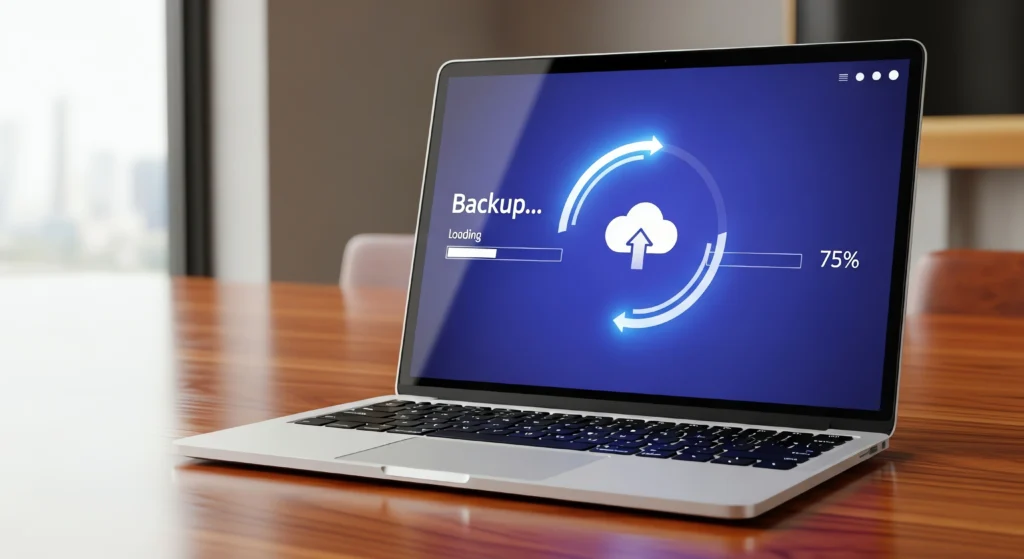
Option 2: Back Up Laptop Data to Cloud Storage
Cloud storage can be useful when you do not have an external drive or want an additional copy of important files.
Common cloud-storage systems can synchronize folders such as:
- Desktop
- Documents
- Photos
- Project folders
Before relying on cloud storage, confirm that the files have fully uploaded.
A synchronization icon or local folder does not always mean the entire file is safely stored online.
Check Your Cloud Backup Before Shipping
Sign in from another device if possible and verify that important files are visible and accessible.
Cloud backup speed depends heavily on your internet connection and the amount of data being uploaded.
For large photo, video, or project libraries, an external drive may be faster.
Option 3: Use Windows Backup Features
Windows laptops can provide built-in tools for backing up or synchronizing certain files.
Depending on your version of Windows and account settings, you may be able to protect:
- Documents
- Desktop files
- Pictures
- Settings
- Other selected data
Even when using an automated backup feature, verify that the files you care about are actually included.
Do not assume everything on the computer is being backed up automatically.
Should You Back Up the Entire Laptop or Just Important Files?
For most users preparing for repair, backing up important personal files is the priority.
A complete system image may include:
- Windows
- Installed programs
- System settings
- Personal files
- Configuration information
This can be useful in some situations, but it requires more storage and can take considerably longer.
If your primary concern is protecting personal data before repair, copying important files to a safe second location may be sufficient.
How to Back Up a Laptop Before Formatting or Reinstalling Windows
If the repair may require an operating-system reinstall, backup becomes especially important.
Before formatting or reinstalling the operating system, save:
- Documents
- Photos
- Videos
- Desktop files
- Downloads you need
- Project folders
- Browser bookmarks
- Application-specific data
- Product keys or license information where required
- Locally stored email data
- Any files stored outside normal user folders
Also confirm that you know the login information for important online accounts.
Once a drive has been formatted or the operating system has been reinstalled, recovering files may become much more difficult.
How to Back Up Before Replacing an HDD or SSD
If your laptop’s hard drive or SSD may need replacement, back up important files before the existing drive fails completely, whenever possible.
Warning signs of storage problems can include:
- Files becoming corrupted
- Very slow loading
- Frequent freezes
- Boot problems
- Operating-system errors
- Missing files
- Drive-related warnings
- Unusual noises from a mechanical hard drive
If the drive appears unstable, avoid repeatedly copying unnecessary files before your most important information.
Prioritize irreplaceable data first.
How to Back Up Data From a Broken Laptop
A broken laptop does not necessarily mean the files are lost.
Your options depend on what is damaged.
Laptop Works but Has Physical Damage
If the laptop still boots and you can access your files, create a backup normally before sending it for repair.
Do this as soon as practical because an unstable hardware problem can worsen.
Laptop Turns On but the Screen Is Broken
If the laptop starts normally but the built-in screen is damaged, connecting an external monitor may allow you to access the system and back up your files.
If the screen requires professional repair, see our laptop screen repair service.
Laptop Will Not Turn On
When the laptop receives no power, normal file backup may not be possible.
The cause could involve:
- Charging system
- Battery
- Motherboard
- Internal power circuitry
- Another hardware component
The storage device may still contain intact data even if another part of the laptop has failed.
For no-power or board-related problems, see our laptop motherboard repair service.
Storage Drive Has Failed
If the hard drive or SSD itself is damaged, repeatedly attempting to boot or access it may not be appropriate.
The available recovery options depend on:
- Type of storage
- Extent of failure
- Encryption
- Physical condition
- Whether the storage is removable or integrated into the motherboard
Professional diagnosis may be required before determining whether data can be recovered.
What If the Laptop Has a Broken Screen?
A cracked or failed screen does not automatically mean your files are inaccessible.
If the laptop still starts, you may be able to:
- Connect an external monitor or television.
- Sign in normally.
- Connect an external backup drive.
- Copy your important files.
- Verify the backup before shutting the laptop down.
If there is no display on either the laptop screen or an external monitor, the problem may involve graphics hardware, the motherboard, or another internal component rather than only the display panel.
What If the Laptop Is Not Charging?
A charging problem can make backup difficult if the remaining battery power is limited.
If the laptop still operates:
- Prioritize your most important files.
- Connect a known-compatible charger if available.
- Avoid unnecessary software or background tasks.
- Copy critical files first.
A laptop that will not charge may have a battery, charger, charging port, USB-C power-delivery, or motherboard problem.
See our laptop charging port repair service if the connector is loose, damaged, or only charges at certain angles.
How Long Does It Take to Back Up a Laptop?
Backup time varies considerably.
It depends on:
- Amount of data
- Internal drive speed
- External-drive speed
- USB connection
- Internet upload speed for cloud backups
- Number and size of files
- Condition of the laptop’s storage drive
A small set of documents may copy quickly, while hundreds of gigabytes of photos, videos, or project files can take much longer.
Start the backup well before you need to pack and ship the laptop.
How to Verify Your Laptop Backup
This step is easy to skip, but it is one of the most important.
After the backup finishes:
Check That Important Folders Exist
Confirm that folders such as Documents, Pictures, Desktop, and project directories are present.
Open Several Files
Try opening:
- A document
- A photo
- A video
- An important project file
Check File Sizes
Files showing a size of zero or unusually small sizes may not have copied correctly.
Check Cloud Files From Another Device
If you used cloud storage, sign in from another computer or phone and confirm that the important files are available.
Keep the Backup Separate
Do not pack your backup drive in the same box as the laptop you are sending for repair.
Keep your backup at home or another secure location.
The purpose of a backup is to have a separate copy.
Should You Delete Personal Data Before Laptop Repair?
You do not necessarily need to erase the entire laptop before repair.
Whether removing personal data is practical depends on:
- Type of repair
- Whether the laptop is operational
- Whether diagnostic testing requires access to the operating system
- Sensitivity of the information stored on the device
Before sending the laptop, you can consider:
- Signing out of unnecessary accounts
- Removing highly sensitive files after confirming they are backed up
- Removing saved payment information where practical
- Providing only the access information genuinely required for diagnosis
Do not erase important information until you have confirmed that the backup works.
Should You Give the Repair Technician Your Password?
Some repairs can be diagnosed without access to the operating system, while others may require login access to reproduce a problem or test the laptop after repair.
If access is required, provide only what is necessary for the repair.
You can also include relevant instructions with your repair request.
Avoid sending unrelated account passwords or information that is not needed for diagnosis.
Should You Back Up Data Before a Hardware Repair?
Yes, whenever possible.
Even if the repair appears unrelated to storage, having a current backup is good practice.
Hardware repairs involving:
- Motherboards
- Batteries
- Screens
- Charging ports
- Keyboards
- Cooling systems
normally do not require deleting personal files, but unexpected hardware problems can occur.
A separate copy of important data reduces unnecessary risk.
Should You Back Up Before Shipping Your Laptop?
Yes.
Complete the backup before sealing the shipping box, whenever the laptop remains operational.
After backing up:
- Verify important files.
- Shut down the laptop completely.
- Disconnect unnecessary accessories.
- Follow the recommended packing instructions.
- Keep your external backup drive with you.
See our laptop shipping instructions before sending your device.
What Should You Do If You Cannot Back Up the Laptop?
If your laptop is:
- Completely dead
- Unable to boot
- Severely damaged
- Experiencing drive failure
- Showing only a black screen
- Shutting down before files can be copied
do not assume your files are automatically lost.
Tell the repair team that important data is stored on the device when submitting your repair request.
Avoid repeatedly attempting procedures that could worsen an unstable storage device.
Professional diagnosis can determine whether the laptop can be made operational enough to access the data or whether additional recovery options may be necessary.
How Our Nationwide Mail-In Repair Process Works
Step 1 — Back Up Important Files
Create and verify your backup whenever the laptop is still operational.
Step 2 — Submit a Repair Request
Tell us:
- Laptop brand and model
- Problem you are experiencing
- Whether important data is stored on the device
- Whether the laptop currently boots
Step 3 — Pack and Ship Your Laptop
Follow our packing and shipping instructions.
Customers are responsible for inbound shipping charges.
Step 4 — Free Diagnostic and Quote
We inspect the laptop and identify the fault.
A clear repair quote is provided before approved work begins.
Step 5 — Repair and Testing
After approval, the required repair is completed using OEM equivalent replacement parts where replacement components are required.
The device is then tested according to the original reported problem.
Step 6 — Free Return Shipping
After the completed repair, Nationwide Laptop Repair covers return shipping within the USA.
Frequently Asked Questions
What is the best way to back up laptop data before repair?
For many users, copying important files to an external drive is the simplest option. Cloud storage can provide an additional copy. Whichever method you use, verify that important files can actually be opened before shipping the laptop.
How do I back up all the data on my laptop?
Identify the folders and files you need to preserve and copy them to an external drive or synchronized cloud-storage location. Users who need a complete system backup may use operating-system backup tools or a system-image solution.
Should I back up my laptop before repair?
Yes, whenever possible. Even if the repair does not involve the storage drive, keeping an independent copy of important files is good practice.
How can I back up data from a broken laptop?
If the laptop still boots, use an external drive or cloud storage. If the screen is broken, an external monitor may allow access. If the laptop will not turn on, professional diagnosis may be necessary before the files can be accessed.
Can I back up a laptop with a broken screen?
Often, yes. If the laptop otherwise operates normally, connecting an external monitor may allow you to access the operating system and copy your files.
What if my laptop will not turn on?
If the laptop has no power, you may not be able to perform a normal backup. The files may still be intact on the storage device, depending on the underlying fault and condition of the drive.
Should I remove my files before sending a laptop for repair?
You can remove sensitive files after creating and verifying a backup if the laptop remains usable. Whether this is necessary depends on the repair and your own privacy requirements.
How long does a laptop backup take?
It depends on the amount of data, storage-device speed, backup method, and—in the case of cloud backup—your internet upload speed.
Should I send my external backup drive with the laptop?
No. Keep the backup drive separate from the laptop. If both are shipped together and the package is lost or damaged, the purpose of having a separate backup is defeated.
Ready to Send Your Laptop for Repair?
Once your important files are safely backed up, the next step is getting the laptop properly diagnosed.
Nationwide Laptop Repair provides professional mail-in repair for customers across the USA, with a free diagnostic, a clear quote before approved work begins, OEM equivalent replacement parts where required, and free return shipping after the completed repair.