
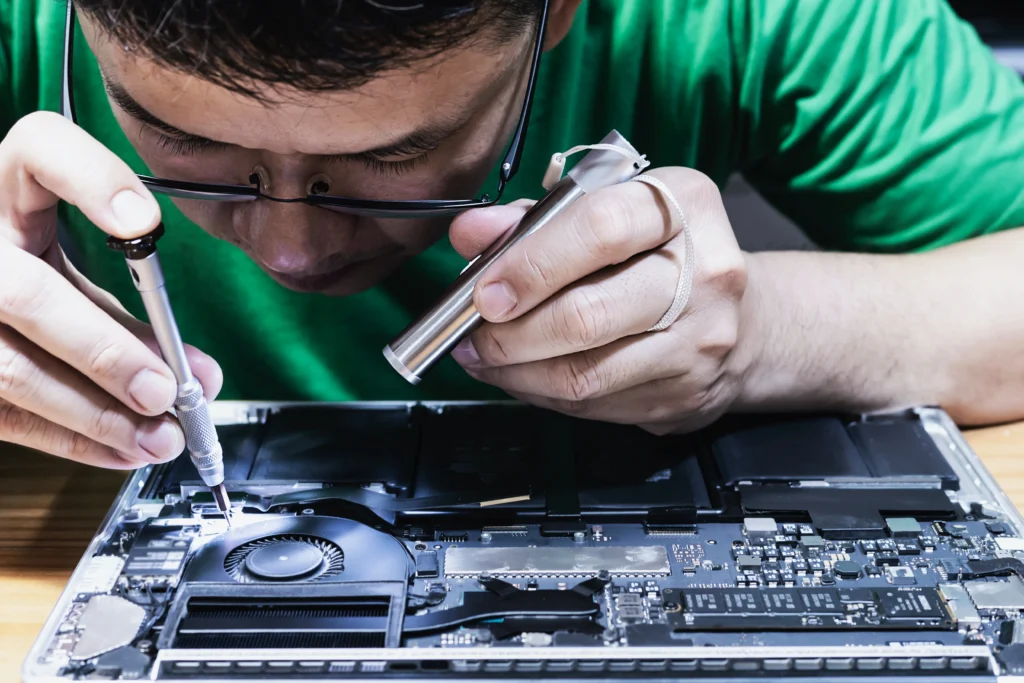
Is your laptop acting up again? You’re not alone. Many of us push through slowdowns, glitches, and hardware issues, hoping they’ll magically fix themselves. But here’s the truth: ignoring the signs your laptop needs professional repair can lead to bigger, costlier problems down the line. Whether you’re working remotely, managing your business, or simply enjoying some downtime, a malfunctioning laptop can disrupt your day-to-day tasks.
Let’s dive into the key signs that your laptop may need professional repair, and why ignoring these signs can be a costly mistake. In this blog, you’ll gain insights into recognizing the warning signals and understanding when it’s time to bring in the experts for a proper diagnosis.
Table of Contents
- What Are the Most Common Signs Your Laptop Needs Professional Repair?
- Is Your Laptop Running Slowly? It Could Be More Than Just Software
- Why Is Your Laptop Overheating, and What Should You Do About It?
- Strange Noises from Your Laptop: What Are They Telling You?
- Is Your Laptop’s Battery Draining Too Quickly?
- When Your Laptop’s Screen Goes Blank: Causes and Solutions
- The Importance of Professional Repair for Internal Hardware Damage
- Can You Avoid Laptop Repair? Signs You Can DIY
- Conclusion: When to Seek Professional Laptop Repair
What Are the Most Common Signs Your Laptop Needs Professional Repair?
Let’s face it, your laptop is a critical tool for both personal and professional use. And when it starts to malfunction, it can bring everything to a standstill. Some common signs that indicate your laptop may need professional repair include:
- Unexpected shutdowns or crashes: If your laptop keeps shutting down for no apparent reason, it could be a serious hardware issue like a failing hard drive or overheating problems.
- Slow performance: This might seem like a minor issue, but when your laptop consistently lags, it could indicate problems with the hard drive, RAM, or even malware.
- Flickering screen or graphical glitches: These could be signs of a failing graphics card or a loose internal connection.
- Unresponsive keyboard or trackpad: This could mean there is a problem with the keyboard’s connection to the motherboard or a software glitch.
- Error messages or system crashes: If your laptop frequently shows error codes, or the system fails to boot, it’s time for professional intervention.
Is Your Laptop Running Slowly? It Could Be More Than Just Software
At some point, most of us experience that dreaded sluggishness when working on our laptops. It’s easy to blame it on the number of apps you have open or the heavy files you’re working with. But if you notice your laptop lagging persistently even after a restart or software optimization, it’s time to investigate deeper.
What Could Be Causing Your Laptop to Slow Down?
- Hardware limitations: Over time, your laptop’s RAM, processor, or hard drive might simply not be powerful enough to handle your workload. This is especially common for older models.
- Overheating: If your laptop is running too hot, the processor may be throttling its performance to avoid damage. This can significantly slow things down.
- Outdated drivers or software: A simple fix might involve updating drivers or removing unnecessary software. However, if your laptop is still sluggish after updates, there may be an underlying hardware issue.
Pro Tip: If you’re not tech-savvy, a professional can run diagnostic tests to pinpoint whether it’s a software or hardware issue.
Why Is Your Laptop Overheating, and What Should You Do About It?
Overheating is one of the most common—and damaging—issues laptops face. A laptop that runs too hot can lead to permanent hardware damage if left unchecked. Here’s why overheating happens and what to do about it:
Common Causes of Overheating
- Blocked air vents: Dust or debris blocking the internal cooling system can trap heat inside.
- Broken cooling fan: If the fan isn’t working properly, the laptop can’t cool down effectively.
- High-performance settings: Running high-demand applications on battery or using power-intensive software without adequate cooling can overtax the system.
What to Do About It?
- Clean the vents: Blow out dust from the cooling vents or use a can of compressed air.
- Replace the thermal paste: Over time, thermal paste degrades, reducing heat transfer efficiency. This might require a professional to handle.
- Replace or repair the cooling fan: A broken fan requires professional repair to replace.
Expert Insight: If your laptop consistently overheats, it’s crucial to address it promptly. Overheating can cause long-term damage to vital components like the processor and motherboard.
Strange Noises from Your Laptop: What Are They Telling You?
Hearing strange noises coming from your laptop? Clicking, grinding, or buzzing sounds are not normal, and they often signal issues that require attention. Here’s a breakdown of what different sounds might mean:
- Clicking noises: Often a sign of a failing hard drive. Hard drives with moving parts are vulnerable to wear, and those clicking noises may indicate physical damage.
- Whirring or buzzing: This could mean the cooling fan is failing, or dust buildup is obstructing airflow.
- Static or crackling sounds: If you hear this from your speakers, it could be a sign of an issue with the sound card or software conflicts.
Actionable Tip: Back up your important files immediately if you hear clicking from the hard drive. This often signals impending failure, and you’ll want to safeguard your data before a total failure occurs.
Is Your Laptop’s Battery Draining Too Quickly?
A laptop battery that drains too quickly isn’t just annoying; it can indicate a problem that may require professional repair. Here’s why it happens and how to address it:
- Battery aging: Over time, the battery’s capacity will degrade, especially after hundreds of charge cycles. This is a normal process but can be sped up by improper charging habits.
- Malware or background apps: Certain applications or malware can consume a lot of power, causing the battery to drain faster.
- Faulty power management: Sometimes, the issue lies in the software not correctly managing the battery’s power usage, which might require a technician’s help to resolve.
Pro Tip: If your laptop’s battery is draining fast despite a software fix, it’s worth getting the battery replaced by a professional.
Causes and Solutions: When Your Laptop’s Screen Goes Blank?
A blank or black screen can be a nightmare, especially when you need to get work done. This could be caused by several factors:
- Loose cables or connections: A loose connection between the motherboard and the screen can cause the display to go black.
- Graphics card failure: If your laptop’s GPU is failing, it may cause display issues.
- Software or operating system failure: A corrupted OS can also result in a blank screen.
Pro Tip: Try connecting your laptop to an external monitor. If it displays correctly, your laptop’s screen or cable connections are likely the issue. A professional technician can help diagnose and fix this problem.
The Importance of Professional Repair for Internal Hardware Damage
While many of the signs above may seem like simple fixes, some issues are more severe and involve internal hardware damage. Here’s why professional repair is crucial:
- In-depth diagnostics: Technicians can run diagnostic tests that reveal underlying problems not immediately visible to the user.
- Expertise in component repair: Professional repair specialists have the necessary tools and knowledge to fix internal components like the motherboard, RAM, or graphics card.
- Warranty protection: Attempting to repair your laptop on your own could void any existing warranty. Having a professional handle repairs ensures the work is covered under warranty.
Real-World Example: One of our clients brought in a laptop that had been overheating frequently. After running tests, our technician found a faulty motherboard. It was repaired professionally, saving the client the cost of a new laptop.
Can You Avoid Laptop Repair? Signs You Can DIY
While some issues can be handled at home, many signs indicate the need for professional intervention. However, there are some issues that you can troubleshoot yourself:
- Software-related slowdowns: Cleaning up your system or reinstalling the OS can often resolve performance issues.
- Loose connections: Sometimes, re-seating memory or storage drives can fix problems with booting.
- Battery issues: If the issue is purely software-related (i.e., power settings or background apps), you may be able to fix it on your own.
Actionable Takeaway: Always start by troubleshooting the easy stuff. If it doesn’t work, consult a professional before the issue worsens.
Conclusion: When to Seek Professional Laptop Repair?
Recognizing the signs that your laptop needs professional repair is crucial to maintaining its longevity and performance. From slowdowns and overheating to strange noises and blank screens, each sign is a clue that something is wrong beneath the surface. While some issues are minor and can be fixed with basic troubleshooting, many problems—especially those involving internal hardware—require professional intervention.
Take action today—if you’ve noticed any of these signs, don’t wait until your laptop completely breaks down. Reach out to a qualified technician to get your laptop back in working order.
FAQ Section
- How do I know if my laptop battery needs replacing?
If your laptop battery drains too quickly, struggles to charge fully, or powers off unexpectedly, it may be time for a replacement. - Can I repair my laptop screen myself?
Unless you have technical expertise, replacing a laptop screen is best left to professionals to avoid further damage. - Why does my laptop keep crashing?
Frequent crashes can indicate faulty RAM, a failing hard drive, or a software issue. It’s important to have it diagnosed by a technician. - Is it worth repairing an old laptop?
If your laptop is more than 5 years old and the repair costs are high, it may be more cost-effective to replace it. - Can I clean my laptop to prevent overheating?
Yes, cleaning the cooling vents and ensuring proper airflow can help prevent overheating, but professional repairs may be necessary for internal issues like a broken fan.

